.jpg?fit=max&auto=format&n=E2LlsT5gBITvo732&q=85&s=ec11e1673894bdf46663a5d73602eb87)

Step 1: Generate an SSH key pair
To connect securely, you first generate an SSH key pair on your local device. (SFTP uses Secure Shell as the underlying protocol for authentication and encryption.) To do this, follow these steps:- Open your system’s terminal or command-line tool:
- Microsoft Windows: Use Command Prompt or PowerShell.
- Apple macOS and Linux: Use Terminal.
- At the command prompt, type the following command:
- When you are prompted:
i. Press Enter to accept the default location (usually ~/.ssh/id_rsa or similar).
ii. Leave the passphrase empty. - After the key pair is generated, to view and copy your public key type the following command:
You will need the public key in the next procedure.
Step 2: Add the public key in the hosting.com Dashboard
To add your public key in the hosting.com Dashboard, follow these steps:- Log in to the Hosting Panel at https://my.hosting.com.
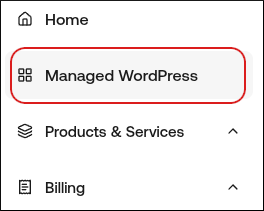
- In the left sidebar, click Managed WordPress:
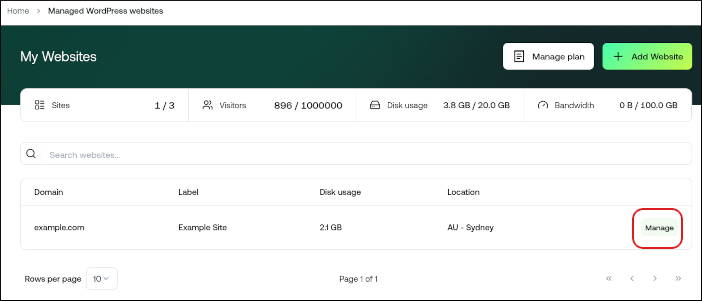
- On the My Websites page, locate the site for which you want to enable SSH, and then click Manage:
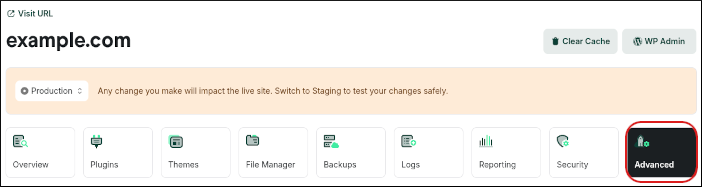
- On the hosting.com dashboard, click the Advanced icon:
- In the Advanced Settings section, click the SSH Access slider (if it is not already enabled):

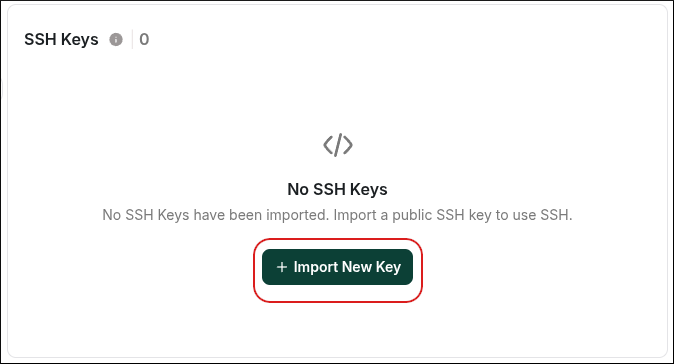
- Click Import New Key:
- In the Import New Key dialog box, in the Key Name text box, type a descriptive name for the key.
- Leave the Key Passphrase text box blank.
- In the Key text box, paste the public key.
- Click Import.
- After you import the key, authorize it by clicking the three-dots menu next to the key and selecting Authorize.
Step 3: Set up your SFTP client (FileZilla)
Now that your public key is configured in the hosting.com Dashboard, it’s time to connect using an SFTP client. The following procedure demonstrates how to configure FileZilla:- Start FileZilla.
- On the Edit menu, click Settings.
- In the Settings dialog box, in the left sidebar, click SFTP:
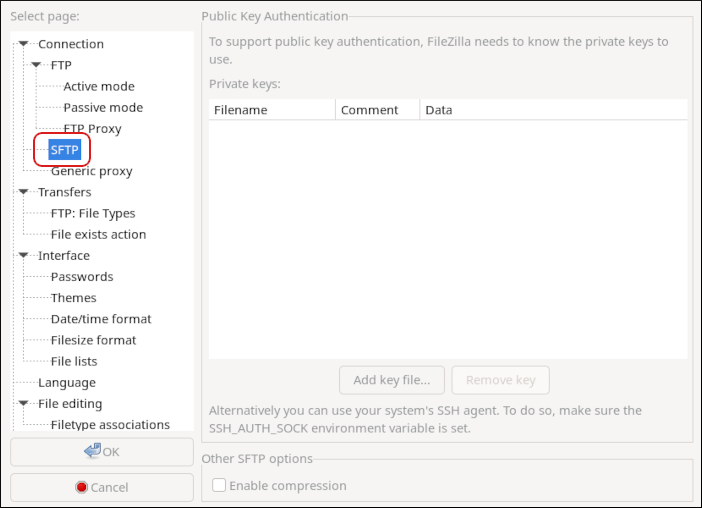
- Click Add key file.
- Select the private key file (id_rsa or the file you generated earlier).
📘 Note If you are using FileZilla on Windows, you may need to convert the key to .ppk format using PuTTYgen.
- Close the Settings dialog box.
- On the File menu, click Site Manager. The Site Manager dialog appears.
- Click New Site, type a name for the site, and then press Enter.
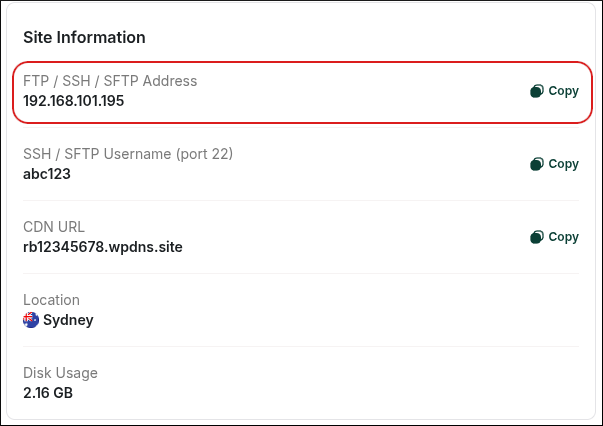
- In the Host text box, type your server IP address.
👍 Tip You can find the server IP address on the General tab in the Site Information section, just above the FTP Accounts section:
- In the Port text box, type
22. - In the Protocol list box, select SFTP - SSH File Transfer Protocol.
- In the Logon Type list box, select Normal.
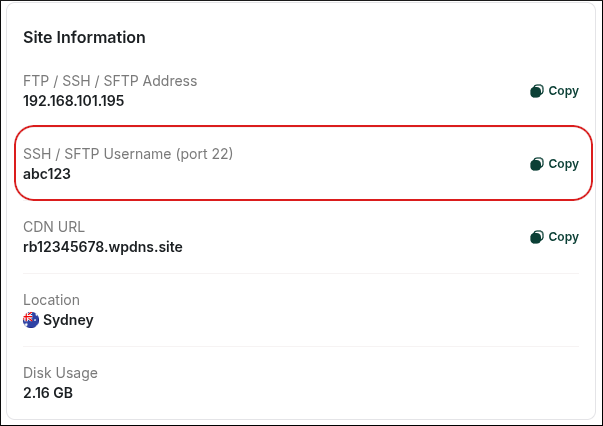
- In the User text box, type your SFTP username.
👍 Tip You can find the SFTP username on the General tab in the Site Information section, just above the FTP Accounts section:
- Leave the Password text box blank.
- Click Connect. After a few seconds, FileZilla establishes the connection.