.jpg?fit=max&auto=format&n=E2LlsT5gBITvo732&q=85&s=ec11e1673894bdf46663a5d73602eb87)
- Common file locations for high disk usage.
- How to identify high disk usage locations.
- How to reduce high disk usage.
Common high disk usage locations
High disk usage can occur anywhere in a hosting account. However, there are some common places to check:- Databases : Databases can grow to very large sizes, particularly when they are part of a web application like WordPress or Magento. For information about how to optimize various web applications, please see these articles.
- Backups : Backups are another common cause of high disk usage. Rotating backups and transferring them to another location (not on your account) is a good way to help reduce disk usage.
- Media files : MP3, video, and other types of multimedia files can take up very large amounts of disk space.
- Email messages : Email messages can accumulate for years, with no one ever cleaning them out. Consider downloading and archiving old messages so you can delete them on the server and free up disk space.
- Cron jobs : Automated scripts and cron jobs can quickly use up disk space. For example, consider a recursive backup, such as a script that creates a backup of a backup. This type of runaway process will quickly create files of increasing size and fill the disk.
Viewing and identifying high disk usage locations
Viewing and identifying high disk usage locations is easy with the Disk Usage tool in cPanel. The Disk Usage tool calculates how much disk space your account’s directories and databases are using. You can also sort directories by disk space usage, which makes it easy to find high disk usage locations. For detailed information about how to use the Disk Usage tool in cPanel, please see this article.Reducing high disk usage
After you have identified locations of high disk usage, you are ready to reclaim disk space by cleaning out unneeded files and directories. The cPanel File Manager makes this easy to do:-
Log in to cPanel.
📘 Note If you do not know how to log in to your cPanel account, please see this article.
-
On the Tools page, in the Files section, click File Manager:

-
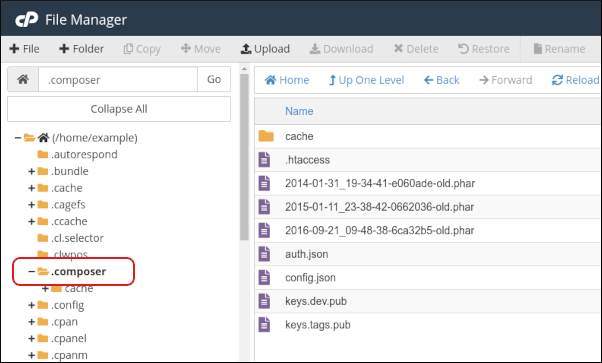
In the left sidebar, click the name of the directory that you want to open. The directory’s contents appear in the right pane:
-
To delete a file, follow these steps:
-
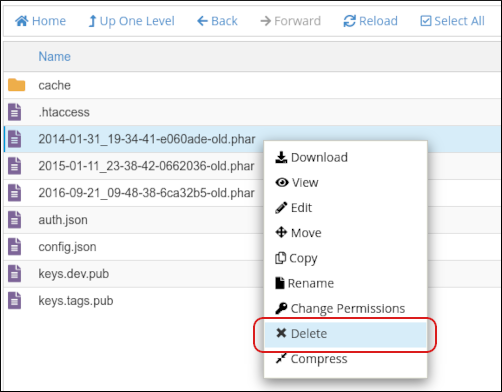
Right-click the file, and then click Delete:
-
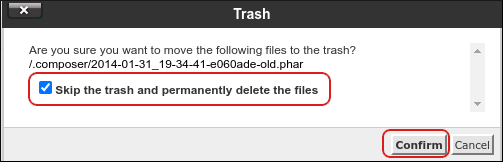
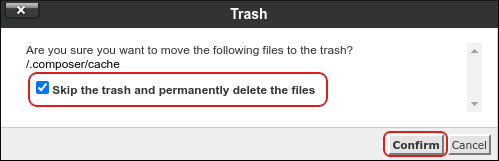
Select the Skip the trash and permanently delete the files check box, and then click Confirm:
-
Right-click the file, and then click Delete:
-
To delete an entire directory, follow these steps:
-
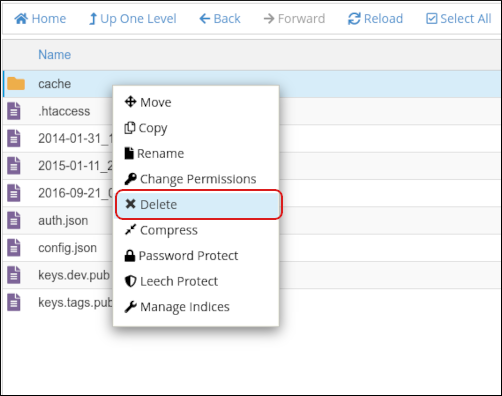
Right-click the directory, and then click Delete:
-
Select the Skip the trash and permanently delete the files check box, and then click Confirm:
📘 Note For more information about how to use the File Manager in cPanel, please see these articles.
-
Right-click the directory, and then click Delete: