.jpg?fit=max&auto=format&n=E2LlsT5gBITvo732&q=85&s=ec11e1673894bdf46663a5d73602eb87)

Installing an SSL certificate in Enhance
Important!In many cases, you do not need to install an SSL certificate manually. For example, if you are using the free SSL certificate, it is installed automatically. Use this procedure only if you need to install an SSL certificate that you purchased from hosting.com or another provider.
Install an SSL certificate
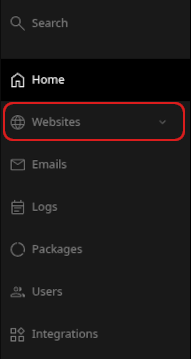
- In the left sidebar, click Websites.

- On the Manage websites page, click the website you want to manage.
- Click the Security tab.

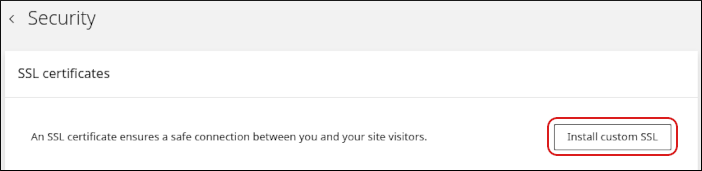
- On the Security page, in the SSL certificates section, click Install custom SSL.
- In the Domain list, select the domain where you want to install the SSL certificate.
- In the Certificate (CRT) field, paste the certificate text. To upload the certificate file instead, click Upload file.
- In the Private key field, paste the private key text. To upload the private key file instead, click Upload file.
- Click Upload.
Requesting a Let’s Encrypt certificate
Free Let’s Encrypt certificates are normally issued and renewed automatically. If a certificate is missing, has failed to issue, or you have just added a new domain, you can request one manually. To request a Let’s Encrypt certificate for a domain, follow these steps:- Log in to your account
- When the control panel appears, in the left sidebar, click Websites:
- On the Manage websites page
- The website dashboard appears. Click on Security.

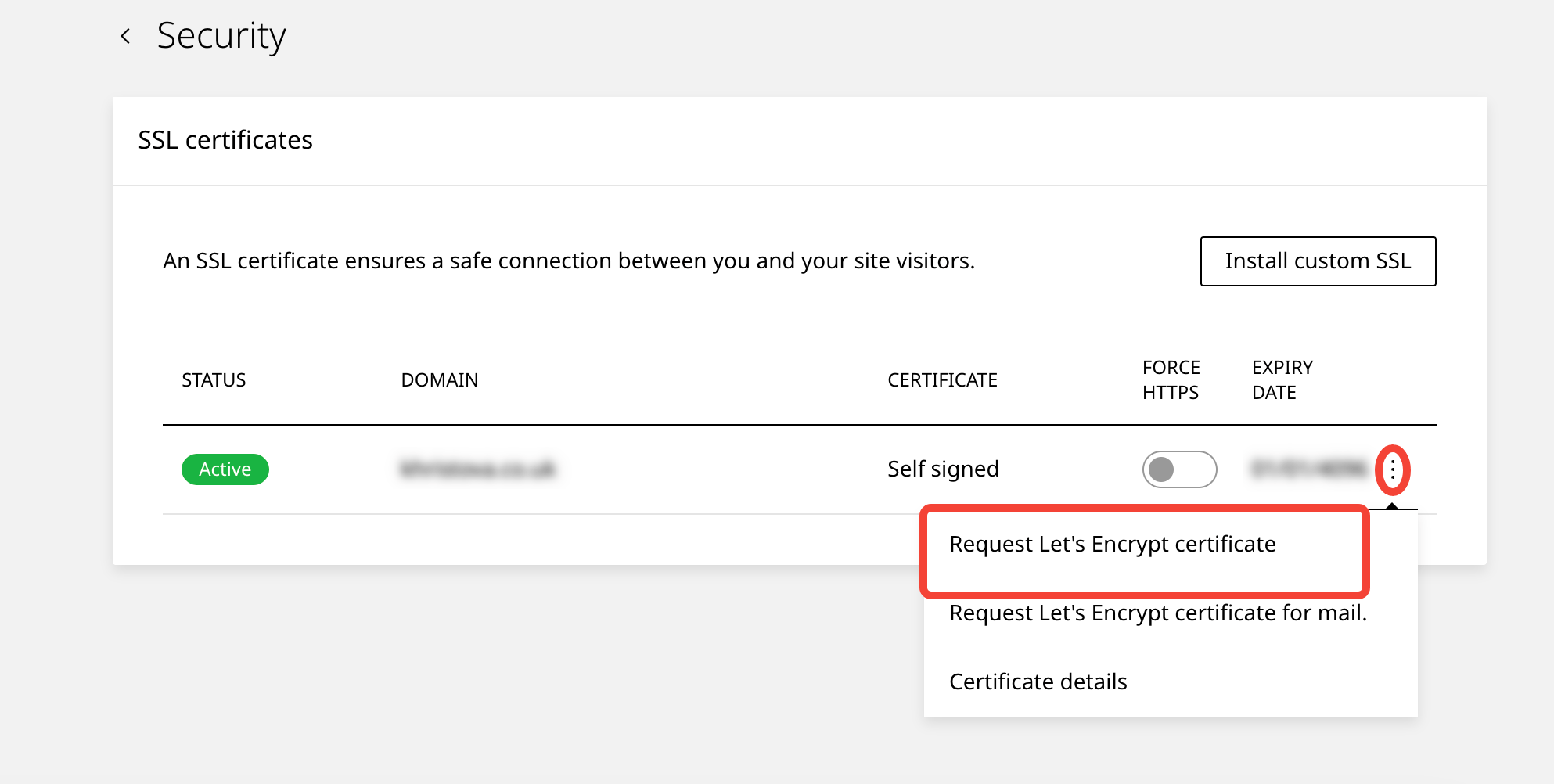
- The Security page appears. Scroll down to the SSL certificates section. Here you will see all existing SSL certificates for the domains on the website. Select the kebab menu and select Request Let’s Encrypt Certificate
Before you request a certificate, make sure the domain’s DNS records point to your hosting.com server. Let’s Encrypt must be able to reach the domain to validate it, so a request for a domain that is not pointed at the server fails.