.jpg?fit=max&auto=format&n=E2LlsT5gBITvo732&q=85&s=ec11e1673894bdf46663a5d73602eb87)

Managing your MySQL databases in Enhance
Manage database users
Create at least one database user before you create a database so the user can access it.-
In the left sidebar, click Websites.

- On the Manage websites page, click the website you want to manage.
-
Click the Databases tab.

-
On the MySQL databases page, click Add user.

-
In the Add database user section, enter the username and password for the user.
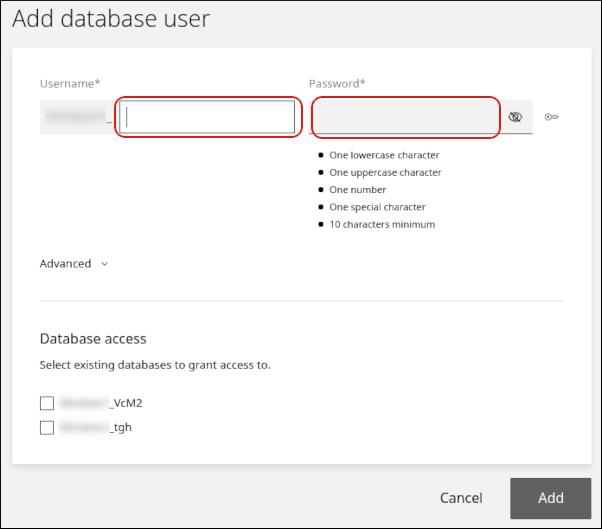
- If one or more databases already exist, they appear in the Database access section. Select the checkbox next to each database you want the user to access.
- Click Add.
- Click the Users tab. The new user appears in the user list.
-
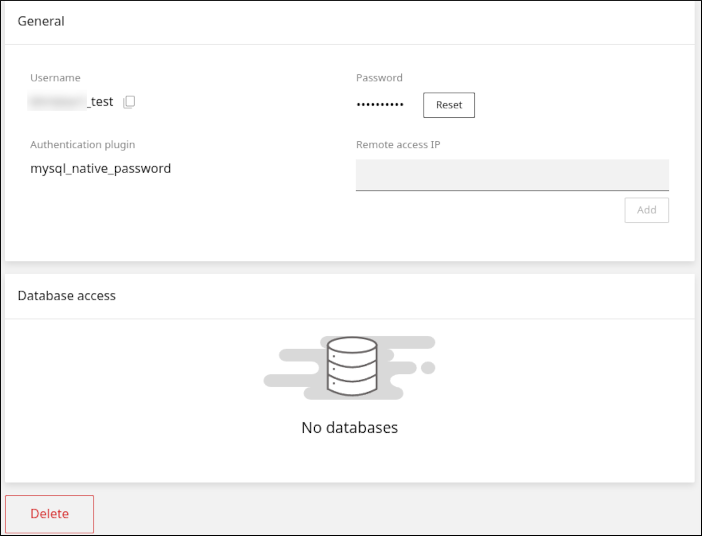
Click the user to modify it. On this page, you can:
- Click Reset to reset the user’s password.
- Enter an IP address in the Remote access IP field to allow remote database access.
- Click Delete to delete the user.
Manage databases
-
In the left sidebar, click Websites.
- On the Manage websites page, click the website you want to manage.
-
Click the Databases tab.
-
On the MySQL databases page, click Add database.

-
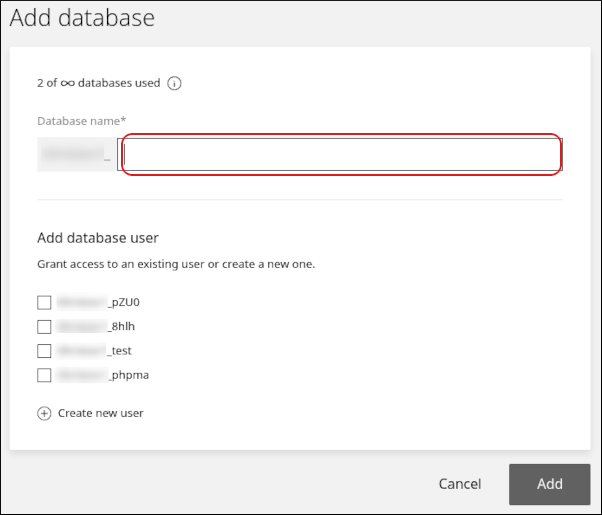
In the Add database section, enter the database name.
-
In the Add database user section, select one or more users that can access the database.
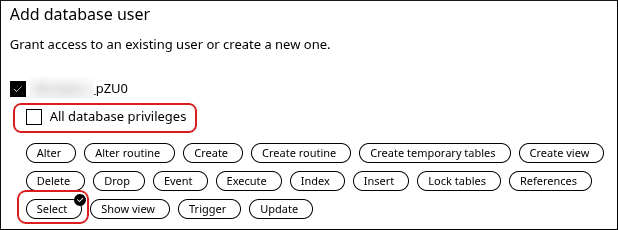
- To grant all access privileges to a user, leave All database privileges selected.
- To grant only specific privileges, clear All database privileges and select the permissions you want to grant.
- Click Add. The new database appears on the Databases tab.
-
Click the database to modify it and access additional features. On this page, you can:
-
Click PhpMyAdmin to open phpMyAdmin.
- Add database users to the database or remove them.
-
Click Upload to import a SQL file and populate the database.

-
Click Download to export the database as a SQL file.

-
Click Delete to delete the database.
-
Click PhpMyAdmin to open phpMyAdmin.