.jpg?fit=max&auto=format&n=E2LlsT5gBITvo732&q=85&s=ec11e1673894bdf46663a5d73602eb87)

Managing your email in Enhance
Manage your email accounts, forwarders, spam settings, and autoresponders in Enhance. Unlike cPanel, there is no separate login. You log in to your hosting.com account at https://my.hosting.com and manage your website, email, and WordPress from one interface. If you’re a reseller, your clients access their email by logging into their own Enhance panel.Before you begin
- Log in to your Enhance Panel
- Open the Hosting Panel for your website.
Manage email
-
In the left sidebar, click Websites.

- On the Manage websites page, click the website you want to manage.
-
Click the Emails tab.

-
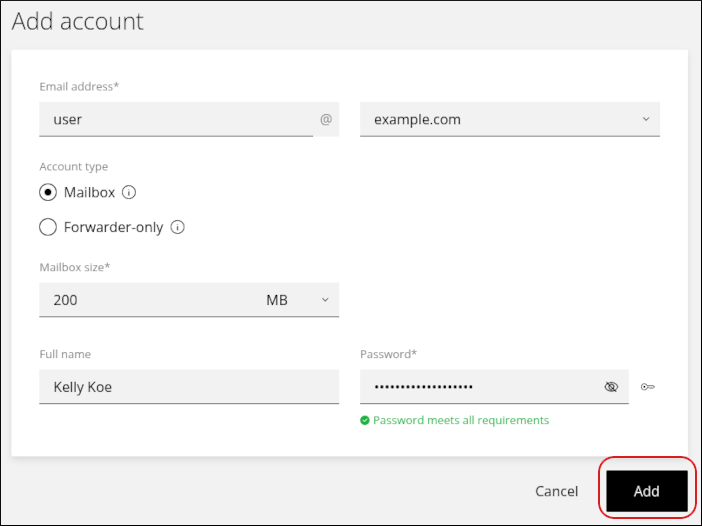
To add an account, click Add account.

-
Complete the fields, and then click Add.
-
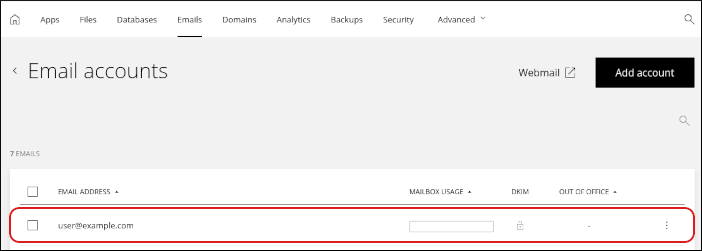
To modify an existing account, click the account in the list.
What you can manage
For each email account, you can change the following settings:- Display name
- Mailbox size
- Password
- Forwarders
- Spam settings
- Out-of-office notifications (autoresponders)