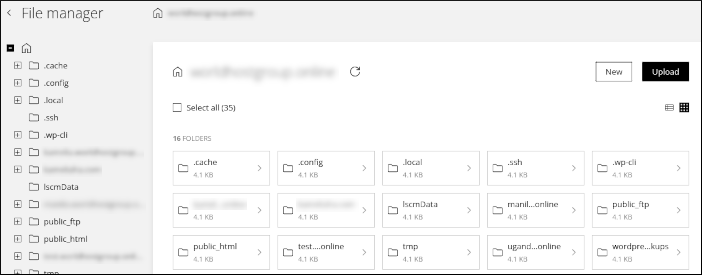
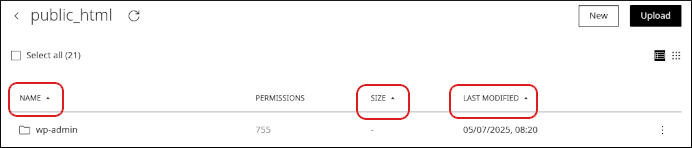
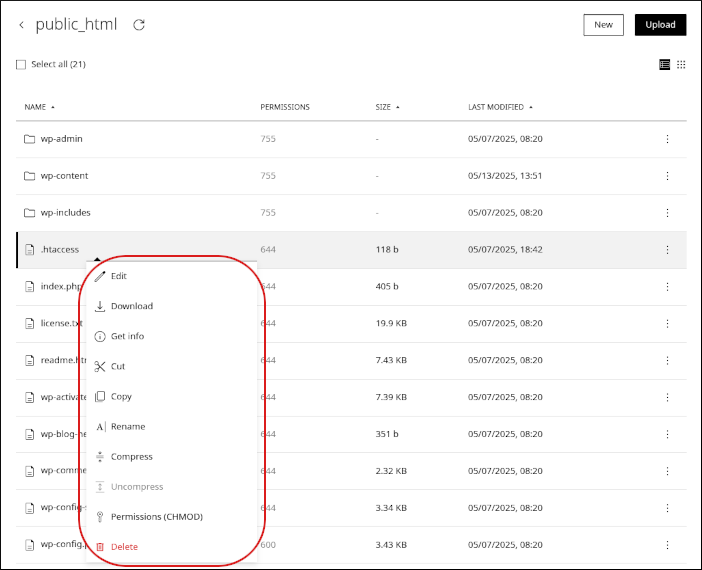
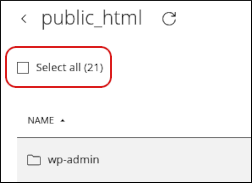
{"docsConfig":{"theme":"mint","$schema":"https://mintlify.com/docs.json","name":"hosting.com","colors":{"primary":"#0D493D","light":"#46FDAE","dark":"#0B3E2A"},"logo":{"light":"https://mintcdn.com/hosting-9143814e/E2LlsT5gBITvo732/images/Hosting-logo-gradient-dark-landscape(1).jpg?fit=max\u0026auto=format\u0026n=E2LlsT5gBITvo732\u0026q=85\u0026s=ec11e1673894bdf46663a5d73602eb87","dark":"https://mintcdn.com/hosting-9143814e/DI66jigZet4ItWkE/images/Hosting-logo-gradient-white-landscape.png?fit=max\u0026auto=format\u0026n=DI66jigZet4ItWkE\u0026q=85\u0026s=44df05a0feb2a2f0e626ac9dfb707c80"},"favicon":{"light":"https://mintcdn.com/hosting-9143814e/sMxgVKUdaGzsRmyG/favicon.svg?fit=max\u0026auto=format\u0026n=sMxgVKUdaGzsRmyG\u0026q=85\u0026s=df1d1e3a5ed61d304225c1d83a8cb730","dark":"https://mintcdn.com/hosting-9143814e/sMxgVKUdaGzsRmyG/favicon.svg?fit=max\u0026auto=format\u0026n=sMxgVKUdaGzsRmyG\u0026q=85\u0026s=df1d1e3a5ed61d304225c1d83a8cb730"},"integrations":{"gtm":{"tagId":"GTM-WN5D6XF4"}},"styling":{"latex":true},"navigation":{"pages":[]}},"deployment":{"deploymentMetadataValue":{"subdomain":"hosting-9143814e","hasAudioNarration":false,"actualSubdomain":"hosting-9143814e","customDomains":["kb.hosting.com"],"gitSource":{"type":"github","owner":"panaras10","repo":"hostingcomdocsmigration","deployBranch":"main","contentDirectory":"","isPrivate":true,"mountPath":"","label":""},"chroma":{"collectionId":"c604c833-03bf-4aa7-9e7e-07c9ac0d9652","liveDeploymentHistoryId":"6ad8c5b51646e33e3283a94e","schemaVersion":"v3","latestBuiltDeploymentHistoryId":"6ad8c5b51646e33e3283a94e"},"feedback":{"thumbs":true},"entitlements":{"AI_CHAT":{"status":"DISABLED"}},"buildId":"6ad8d3ad0415e810281269f0","clientVersion":"0.0.3965","searchFilterCounts":[{"language":"default","tag":"Other hosting panels","count":348},{"language":"default","tag":"Using hosting.com","count":346},{"language":"default","tag":"Using your software","count":334},{"language":"default","tag":"cPanel","count":312},{"language":"default","tag":"Developers","count":268},{"language":"default","tag":"WordPress","count":234},{"language":"default","tag":"Softaculous autoinstaller","count":184},{"language":"default","tag":"Managed WordPress","count":77},{"language":"default","tag":"Email","count":73},{"language":"default","tag":"PHP","count":60}]},"assistantConfig":{"enableAskAiButton":false,"enableStarterQuestions":false,"enableContextualStarterQuestions":false,"enableAskAiSearchBar":true},"hasChatPermissions":false,"hasWebMcpPermissions":false,"toggles":[{"name":"kill-isr","enabled":true,"variant":{"name":"disabled","enabled":false,"feature_enabled":true},"impressionData":false},{"name":"agent-mintlify-slack","enabled":true,"variant":{"name":"disabled","enabled":false,"feature_enabled":true},"impressionData":false},{"name":"editor-v7-file-tree","enabled":true,"variant":{"name":"disabled","enabled":false,"feature_enabled":true},"impressionData":false},{"name":"agent-integrations-settings","enabled":true,"variant":{"name":"disabled","enabled":false,"feature_enabled":true},"impressionData":false},{"name":"automations-pr-grouping","enabled":true,"variant":{"name":"disabled","enabled":false,"feature_enabled":true},"impressionData":false},{"name":"custom-prefix","enabled":true,"variant":{"name":"disabled","enabled":false,"feature_enabled":true},"impressionData":false},{"name":"analytics-v7","enabled":true,"variant":{"name":"disabled","enabled":false,"feature_enabled":true},"impressionData":false},{"name":"user-flows-analytics","enabled":true,"variant":{"name":"disabled","enabled":false,"feature_enabled":true},"impressionData":false},{"name":"no-publish-flow","enabled":true,"variant":{"name":"disabled","enabled":false,"feature_enabled":true},"impressionData":false},{"name":"workos-onboarding","enabled":true,"variant":{"name":"disabled","enabled":false,"feature_enabled":true},"impressionData":false},{"name":"llms-txt-v2","enabled":true,"variant":{"name":"disabled","enabled":false,"feature_enabled":true},"impressionData":false},{"name":"pause-universal-search-reconcile","enabled":true,"variant":{"name":"disabled","enabled":false,"feature_enabled":true},"impressionData":false},{"name":"snapshot-serving-live","enabled":true,"variant":{"name":"disabled","enabled":false,"feature_enabled":true},"impressionData":false},{"name":"stripTemperatureMiddleware","enabled":true,"variant":{"name":"disabled","enabled":false,"feature_enabled":true},"impressionData":false},{"name":"per-site-search-delta","enabled":true,"variant":{"name":"disabled","enabled":false,"feature_enabled":true},"impressionData":false},{"name":"support-platform-pylon-zendesk","enabled":true,"variant":{"name":"disabled","enabled":false,"feature_enabled":true},"impressionData":false},{"name":"snapshot-serving","enabled":true,"variant":{"name":"disabled","enabled":false,"feature_enabled":true},"impressionData":false},{"name":"instant-rollback","enabled":true,"variant":{"name":"disabled","enabled":false,"feature_enabled":true},"impressionData":false},{"name":"granular-notifications-server","enabled":true,"variant":{"name":"disabled","enabled":false,"feature_enabled":true},"impressionData":false},{"name":"granular-notifications","enabled":true,"variant":{"name":"disabled","enabled":false,"feature_enabled":true},"impressionData":false},{"name":"editor-private-page-search","enabled":true,"variant":{"name":"disabled","enabled":false,"feature_enabled":true},"impressionData":false},{"name":"automations-fable","enabled":true,"variant":{"name":"disabled","enabled":false,"feature_enabled":true},"impressionData":false},{"name":"fixed-ai-action-pricing","enabled":true,"variant":{"name":"disabled","enabled":false,"feature_enabled":true},"impressionData":false},{"name":"automation-resolve-merge-conflict","enabled":true,"variant":{"name":"disabled","enabled":false,"feature_enabled":true},"impressionData":false},{"name":"scoped-publishing","enabled":true,"variant":{"name":"disabled","enabled":false,"feature_enabled":true},"impressionData":false},{"name":"mintql","enabled":true,"variant":{"name":"disabled","enabled":false,"feature_enabled":true},"impressionData":false},{"name":"page-level-analytics","enabled":true,"variant":{"name":"disabled","enabled":false,"feature_enabled":true},"impressionData":false},{"name":"editor-version-history-v2","enabled":true,"variant":{"name":"disabled","enabled":false,"feature_enabled":true},"impressionData":false},{"name":"editor-nav-generations","enabled":true,"variant":{"name":"disabled","enabled":false,"feature_enabled":true},"impressionData":false},{"name":"billing-page-v2","enabled":true,"variant":{"name":"disabled","enabled":false,"feature_enabled":true},"impressionData":false},{"name":"workspace-projects","enabled":true,"variant":{"name":"disabled","enabled":false,"feature_enabled":true},"impressionData":false},{"name":"assistant-v5","enabled":true,"variant":{"name":"disabled","enabled":false,"feature_enabled":true},"impressionData":false},{"name":"byok-sep-25","enabled":true,"variant":{"name":"disabled","enabled":false,"feature_enabled":true},"impressionData":false},{"name":"fork-pr-previews","enabled":true,"variant":{"name":"disabled","enabled":false,"feature_enabled":true},"impressionData":false},{"name":"revalidation-jwt","enabled":true,"variant":{"name":"disabled","enabled":false,"feature_enabled":true},"impressionData":false},{"name":"vite-origin","enabled":true,"variant":{"name":"disabled","enabled":false,"feature_enabled":true},"impressionData":false},{"name":"editor-agent-model-picker","enabled":true,"variant":{"name":"disabled","enabled":false,"feature_enabled":true},"impressionData":false},{"name":"billing-updated-9-15","enabled":true,"variant":{"name":"disabled","enabled":false,"feature_enabled":true},"impressionData":false},{"name":"hobby-abuse-scan","enabled":true,"variant":{"name":"disabled","enabled":false,"feature_enabled":true},"impressionData":false},{"name":"dashboard-inbox","enabled":true,"variant":{"name":"disabled","enabled":false,"feature_enabled":true},"impressionData":false}],"isAtlas":false,"googleFontsInlined":false},"customCss":[],"page":{"pagePath":"docs/managing-your-website-files-in-the-enhance-control-panel","slug":"/docs/managing-your-website-files-in-the-enhance-control-panel","pageMetadata":{"title":"Using the file manager in Enhance","description":"Learn how to manage your website files from one convenient interface.","href":"/docs/managing-your-website-files-in-the-enhance-control-panel"},"description":{"compiledSource":"\"use strict\";\nconst {jsx: _jsx} = arguments[0];\nconst {useMDXComponents: _provideComponents} = arguments[0];\nfunction _createMdxContent(props) {\n const _components = {\n p: \"p\",\n ..._provideComponents(),\n ...props.components\n };\n return _jsx(_components.p, {\n children: \"Learn how to manage your website files from one convenient interface.\"\n });\n}\nfunction MDXContent(props = {}) {\n const {wrapper: MDXLayout} = {\n ..._provideComponents(),\n ...props.components\n };\n return MDXLayout ? _jsx(MDXLayout, {\n ...props,\n children: _jsx(_createMdxContent, {\n ...props\n })\n }) : _createMdxContent(props);\n}\nreturn {\n default: MDXContent\n};\n","frontmatter":{},"scope":{}},"pageType":"default","mdx":{"mdxSource":{"compiledSource":"\"use strict\";const{Fragment:_Fragment,jsx:_jsx,jsxs:_jsxs}=arguments[0];const{useMDXComponents:_provideComponents}=arguments[0];function _createMdxContent(props){const _components={a:`a`,img:`img`,li:`li`,ol:`ol`,p:`p`,strong:`strong`,ul:`ul`,..._provideComponents(),...props.components},{Heading,Warning}=_components;if(!Heading)_missingMdxReference(`Heading`,true);if(!Warning)_missingMdxReference(`Warning`,true);return _jsxs(_Fragment,{children:[_jsx(Heading,{level:`1`,id:`managing-your-website-files-in-the-hosting-panel`,children:`Managing your website files in the Hosting Panel`}),`\n`,_jsx(Heading,{level:`2`,id:`open-the-file-manager`,children:`Open the File Manager`}),`\n`,_jsxs(_components.ol,{children:[`\n`,_jsxs(_components.li,{children:[`\n`,_jsxs(_components.p,{children:[`In the left sidebar, click `,_jsx(_components.strong,{children:`Websites`}),`.`]}),`\n`,_jsx(_components.p,{children:_jsx(_components.img,{src:`https://files.readme.io/228bef28a564fa447f4a92d5c208a9c69d68e7e5322737068090c99d2d6b34a5-image.png`,alt:``})}),`\n`]}),`\n`,_jsxs(_components.li,{children:[`\n`,_jsxs(_components.p,{children:[`On the `,_jsx(_components.strong,{children:`Manage websites`}),` page, click the website you want to manage.`]}),`\n`]}),`\n`,_jsxs(_components.li,{children:[`\n`,_jsxs(_components.p,{children:[`Click the `,_jsx(_components.strong,{children:`Files`}),` tab.`]}),`\n`,_jsx(_components.p,{children:_jsx(_components.img,{src:`https://files.readme.io/ee5149c38bf28fb2a54fb3a916f3d1cb44594794deab8b2c973ce21d37481cb9-image.png`,alt:``})}),`\n`]}),`\n`,_jsxs(_components.li,{children:[`\n`,_jsxs(_components.p,{children:[`The `,_jsx(_components.strong,{children:`File manager`}),` appears.`]}),`\n`,_jsx(_components.p,{children:_jsx(_components.img,{src:`https://files.readme.io/011610a06e737dd06cb014c47366479cedd934338e4d1646dbc22b34852bfac5-image.png`,alt:``})}),`\n`]}),`\n`]}),`\n`,_jsx(Heading,{level:`2`,id:`navigate-your-files`,children:`Navigate your files`}),`\n`,_jsx(_components.p,{children:`Use the folder tree in the left sidebar to move through the file system:`}),`\n`,_jsxs(_components.ul,{children:[`\n`,_jsx(_components.li,{children:`Click a folder name to view its contents in the right pane.`}),`\n`,_jsxs(_components.li,{children:[`Click the plus sign (`,_jsx(_components.strong,{children:`+`}),`) icon to show subfolders under the current folder.`]}),`\n`]}),`\n`,_jsx(Heading,{level:`2`,id:`manage-files-and-folders`,children:`Manage files and folders`}),`\n`,_jsx(_components.p,{children:`In the right pane, you can perform these actions.`}),`\n`,_jsx(Heading,{level:`3`,id:`sort-items`,children:`Sort items`}),`\n`,_jsx(_components.p,{children:`To sort the listing by name, size, or last modified date, click a column heading.`}),`\n`,_jsx(_components.p,{children:_jsx(_components.img,{src:`https://files.readme.io/4f846609b5bf7a20606a2c05bde52051e9dc4936a887573651471758cb8bfd55-image.png`,alt:``})}),`\n`,_jsx(Heading,{level:`3`,id:`create-a-file-or-folder`,children:`Create a file or folder`}),`\n`,_jsxs(_components.ol,{children:[`\n`,_jsxs(_components.li,{children:[`Click `,_jsx(_components.strong,{children:`New`}),`.`]}),`\n`,_jsxs(_components.li,{children:[`Click `,_jsx(_components.strong,{children:`File`}),` or `,_jsx(_components.strong,{children:`Folder`}),`.`]}),`\n`]}),`\n`,_jsx(Heading,{level:`3`,id:`upload-a-file-or-folder`,children:`Upload a file or folder`}),`\n`,_jsxs(_components.ol,{children:[`\n`,_jsxs(_components.li,{children:[`Click `,_jsx(_components.strong,{children:`Upload`}),`.`]}),`\n`,_jsxs(_components.li,{children:[`Click `,_jsx(_components.strong,{children:`File`}),` or `,_jsx(_components.strong,{children:`Folder`}),`.`]}),`\n`]}),`\n`,_jsx(Heading,{level:`3`,id:`modify-an-existing-file-or-folder`,children:`Modify an existing file or folder`}),`\n`,_jsx(_components.p,{children:`Right-click a file or folder, and then select one of these options:`}),`\n`,_jsxs(_components.ul,{children:[`\n`,_jsxs(_components.li,{children:[_jsx(_components.strong,{children:`Edit`}),`: Edit a file.`]}),`\n`,_jsxs(_components.li,{children:[_jsx(_components.strong,{children:`Download`}),`: Download a file to your local computer.`]}),`\n`,_jsxs(_components.li,{children:[_jsx(_components.strong,{children:`Get info`}),`: View the path, size, permissions, and other details for a file or folder.`]}),`\n`,_jsxs(_components.li,{children:[_jsx(_components.strong,{children:`Copy`}),`: Copy a file or folder.`]}),`\n`,_jsxs(_components.li,{children:[_jsx(_components.strong,{children:`Rename`}),`: Rename a file or folder.`]}),`\n`,_jsxs(_components.li,{children:[_jsx(_components.strong,{children:`Compress`}),`: Compress a file or folder.`]}),`\n`,_jsxs(_components.li,{children:[_jsx(_components.strong,{children:`Uncompress`}),`: Extract a compressed file or folder.`]}),`\n`,_jsxs(_components.li,{children:[_jsx(_components.strong,{children:`Permissions (CHMOD)`}),`: Change permissions for a file or folder.`]}),`\n`,_jsxs(_components.li,{children:[_jsx(_components.strong,{children:`Delete`}),`: Delete a file or folder.`]}),`\n`]}),`\n`,_jsx(_components.p,{children:_jsx(_components.img,{src:`https://files.readme.io/e557caffc512d4f5d58fa7be01bfeb06bc73c8c9005869bad72d96f112cb6aad-image.png`,alt:``})}),`\n`,_jsx(Heading,{level:`3`,id:`process-multiple-files-at-once`,children:`Process multiple files at once`}),`\n`,_jsx(_components.p,{children:`To perform actions on multiple files at the same time:`}),`\n`,_jsxs(_components.ol,{children:[`\n`,_jsxs(_components.li,{children:[`Select the `,_jsx(_components.strong,{children:`Select all`}),` checkbox.`]}),`\n`,_jsx(_components.li,{children:`Choose one of the options that appears at the bottom of the page.`}),`\n`]}),`\n`,_jsx(_components.p,{children:_jsx(_components.img,{src:`https://files.readme.io/d7f663619257d1b3141641840acddb970b63be7c5d46116dd6cc379d7986f13a-image.png`,alt:``})}),`\n`,_jsx(_components.p,{children:_jsx(_components.img,{src:`https://files.readme.io/7f997fe1c6197cdc3486045cbd1fd2a78a31cb2d7acbc6b23d883b35c9044447-image.png`,alt:``})}),`\n`,_jsxs(Warning,{children:[_jsx(_components.p,{children:_jsx(_components.strong,{children:`Important`})}),_jsx(_components.p,{children:`Be careful when working with multiple files at once, especially when you are deleting items.`})]}),`\n`,_jsx(Heading,{level:`2`,id:`related-articles`,children:`Related articles`}),`\n`,_jsxs(_components.ul,{children:[`\n`,_jsx(_components.li,{children:_jsx(_components.a,{href:`/docs/managing-your-website-in-the-hosting-panel`,children:`Managing your website in the Hosting Panel`})}),`\n`,_jsx(_components.li,{children:_jsx(_components.a,{href:`/docs/managing-your-mysql-databases-in-the-hosting-panel`,children:`Managing your MySQL databases in the Hosting Panel`})}),`\n`,_jsx(_components.li,{children:_jsx(_components.a,{href:`/docs/managing-your-domains-in-the-hosting-panel`,children:`Managing your domains in the Hosting Panel`})}),`\n`,_jsx(_components.li,{children:_jsx(_components.a,{href:`/docs/managing-your-wordpress-site-in-the-hosting-panel`,children:`Managing your WordPress site in the Hosting Panel`})}),`\n`]})]})}function MDXContent(props={}){const{wrapper:MDXLayout}={..._provideComponents(),...props.components};return MDXLayout?_jsx(MDXLayout,{...props,children:_jsx(_createMdxContent,{...props})}):_createMdxContent(props)}return{default:MDXContent};function _missingMdxReference(id,component){throw new Error(`Expected `+(component?`component`:`object`)+\" `\"+id+\"` to be defined: you likely forgot to import, pass, or provide it.\")}","frontmatter":{},"scope":{"config":{},"pageMetadata":{"title":"Using the file manager in Enhance","description":"Learn how to manage your website files from one convenient interface.","href":"/docs/managing-your-website-files-in-the-enhance-control-panel"}}},"mdxSourceWithNoJs":null},"mdxExtracts":{"tableOfContents":[{"title":"Managing your website files in the Hosting Panel","slug":"managing-your-website-files-in-the-hosting-panel","depth":1,"children":[]},{"title":"Open the File Manager","slug":"open-the-file-manager","depth":2,"children":[]},{"title":"Navigate your files","slug":"navigate-your-files","depth":2,"children":[]},{"title":"Manage files and folders","slug":"manage-files-and-folders","depth":2,"children":[{"title":"Sort items","slug":"sort-items","depth":3,"children":[]},{"title":"Create a file or folder","slug":"create-a-file-or-folder","depth":3,"children":[]},{"title":"Upload a file or folder","slug":"upload-a-file-or-folder","depth":3,"children":[]},{"title":"Modify an existing file or folder","slug":"modify-an-existing-file-or-folder","depth":3,"children":[]},{"title":"Process multiple files at once","slug":"process-multiple-files-at-once","depth":3,"children":[]}]},{"title":"Related articles","slug":"related-articles","depth":2,"children":[]}],"codeExamples":{}},"jsLinks":[],"subdomain":"hosting-9143814e","siteName":"hosting.com","title":"Using the file manager in Enhance - hosting.com","navMaps":{"firstHrefInVersion":{},"firstHrefInLanguage":{}},"lastModified":"2026-06-26T10:47:42.837Z","originalFileLocation":"docs/managing-your-website-files-in-the-enhance-control-panel.mdx"},"headHtml":"\u003cscript data-mint-head>(function(){var d=document.documentElement,p=null;if(!p){try{p=localStorage.getItem(\"isDarkMode\")}catch(e){}if(p==='true')p='dark';else if(p==='false')p='light';if(p!=='light'\u0026\u0026p!=='dark'\u0026\u0026p!=='system')p=\"system\"}var r=p==='system'?(matchMedia(\"(prefers-color-scheme: dark)\").matches?'dark':'light'):p;d.classList.remove(r==='dark'?'light':'dark');d.classList.add(r);d.setAttribute(\"data-theme-preference\",p)})();\u003c/script>\u003cmeta data-mint-head name=\"description\" content=\"Learn how to manage your website files from one convenient interface.\">\u003cmeta data-mint-head name=\"application-name\" content=\"hosting.com\">\u003cmeta data-mint-head name=\"generator\" content=\"Mintlify\">\u003clink data-mint-head rel=\"icon\" type=\"image/png\" sizes=\"192x192\" href=\"/mintlify-assets/_mintlify/favicons/hosting-9143814e/LHUWpGT9qBecCfOw/_generated/favicon/android-chrome-192x192.png\" media=\"(prefers-color-scheme: light)\">\u003clink data-mint-head rel=\"apple-touch-icon\" type=\"image/png\" sizes=\"180x180\" href=\"/mintlify-assets/_mintlify/favicons/hosting-9143814e/LHUWpGT9qBecCfOw/_generated/favicon/apple-touch-icon.png\">\u003clink data-mint-head rel=\"icon\" type=\"image/png\" sizes=\"16x16\" href=\"/mintlify-assets/_mintlify/favicons/hosting-9143814e/LHUWpGT9qBecCfOw/_generated/favicon/favicon-16x16.png\" media=\"(prefers-color-scheme: light)\">\u003clink data-mint-head rel=\"icon\" type=\"image/png\" sizes=\"32x32\" href=\"/mintlify-assets/_mintlify/favicons/hosting-9143814e/LHUWpGT9qBecCfOw/_generated/favicon/favicon-32x32.png\" media=\"(prefers-color-scheme: light)\">\u003clink data-mint-head rel=\"shortcut icon\" type=\"image/x-icon\" href=\"/mintlify-assets/_mintlify/favicons/hosting-9143814e/LHUWpGT9qBecCfOw/_generated/favicon/favicon.ico\" media=\"(prefers-color-scheme: light)\">\u003clink data-mint-head rel=\"icon\" type=\"image/png\" sizes=\"192x192\" href=\"/mintlify-assets/_mintlify/favicons/hosting-9143814e/LHUWpGT9qBecCfOw/_generated/favicon-dark/android-chrome-192x192.png\" media=\"(prefers-color-scheme: dark)\">\u003clink data-mint-head rel=\"icon\" type=\"image/png\" sizes=\"16x16\" href=\"/mintlify-assets/_mintlify/favicons/hosting-9143814e/LHUWpGT9qBecCfOw/_generated/favicon-dark/favicon-16x16.png\" media=\"(prefers-color-scheme: dark)\">\u003clink data-mint-head rel=\"icon\" type=\"image/png\" sizes=\"32x32\" href=\"/mintlify-assets/_mintlify/favicons/hosting-9143814e/LHUWpGT9qBecCfOw/_generated/favicon-dark/favicon-32x32.png\" media=\"(prefers-color-scheme: dark)\">\u003clink data-mint-head rel=\"shortcut icon\" type=\"image/x-icon\" href=\"/mintlify-assets/_mintlify/favicons/hosting-9143814e/LHUWpGT9qBecCfOw/_generated/favicon-dark/favicon.ico\" media=\"(prefers-color-scheme: dark)\">\u003cmeta data-mint-head property=\"og:title\" content=\"Using the file manager in Enhance - hosting.com\">\u003cmeta data-mint-head property=\"og:description\" content=\"Learn how to manage your website files from one convenient interface.\">\u003cmeta data-mint-head property=\"og:site_name\" content=\"hosting.com\">\u003cmeta data-mint-head property=\"og:url\" content=\"https://kb.hosting.com/docs/managing-your-website-files-in-the-enhance-control-panel\">\u003cmeta data-mint-head property=\"og:type\" content=\"website\">\u003cmeta data-mint-head property=\"og:image\" content=\"https://hosting-9143814e.mintlify.app/_mintlify/api/og/v2?division=Enhance\u0026amp;title=Using+the+file+manager+in+Enhance\u0026amp;description=Learn+how+to+manage+your+website+files+from+one+convenient+interface.\u0026amp;theme=17662b238f8cc3d59c8f1585\u0026amp;signature=acf7c6d63146b0d34a6ac81e9e091854b07bdacb9f0aa084a4bee4971cc48565\">\u003cmeta data-mint-head property=\"og:image:width\" content=\"1200\">\u003cmeta data-mint-head property=\"og:image:height\" content=\"630\">\u003cmeta data-mint-head name=\"twitter:card\" content=\"summary_large_image\">\u003cmeta data-mint-head name=\"twitter:title\" content=\"Using the file manager in Enhance - hosting.com\">\u003cmeta data-mint-head name=\"twitter:description\" content=\"Learn how to manage your website files from one convenient interface.\">\u003cmeta data-mint-head name=\"twitter:image\" content=\"https://hosting-9143814e.mintlify.app/_mintlify/api/og/v2?division=Enhance\u0026amp;title=Using+the+file+manager+in+Enhance\u0026amp;description=Learn+how+to+manage+your+website+files+from+one+convenient+interface.\u0026amp;theme=17662b238f8cc3d59c8f1585\u0026amp;signature=acf7c6d63146b0d34a6ac81e9e091854b07bdacb9f0aa084a4bee4971cc48565\">\u003cmeta data-mint-head name=\"twitter:image:width\" content=\"1200\">\u003cmeta data-mint-head name=\"twitter:image:height\" content=\"630\">\u003cmeta data-mint-head name=\"msapplication-config\" content=\"/mintlify-assets/_mintlify/favicons/hosting-9143814e/LHUWpGT9qBecCfOw/_generated/favicon/browserconfig.xml\">\u003cmeta data-mint-head name=\"apple-mobile-web-app-title\" content=\"hosting.com\">\u003cmeta data-mint-head name=\"msapplication-TileColor\" content=\"#0D493D\">\u003clink data-mint-head rel=\"canonical\" href=\"https://kb.hosting.com/docs/managing-your-website-files-in-the-enhance-control-panel\">\u003clink data-mint-head rel=\"alternate\" type=\"application/xml\" href=\"/sitemap.xml\">\u003clink data-mint-head rel=\"alternate\" type=\"text/markdown\" href=\"/docs/managing-your-website-files-in-the-enhance-control-panel.md\">\u003cscript data-mint-head type=\"application/ld+json\">{\"@context\":\"https://schema.org\",\"@graph\":[{\"@type\":\"Organization\",\"@id\":\"https://kb.hosting.com/#organization\",\"name\":\"hosting.com\",\"url\":\"https://kb.hosting.com\",\"logo\":{\"@type\":\"ImageObject\",\"url\":\"https://mintcdn.com/hosting-9143814e/E2LlsT5gBITvo732/images/Hosting-logo-gradient-dark-landscape(1).jpg?fit=max\u0026auto=format\u0026n=E2LlsT5gBITvo732\u0026q=85\u0026s=ec11e1673894bdf46663a5d73602eb87\"}},{\"@type\":\"WebSite\",\"@id\":\"https://kb.hosting.com#website\",\"name\":\"hosting.com\",\"url\":\"https://kb.hosting.com\",\"publisher\":{\"@id\":\"https://kb.hosting.com/#organization\"}},{\"@type\":\"WebPage\",\"@id\":\"https://kb.hosting.com/docs/managing-your-website-files-in-the-enhance-control-panel#webpage\",\"url\":\"https://kb.hosting.com/docs/managing-your-website-files-in-the-enhance-control-panel\",\"name\":\"Using the file manager in Enhance\",\"description\":\"Learn how to manage your website files from one convenient interface.\",\"dateModified\":\"2026-06-26T10:47:42.837Z\",\"isPartOf\":{\"@id\":\"https://kb.hosting.com#website\"},\"breadcrumb\":{\"@id\":\"https://kb.hosting.com/docs/managing-your-website-files-in-the-enhance-control-panel#breadcrumb\"}},{\"@type\":\"BreadcrumbList\",\"@id\":\"https://kb.hosting.com/docs/managing-your-website-files-in-the-enhance-control-panel#breadcrumb\",\"itemListElement\":[{\"@type\":\"ListItem\",\"position\":1,\"name\":\"Resellers\",\"item\":\"https://kb.hosting.com/docs/accessing-webhost-manager\"},{\"@type\":\"ListItem\",\"position\":2,\"name\":\"Enhance\",\"item\":\"https://kb.hosting.com/docs/from-cpanel-to-enhance-everything-you-need-to-know\"},{\"@type\":\"ListItem\",\"position\":3,\"name\":\"Using the file manager in Enhance\",\"item\":\"https://kb.hosting.com/docs/managing-your-website-files-in-the-enhance-control-panel\"}]},{\"@type\":[\"Article\",\"TechArticle\"],\"@id\":\"https://kb.hosting.com/docs/managing-your-website-files-in-the-enhance-control-panel#article\",\"headline\":\"Using the file manager in Enhance\",\"name\":\"Using the file manager in Enhance\",\"description\":\"Learn how to manage your website files from one convenient interface.\",\"url\":\"https://kb.hosting.com/docs/managing-your-website-files-in-the-enhance-control-panel\",\"mainEntityOfPage\":{\"@id\":\"https://kb.hosting.com/docs/managing-your-website-files-in-the-enhance-control-panel#webpage\"},\"dateModified\":\"2026-06-26T10:47:42.837Z\",\"publisher\":{\"@id\":\"https://kb.hosting.com/#organization\"},\"isPartOf\":{\"@id\":\"https://kb.hosting.com#website\"}}]}\u003c/script>\u003cscript data-mint-head type=\"application/ld+json\">{\"@context\":\"https://schema.org\",\"@type\":\"WebSite\",\"name\":\"hosting.com\",\"creator\":{\"@type\":\"Organization\",\"name\":\"Mintlify\",\"url\":\"https://mintlify.com\"}}\u003c/script>","siteName":"hosting.com","nav":{"global":null,"pages":[{"title":"hosting.com Knowledge Base","href":"/index"},{"group":"Using hosting.com","pages":[{"title":"Getting Started with hosting.com","href":"/docs/getting-started"},{"title":"Why should I choose hosting.com?","href":"/docs/why-should-i-choose-hosting-com"},{"title":"Web Hosting","sidebarTitle":"Web Hosting","href":"/docs/shared-hosting"},{"title":"Common web hosting terms and definitions","href":"/docs/common-web-hosting-terms"},{"group":"Quick Start Guides","pages":[{"title":"Manage your websites in the Hosting Panel Quick Start Guide","href":"/docs/how-to-manage-your-websites-in-the-hosting-panel"},{"title":"Manage your applications in the Hosting Panel Quick Start Guide","href":"/docs/how-to-manage-your-applications-in-the-hosting-panel"},{"title":"Shared Hosting Quick Start Guide","href":"/docs/shared-hosting-quick-start-guide"},{"title":"Reseller Hosting Quick Start Guide","href":"/docs/reseller-quick-start-guide"},{"title":"Managed VPS Quick Start Guide","href":"/docs/vps-quick-start-guide"},{"title":"Managed Dedicated Server Quick Start Guide","href":"/docs/dedicated-server-quick-start-guide"},{"title":"Unmanaged VPS Quick Start Guide","href":"/docs/unmanaged-vps-quick-start-guide"},{"title":"Launching an eCommerce website","href":"/docs/opening-an-e-commerce-store-at-hosting-com"},{"title":"How to start a website on your hosting plan","href":"/docs/hosting-plan-introduction"},{"group":"How to start a blog","pages":[{"title":"Starting a blog","href":"/docs/how-to-start-a-blog"},{"title":"Blogging basics","href":"/docs/blogging-basics"},{"title":"WordPress basics","href":"/docs/wordpress-basics"},{"title":"Beyond WordPress basics","href":"/docs/beyond-wordpress-basics"},{"title":"Nibbleblog basics","href":"/docs/nibbleblog-basics"}]},{"title":"Register a Domain","href":"/docs/register-a-domain"},{"title":"Put your first site live: from nothing to a real URL","href":"/docs/put-your-site-live-from-nothing-to-a-real-url"},{"title":"Connect a domain you bought somewhere else","href":"/docs/connect-a-domain-you-bought-somewhere-else"},{"title":"Set up Your Mailbox","href":"/docs/set-up-your-mailbox"},{"title":"Add your email to your phone and desktop","href":"/docs/add-your-email-to-your-phone-and-desktop"}]},{"group":"Profile and login","pages":[{"title":"You cannot log in","sidebarTitle":"You cannot log in","href":"/docs/cannot-log-in"},{"title":"Login or Register for the Hosting Panel","href":"/docs/accessing-the-hosting-panel"},{"title":"Managing your profile in the Hosting Panel","href":"/docs/managing-your-profile-in-the-hosting-panel"},{"title":"Updating the default email address for your account","href":"/docs/updating-the-default-email-address-for-your-account"},{"title":"Recovering access to your account","sidebarTitle":"Recovering account access","href":"/docs/recovering-account-access"},{"title":"Viewing and changing settings for shared hosting accounts","href":"/docs/viewing-and-changing-login-settings-for-shared-hosting-accounts"},{"title":"Service-Level Access Delegation","href":"/docs/service-level-access-delegation"}]},{"group":"Settings and access","pages":[{"title":"Accessing your hosting control panel","href":"/docs/accessing-your-hosting-control-panel"},{"title":"My IP address has been blocked","sidebarTitle":"IP address blocked","href":"/docs/ip-address-blocked"},{"title":"Changing PHP versions and settings in the Hosting Panel","href":"/docs/changing-php-versions-and-settings-in-the-hosting-panel"},{"title":"Configuring SSH access in the Hosting Panel","href":"/docs/configuring-ssh-access-in-the-hosting-panel"},{"title":"How Can you Change your cPanel Password from the Hosting Panel","href":"/docs/how-can-you-change-your-cpanel-password-from-the-hosting-panel"},{"title":"How to Add Notes Under Product Secrets","href":"/docs/how-to-add-information-in-notes-secrets"}]},{"group":"Support","pages":[{"title":"Working with tickets in the Hosting Panel","href":"/docs/working-with-tickets"},{"title":"Viewing your support PIN","href":"/docs/viewing-your-support-pin"},{"title":"Reporting suspected policy violations","href":"/docs/reporting-suspected-policy-violations"},{"title":"Policy FAQ","href":"/docs/hosting-com-policy-faq"},{"title":"Requesting site migration from another host to hosting.com","href":"/docs/site-migration-request"},{"title":"Managed VPS migrations","href":"/docs/managed-vps-migrations"},{"title":"Migrating multiple domains from cPanel to the new Hosting Panel","href":"/docs/migrating-multiple-domains-from-cpanel-to-the-new-hosting-panel"},{"title":"Hosting.com uptime and incident status","href":"/docs/hostingcom-uptime-and-incident-status"},{"title":"RTO (Recovery Time Objective) and RPO (Recovery Point Objective) metrics","href":"/docs/rto-recovery-time-objective-and-rpo-recovery-point-objective-metrics"}]},{"group":"Billing and payments","pages":[{"title":"Billing FAQ","href":"/docs/hostingcom-billing-faq"},{"group":"Sales tax","pages":[{"title":"United States Sales Tax policy","href":"/docs/united-states-sales-tax-policy"},{"title":"European Union Value Added Tax (VAT) Policies","href":"/docs/european-union-value-added-tax-vat-policies"},{"title":"India Goods and Services Tax (GST) policy","href":"/docs/india-goods-and-services-tax-gst-policy"}]},{"title":"Uptime commitment and service credits","sidebarTitle":"Uptime and service credits","href":"/docs/uptime-commitment-and-service-credits"},{"title":"Paying invoices, overdue balances and suspended services","sidebarTitle":"Invoices and payments","href":"/docs/managing-billing-in-the-hosting-panel"},{"title":"Upgrading or downgrading your hosting plan","href":"/docs/upgrading-or-downgrading-your-hosting-plan"},{"title":"Cancelling a product or service","sidebarTitle":"Cancelling a service","href":"/docs/cancelling-a-product-or-service-on-the-hosting-panel"},{"title":"How to Add Credit Cards and other Payment Methods","href":"/docs/how-to-add-credit-cards-and-other-payment-methods"},{"title":"Payment Methods in Bangladesh","href":"/docs/payment-methods-in-bangladesh"}]},{"group":"Websites and files","pages":[{"title":"Managing your website in the Hosting Panel","href":"/docs/managing-your-website-in-the-hosting-panel"},{"title":"Managing your website files in the Hosting Panel","href":"/docs/managing-your-website-files-in-the-hosting-panel"},{"title":"Identifying and reducing high disk usage on shared hosting accounts","href":"/docs/identifying-and-reducing-high-disk-usage-on-shared-hosting-accounts"},{"group":"FTP, SSH and file transfer","pages":[{"title":"Accessing your hosting","href":"/docs/accessing-your-account"},{"title":"Using FTP (File Transfer Protocol)","href":"/docs/using-ftp-file-transfer-protocol"},{"title":"Using FTP with Linux hosting accounts","href":"/docs/using-ftp-with-linux-hosting-accounts"},{"title":"Transferring files using SCP (Secure Copy)","href":"/docs/transferring-files-using-scp-secure-copy"},{"title":"Too many connections from this IP'' error message","href":"/docs/too-many-connections-from-this-ip-error-message"},{"title":"Output truncated'' message when you try to list files using FTP","href":"/docs/output-truncated-message-when-you-try-to-list-files-using-ftp"},{"title":"FTP accounts do not work after FileZilla upgrade","href":"/docs/ftp-accounts-do-not-work-after-filezilla-upgrade"},{"title":"Setting up SFTP access for multiple users","href":"/docs/setting-up-sftp-access-for-multiple-users"},{"title":"Managing FTP accounts in the Hosting Panel","href":"/docs/managing-ftp-accounts-in-the-hosting-panel"},{"title":"Using SSH (Secure Shell) to access your account","href":"/docs/using-ssh-secure-shell"},{"title":"Accessing your account using SSH keys","href":"/docs/using-ssh-keys"},{"title":"Using SSHFS (Secure Shell Filesystem)","href":"/docs/using-sshfs-secure-shell-filesystem"},{"title":"Warning message when you try to connect to a server using SSH","href":"/docs/warning-message-when-you-try-to-connect-to-a-server-using-ssh"},{"title":"Using the SolusVM control panel to administer an unmanaged VPS","hidden":true,"href":"/docs/using-the-solusvm-control-panel"},{"title":"Keeping SSH connections alive","href":"/docs/keeping-ssh-connections-alive"}]},{"group":"Backups","pages":[{"title":"Backing up data on shared hosting and reseller accounts","href":"/docs/backups-on-shared-hosting-and-reseller-accounts"},{"title":"Using hosting.com Cloud Backup","hidden":true,"href":"/docs/using-hosting-com-cloud-backup"},{"title":"Using Amazon S3 to back up and restore data","href":"/docs/using-amazon-s3-to-back-up-and-restore-data"},{"title":"Using Google Drive to back up and restore data","href":"/docs/using-google-drive-to-back-up-and-restore-data"},{"title":"Managing backups in the Hosting Panel","href":"/docs/managing-backups-in-the-hosting-panel"}]},{"title":"Editing .htaccess files with Plesk, cPanel, or the command line","href":"/docs/editing-htaccess"},{"title":"Troubleshooting blank pages","href":"/docs/troubleshooting-blank-pages"},{"title":"Working with compressed files on Microsoft Windows","href":"/docs/working-with-compressed-files"},{"title":"What makes hosting.com's service fast?","href":"/docs/what-makes-hosting-com-fast"},{"group":"Caching and performance","pages":[{"title":"CloudLinux monitoring and limits","href":"/docs/cloudlinux-monitoring-and-limits"},{"title":"Optimizing website performance","href":"/docs/optimizing-website-performance"},{"title":"Enabling the LiteSpeed cache","href":"/docs/enabling-caching-on-turbo-web-hosting"},{"title":"Enabling the LiteSpeed cache for WordPress","href":"/docs/enabling-caching-for-wordpress-on-turbo-web-hosting"},{"title":"Enabling the LiteSpeed cache for Drupal","href":"/docs/enabling-caching-for-drupal-on-turbo-web-hosting"},{"title":"Enabling the LiteSpeed cache for Joomla","href":"/docs/enabling-caching-for-joomla-on-turbo-web-hosting"},{"title":"Enabling the LiteSpeed cache for PrestaShop","href":"/docs/enabling-caching-for-prestashop-on-turbo-web-hosting"},{"title":"Using the LiteSpeed Web Cache Manager","href":"/docs/litespeed-web-cache-manager"},{"title":"Clearing the LiteSpeed cache","href":"/docs/clearing-the-litespeed-cache"},{"title":"Disabling OPcache","href":"/docs/disabling-opcache-on-turbo-web-hosting"},{"title":"Disabling PHP connection timeouts","href":"/docs/disabling-php-connection-timeouts-on-turbo-web-hosting"},{"title":"Optimizing images for your website","href":"/docs/optimizing-images"},{"title":"Measuring website performance using Pingdom","href":"/docs/measuring-website-performance-using-pingdom"},{"title":"Measuring website performance using Google Chrome Developer Tools","href":"/docs/measuring-website-performance-using-google-chrome-developer-tools"},{"title":"Optimizing web requests","href":"/docs/optimizing-web-requests"},{"title":"Configuring memcached on managed servers","href":"/docs/using-memcached-on-managed-servers"},{"title":"Configuring Redis on managed servers","href":"/docs/using-redis-on-managed-servers"}]},{"group":"Back up your data","pages":[{"title":"Backing up your data","href":"/docs/backing-up-your-data"},{"title":"Backing up data on dedicated servers and VPS","href":"/docs/backups-on-dedicated-servers-and-vps"}]}]},{"group":"Domains and DNS","pages":[{"group":"Understanding domains and DNS","pages":[{"title":"Introduction to domain names and DNS","href":"/docs/introduction-to-domains"},{"title":"What are wildcard subdomains?","href":"/docs/wildcard-subdomains"},{"title":"What is a DNS TXT record?","href":"/docs/what-is-a-dns-txt-record"},{"title":"What are subdomains, addon domains, and parked domains?","href":"/docs/domain-types-explained"}]},{"group":"Register a domain","pages":[{"title":"Registering a domain","href":"/docs/registering-a-domain"},{"title":"Registering a domain at hosting.com","href":"/docs/registering-a-domain-at-hosting-com"},{"title":"Requirements for registering Canadian .ca domain names","href":"/docs/requirements-for-ca-domains"},{"title":"Protecting your domain name","href":"/docs/protecting-your-domain-registration"},{"title":"Choosing an effective domain name","href":"/docs/choosing-an-effective-domain-name"},{"title":"Registering and using internationalized domain names (IDNs)","href":"/docs/internationalized-domain-names"},{"title":"Domain privacy","href":"/docs/domain-privacy"},{"title":"Top-level domain (TLD) availability","href":"/docs/top-level-domain-tld-availability"},{"title":"ICANN Registration Data Policy changes","href":"/docs/icann-registration-data-policy-changes"}]},{"group":"Managing your domains","pages":[{"title":"Managing your domains in the Hosting Panel","href":"/docs/managing-your-domains-in-the-hosting-panel"},{"title":"Managing Your Domain","href":"/docs/domain-management-in-the-hosting-panel"},{"title":"Configuring domain settings","href":"/docs/configuring-domain-settings"},{"title":"Domain renewals, auto-renewal and expiry","sidebarTitle":"Renewals and expiry","href":"/docs/renewing-a-domain"},{"title":"Transferring a domain to hosting.com","href":"/docs/transferring-a-domain-to-hosting-com"},{"title":"How to Update Registrant Contact Information","href":"/docs/how-to-update-registrant-contact-information"},{"title":"Validating your domain with ICANN","href":"/docs/icann-domain-validation"},{"title":"Updating your account's primary domain name","href":"/docs/changing-your-accounts-primary-domain-name"},{"title":"Using shared URLs to access your site","href":"/docs/using-shared-urls-to-access-your-site"}]},{"group":"Nameservers","pages":[{"title":"Pointing a domain at your hosting","sidebarTitle":"Pointing a domain at hosting","href":"/docs/setting-the-name-servers-dns-for-a-domain"},{"title":"Updating the nameservers at third-party registrars","href":"/docs/updating-nameservers-at-third-party-registrars"},{"title":"Setting the name servers for a domain registered at GoDaddy","href":"/docs/setting-the-name-servers-for-a-domain-at-godaddy"},{"title":"Setting the name servers for a domain at OpenSRS","href":"/docs/setting-the-name-servers-for-a-domain-at-opensrs"},{"title":"Configuring custom nameservers","href":"/docs/configuring-custom-name-servers"},{"title":"Configuring a .dk hosted custom name server","href":"/docs/configuring-a-dk-hosted-custom-name-server"},{"title":"Using Anycast DNS with a web hosting account","href":"/docs/anycast-dns"}]},{"group":"DNS records","pages":[{"title":"Managing DNS settings in the Hosting Panel","href":"/docs/managing-dns-settings-in-the-hosting-panel"},{"title":"Hosting.com DNS management","href":"/docs/hosting-com-dns-management"},{"title":"Adding an SRV record to a domain","href":"/docs/adding-an-srv-record-to-a-domain"},{"title":"Autodiscovery and autoconfiguration DNS records","href":"/docs/autodiscovery-and-autoconfiguration-dns-records"},{"title":"Configuring reverse DNS","href":"/docs/configuring-reverse-dns"},{"title":"Accessing your web site before DNS propagation is complete","href":"/docs/accessing-your-web-site-before-dns-propagation-is-complete"},{"title":"Verifying site ownership with Google","href":"/docs/verifying-site-ownership-with-google"}]}]},{"group":"Email","pages":[{"title":"Managing your email in the Hosting Panel","href":"/docs/managing-your-email-in-the-hosting-panel"},{"title":"Configuring and accessing your e-mail","href":"/docs/configuring-and-accessing-your-e-mail"},{"group":"Setting up email","pages":[{"title":"Setting up email","href":"/docs/setting-up-e-mail"},{"title":"Introduction to e-mail protocols","href":"/docs/introduction-to-e-mail-protocols"},{"title":"Using a catch-all e-mail address","href":"/docs/using-a-catch-all-e-mail-address"},{"title":"Monitoring e-mail using MailChannels","href":"/docs/mailchannels-email-monitoring"},{"title":"Viewing e-mail message headers","href":"/docs/viewing-e-mail-message-headers"},{"group":"Email client setup","pages":[{"title":"Setting up e-mail on Android","href":"/docs/setting-up-e-mail-on-android"},{"title":"Setting up Apple (Mac) Mail on macOS","href":"/docs/setting-up-apple-mac-mail"},{"title":"Setting up e-mail on Apple iOS","href":"/docs/setting-up-e-mail-on-apple-ios"},{"title":"Setting up Gmail to access your hosting.com e-mail account","href":"/docs/setting-up-gmail-to-access-your-e-mail-account"},{"title":"Setting up Gmail on Apple iOS","href":"/docs/setting-up-gmail-on-apple-ios"},{"title":"Setting up e-mail with Mozilla Thunderbird","href":"/docs/setting-up-mozilla-thunderbird"},{"title":"Setting up email on Microsoft clients","sidebarTitle":"Microsoft clients","href":"/docs/setting-up-microsoft-e-mail"},{"title":"Setting up the Microsoft Outlook 365 and Outlook 2016 e-mail clients","href":"/docs/setting-up-the-microsoft-outlook-365-and-outlook-2016-e-mail-clients"},{"title":"Setting up the Microsoft Outlook 2010 and 2013 e-mail clients","href":"/docs/setting-up-microsoft-outlook"},{"title":"Setting up Microsoft Outlook on iOS","href":"/docs/setting-up-microsoft-outlook-on-ios"},{"title":"Setting up Microsoft Outlook on Android","href":"/docs/setting-up-microsoft-outlook-on-android"},{"title":"Setting up Proton to access your e-mail account","href":"/docs/setting-up-proton-to-access-your-e-mail-account"}]}]},{"group":"Webmail","pages":[{"title":"Accessing e-mail accounts through webmail","href":"/docs/accessing-e-mail-accounts-through-webmail"},{"title":"Accessing webmail clients directly","href":"/docs/accessing-webmail-clients-directly"},{"title":"Configuring e-mail accounts through webmail","href":"/docs/configuring-e-mail-accounts-through-webmail"},{"title":"Changing the time zone in webmail","href":"/docs/changing-the-time-zone-in-webmail"},{"title":"Importing and exporting webmail contacts","href":"/docs/importing-and-exporting-webmail-contacts"},{"title":"Synchronizing local clients with webmail calendars and contacts","href":"/docs/calendars-and-contacts"},{"title":"Adding signatures to webmail","href":"/docs/add-signatures-to-webmail"}]},{"group":"Deliverability and spam","pages":[{"title":"Email authentication: SPF, DKIM and DMARC","sidebarTitle":"SPF, DKIM and DMARC","href":"/docs/managing-e-mail-deliverability-settings"},{"title":"Email sending limits","sidebarTitle":"Email sending limits","href":"/docs/sending-limits-for-professional-and-business-email"},{"title":"Outbound email blocked: relay locks and IP reputation","sidebarTitle":"Outbound email blocked","href":"/docs/outbound-email-blocks-and-relay-locks"},{"title":"Setting up DMARC","href":"/docs/dmarc"},{"title":"Your email is landing in spam folders","sidebarTitle":"Email landing in spam","href":"/docs/preventing-outgoing-e-mail-from-being-marked-as-spam"},{"title":"Using external SMTP servers to send email","href":"/docs/using-external-smtp-servers-to-send-e-mail"}]},{"group":"Migrating email","pages":[{"title":"Migrating e-mail from another host to hosting.com","href":"/docs/migrating-e-mail-from-another-web-host"},{"title":"Migrating email from Microsoft 365 to hosting.com","href":"/docs/migrating-email-from-microsoft-365-to-hosting-com"},{"title":"Migrations and legacy e-mail client applications","href":"/docs/migrations-and-legacy-e-mail-client-applications"}]},{"group":"Troubleshooting","pages":[{"title":"Troubleshooting e-mail accounts","href":"/docs/troubleshooting-e-mail-accounts"},{"title":"Emails are not arriving","sidebarTitle":"Emails not arriving","href":"/docs/missing-incoming-email"},{"title":"Email stopped working after too many failed logins","sidebarTitle":"Email blocked after failed logins","href":"/docs/troubleshooting-banned-ip-stemming-from-email-issues"},{"title":"Resolving the '550 sender verify failed' error message","href":"/docs/550-sender-verify-failed-error-message"},{"title":"Forwarded email is not arriving at Gmail or Outlook.com","sidebarTitle":"Forwarded mail not arriving","href":"/docs/e-mail-messages-do-not-forward-to-gmail-accounts"},{"title":"Exceeding mailbox storage quotas","href":"/docs/exceeding-mailbox-storage-quotas"},{"title":"Mailing list recipients do not receive list messages","href":"/docs/mailing-list-recipients-do-not-receive-list-messages"},{"title":"Troubleshooting Apple (Mac) Mail","href":"/docs/troubleshooting-apple-mac-mail"},{"title":"Messages are not copied to the Sent folder when using IMAP","href":"/docs/messages-are-not-copied-to-the-sent-folder-when-using-imap"}]},{"title":"Creating e-mail backups","href":"/docs/e-mail-backups"}]},{"group":"Databases","pages":[{"title":"Managing your MySQL databases in the Hosting Panel","href":"/docs/managing-your-mysql-databases-in-the-hosting-panel"},{"title":"How to Fix phpMyAdmin Access Errors","href":"/how-to-fix-php-my-admin-access-errors"}]},{"group":"Security and SSL","pages":[{"title":"Security certifications and compliance documentation","sidebarTitle":"Certifications and compliance","href":"/docs/security-certifications"},{"group":"SSL","pages":[{"title":"SSL","href":"/docs/ssl"},{"title":"Introduction to SSL","href":"/docs/introduction-to-ssl"},{"group":"Ordering and installing certificates","pages":[{"title":"Installing an SSL certificate in the Hosting Panel","href":"/docs/installing-an-ssl-certificate-in-the-hosting-panel"},{"title":"Ordering an SSL certificate","href":"/docs/ordering-an-ssl-certificate"},{"title":"Renewing an SSL certificate","href":"/docs/ssl-certificate-renewal"},{"title":"Generating a private key and CSR from the command line","href":"/docs/generating-a-private-key-and-csr-from-the-command-line"},{"title":"Installing a Domain Verified SSL certificate","hidden":true,"href":"/docs/installing-your-domain-verified-ssl-certificate"},{"title":"Installing an Organization Verified SSL certificate","hidden":true,"href":"/docs/installing-your-organization-verified-ssl-certificate"},{"title":"Installing a third-party SSL certificate","href":"/docs/installing-a-third-party-ssl-certificate"},{"title":"Installing a self-signed SSL certificate","href":"/docs/installing-a-self-signed-ssl-certificate"},{"title":"Securing an unmanaged server with a Let's Encrypt SSL certificate","href":"/docs/securing-your-site-with-a-lets-encrypt-ssl-certificate"},{"title":"Installing an SSL certificate site seal","hidden":true,"href":"/docs/installing-an-ssl-certificate-site-seal"}]},{"group":"Configuring SSL on your site","pages":[{"title":"Redirecting visitors to SSL connections","href":"/docs/redirecting-users-to-ssl-connections"},{"title":"Using www and non-www domains with an SSL certificate","href":"/docs/using-www-and-non-www-domains-with-an-ssl-certificate"},{"title":"Mixing of secure and insecure content on a web page","href":"/docs/secure-and-insecure-content-on-a-web-page"},{"title":"Managing HTTP Strict Transport Security (HSTS) for your site","href":"/docs/enabling-http-strict-transport-security-hsts-for-your-site"},{"title":"SSL certificates and Server Name Indication (SNI) support","href":"/docs/ssl-certificates-and-server-name-indication-sni-support"}]},{"group":"Certificate reference","pages":[{"title":"SSL/TLS certificate validity periods","href":"/docs/ssl-tls-certificate-validity-periods"},{"title":"Differences between a cPanel certificate and a traditional CA-issued certificate","href":"/docs/differences-between-a-cpanel-certificate-and-a-traditional-ca-issued-certificate"},{"title":"Differences between Let's Encrypt SSL certificates and traditional CA-issued certificates","href":"/docs/differences-between-lets-encrypt-certificates-and-traditional-ca-issued-certificates"},{"title":"Where are Comodo SSL certificates banned?","href":"/docs/comodo-banned-country-list"},{"title":"Determining the OpenSSL version","href":"/docs/determining-the-openssl-version"},{"title":"Finding SSL certificate fingerprints","href":"/docs/finding-ssl-certificate-fingerprints"}]}]},{"group":"Account security","pages":[{"title":"Creating a strong password","href":"/docs/choosing-a-strong-password"},{"title":"Understanding software vulnerabilities and protecting your account","href":"/docs/understanding-software-vulnerabilities-and-protecting-your-account"}]},{"group":"Scams and phishing","pages":[{"title":"Known scams","href":"/docs/known-scams"},{"title":"Protecting yourself from email phishing scam attempts","href":"/docs/email-phishing-scam-attempts"},{"title":"Email spoofing","href":"/docs/email-spoofing"}]},{"group":"Site security","pages":[{"title":"WordPress security","href":"/docs/wordpress-security"},{"title":"Generating Google reCAPTCHA keys for site security","href":"/docs/obtaining-google-recaptcha-site-key-and-secret-key"},{"title":"Adding CAPTCHA protection to your web site","href":"/docs/adding-captcha-protection-to-your-web-site"},{"title":"What is PCI compliance and how do I take secure payments?","href":"/docs/do-you-support-pci-compliance"}]},{"group":"Recovering a hacked site","pages":[{"title":"Repairing and securing a hacked site","href":"/docs/securing-a-hacked-site"},{"title":"Requesting Google to review hacked sites and remove 'Deceptive Site Ahead' warning","href":"/docs/requesting-google-for-review-of-hacked-sites"}]}]},{"group":"Installable applications and software","pages":[{"group":"WordPress","pages":[{"title":"Managing your WordPress site in the Hosting Panel","href":"/docs/managing-your-wordpress-site-in-the-hosting-panel"},{"group":"TurboHub","pages":[{"title":"TurboHub","href":"/docs/turbohub"},{"title":"TurboHub: centralized, simplified WordPress site management","href":"/docs/turbohub-centralized-simplified-wordpress-site-management"},{"title":"TurboHub onboarding for WordPress with AI enhancements","href":"/docs/turbohub-onboarding-for-wordpress-with-ai-enhancements"},{"title":"TurboHub staging for WordPress","href":"/docs/turbohub-staging-for-wordpress"},{"title":"TurboHub's Intelligent Performance feature for WordPress","href":"/docs/turbohubs-intelligent-performance-feature-for-wordpress"},{"title":"TurboHub's Intelligent Performance and WordPress plugins","href":"/docs/turbohubs-intelligent-performance-and-wordpress-plugins"},{"title":"TurboHub \"Implementation of Phase 2\" error message","href":"/docs/turbohub-implementation-of-phase-2-error-message"}]},{"title":"Using the AI Website Builder for WordPress","href":"/docs/using-the-ai-website-builder-for-wordpress"},{"group":"WordPress on hosting.com","pages":[{"title":"Installing WordPress on a subdomain","href":"/docs/installing-wordpress-on-a-subdomain"},{"title":"Importing a WordPress site using Softaculous","href":"/docs/importing-wordpress-with-softaculous"},{"title":"How to migrate an existing WordPress site to hosting.com","href":"/docs/migrating-an-existing-wordpress-site-to-hosting-com"},{"title":"Redirecting the main domain to an existing WordPress install","href":"/docs/redirecting-the-primary-domain-to-an-existing-wordpress-installation"},{"title":"Using APC or OPcache with WordPress","href":"/docs/using-apc-or-opcache-with-wordpress"},{"title":"Installing and configuring the LiteSpeed Cache for WordPress plugin","href":"/docs/installing-and-configuring-the-litespeed-cache-for-wordpress-plugin"},{"title":"Configuring WordPress to use Redis","href":"/docs/configuring-wordpress-to-use-redis"},{"title":"Customizing PHP settings for WordPress using the Custom PHP Settings plugin","href":"/docs/customising-php-settings-for-wordpress-site"}]}]},{"title":"OpenClaw Guide","href":"/docs/openclaw-guide"},{"group":"Manual installations","pages":[{"title":"Installing ExpressionEngine","href":"/docs/installing-expressionengine"},{"title":"Installing Concrete CMS manually","href":"/docs/installing-concrete-cms-manually"},{"title":"Installing MediaWiki manually","href":"/docs/installing-mediawiki-manually"},{"title":"Installing CakePHP manually","href":"/docs/installing-cakephp-manually"},{"title":"Installing Slim Framework for PHP","href":"/docs/installing-slim-framework-for-php"},{"title":"Installing Nibbleblog manually","href":"/docs/installing-nibbleblog-manually"},{"title":"Installing CuteNews","href":"/docs/installing-cutenews"},{"title":"Installing CiviCRM in Drupal, Joomla, and WordPress","href":"/docs/installing-civicrm-in-drupal-joomla-and-wordpress"},{"title":"Installing VirtueMart using Softaculous","href":"/docs/installing-virtuemart"},{"title":"Installing Ubercart for Drupal","href":"/docs/installing-ubercart-for-drupal"},{"title":"Installing WordPress manually","href":"/docs/installing-wordpress-manually"},{"title":"Installing Webuzo","href":"/docs/installing-webuzo"},{"title":"Installing and configuring Node.js on managed hosting","href":"/docs/installing-and-configuring-nodejs-on-managed-hosting"},{"title":"Installing PrestaShop manually","href":"/docs/installing-prestashop-manually"},{"title":"Installing Elxis","href":"/docs/installing-elxis"},{"title":"Installing Jaws Project","href":"/docs/installing-jaws-project"},{"title":"Installing Joget Workflow","href":"/docs/installing-joget-workflow"},{"title":"Installing Angular manually","href":"/docs/installing-angular-manually"},{"title":"Installing phpLD manually","href":"/docs/installing-phpld-manually"},{"title":"Installing Laravel manually","href":"/docs/installing-laravel-manually"},{"title":"Migrating an existing Laravel installation","href":"/docs/migrating-a-laravel-installation"},{"title":"Installing Matomo manually","href":"/docs/installing-matomo-manually"},{"title":"Installing Sails.js on managed hosting accounts","href":"/docs/installing-sails-js-on-managed-hosting-accounts"},{"title":"Installing CS-Cart","href":"/docs/installing-cs-cart"},{"title":"Installing OpenCart manually","href":"/docs/installing-opencart-manually"},{"title":"Installing the FlatPress blogging engine","href":"/docs/installing-flatpress"},{"title":"Installing and configuring Yarn on managed hosting accounts","href":"/docs/installing-and-configuring-yarn-on-managed-hosting-accounts"},{"title":"Installing Symphony CMS","href":"/docs/installing-symphony-cms"}]}]},{"group":"Managed WordPress","pages":[{"title":"Which Managed WordPress plan do I have?","sidebarTitle":"Which plan do I have?","href":"/docs/managed-wordpress-quick-start-guide"},{"title":"Managed WordPress","href":"/docs/managed-hosting-for-wordpress-powered-by-rocketnet"},{"title":"Managed WordPress quick start guide","href":"/docs/hostingcom-managed-wordpress-quick-start-guide"},{"group":"Getting started with Wordpress","pages":[{"title":"How to create a site on hosting.com Managed WordPress","href":"/docs/how-to-create-a-site-on-hostingcom-managed-wordpress"},{"title":"First-time login to WordPress on hosting.com Managed WordPress","href":"/docs/first-time-login-to-wordpress-on-hostingcom-managed-wordpress"},{"title":"How to log in to your WordPress admin area on hosting.com Managed WordPress","href":"/docs/how-to-log-in-to-your-wordpress-admin-area-on-hostingcom-managed-wordpress"},{"title":"How to manage your site on hosting.com Managed WordPress","href":"/docs/how-to-manage-your-site-on-hostingcom-managed-wordpress"},{"title":"How to create a staging site on hosting.com Managed WordPress","href":"/docs/how-to-create-a-staging-site-on-hostingcom-managed-wordpress"},{"title":"Changing the WordPress language on hosting.com Managed WordPress","href":"/docs/changing-the-wordpress-language-on-hostingcom-managed-wordpress"},{"title":"Migrating to hosting.com Managed WordPress","href":"/docs/migrating-to-hostingcom-managed-wordpress"},{"title":"How to Transfer Site Ownership","href":"/docs/how-to-transfer-site-ownership"},{"title":"How to remove a WordPress site from hosting.com Managed WordPress","href":"/docs/how-to-remove-a-wordpress-site-from-hostingcom-wordpress"},{"title":"Useful WordPress online resources for hosting.com Managed WordPress","href":"/docs/useful-wordpress-online-resources-for-hostingcom-managed-wordpress"}]},{"group":"DNS and domains","pages":[{"title":"How to configure DNS settings for hosting.com Managed WordPress at any provider","href":"/docs/how-to-configure-dns-settings-for-hostingcom-managed-wordpress-at-any-provider"},{"title":"How to configure DNS at GoDaddy for hosting.com Managed WordPress","href":"/docs/how-to-configure-dns-at-godaddy-for-hostingcom-managed-wordpress"},{"title":"How to configure DNS at Cloudflare for hosting.com Managed WordPress","href":"/docs/how-to-configure-dns-at-cloudflare-for-hostingcom-managed-wordpress"},{"title":"How to configure DNS at Namecheap for hosting.com Managed WordPress","href":"/docs/how-to-configure-dns-at-namecheap-for-hostingcom-managed-wordpress"},{"title":"Adding a subdomain to a website on hosting.com Managed WordPress","href":"/docs/adding-a-subdomain-to-a-website-on-hostingcom-managed-wordpress"},{"title":"Changing the domain name of a website on hosting.com Managed WordPress","href":"/docs/changing-the-domain-name-of-a-website-on-hostingcom-managed-wordpress"}]},{"group":"Plugins and themes","pages":[{"title":"How to install a new WordPress plugin on hosting.com Managed WordPress","href":"/docs/how-to-install-a-new-wordpress-plugin-on-hostingcom-managed-wordpress"},{"title":"Managing WordPress plugins from the hosting.com Dashboard","href":"/docs/managing-wordpress-plugins-from-the-hostingcom-dashboard"},{"title":"Managing plugins on Managed WordPress hosting","href":"/docs/managing-plugins-on-managed-wordpress-hosting"},{"title":"How to install a new WordPress theme on hosting.com Managed WordPress","href":"/docs/how-to-install-a-new-wordpress-theme-on-hostingcom-managed-wordpress"},{"title":"Managing WordPress themes from the hosting.com dashboard","href":"/docs/managing-wordpress-themes-from-the-hostingcom-dashboard"},{"title":"How to update, activate, and deactivate themes on hosting.com Managed WordPress","href":"/docs/how-to-update-activate-and-deactivate-themes-on-hostingcom-managed-wordpress"},{"title":"How to enable automatic core, theme, and plugin updates on hosting.com Managed WordPress","href":"/docs/how-to-enable-automatic-theme-and-plugin-updates-on-hostingcom-managed-wordpress"},{"title":"Are any WordPress plugins or themes banned on hosting.com Managed WordPress?","href":"/docs/are-any-wordpress-plugins-or-themes-banned-on-hostingcom-managed-wordpress"},{"title":"Getting started with WooCommerce on hosting.com Managed WordPress","href":"/docs/getting-started-with-woocommerce-on-hostingcom-managed-wordpress"},{"title":"Using the \"All in One SEO Pack\" plugin on hosting.com Managed WordPress","href":"/docs/using-the-all-in-one-seo-pack-plugin-on-hostingcom-managed-wordpress"},{"title":"Using the Autoptimize plugin on hosting.com Managed WordPress","href":"/docs/using-the-autoptimize-plugin-on-hostingcom-managed-wordpress"},{"title":"Using the WP Rocket plugin on hosting.com Managed WordPress","href":"/docs/using-the-wp-rocket-plugin-on-hostingcom-managed-wordpress"},{"title":"Grow your business with the OptinMonster API on hosting.com Managed WordPress","href":"/docs/grow-your-business-with-optinmonster-api-on-hostingcom-managed-wordpress"},{"title":"How to integrate SendGrid with your hosting.com Managed WordPress site","href":"/docs/how-to-integrate-sendgrid-with-your-hostingcom-managed-wordpress-site"},{"title":"Improving mail delivery with the WP Mail SMTP plugin on hosting.com Managed WordPress","href":"/docs/improving-mail-delivery-with-the-wp-mail-smtp-plugin-on-hostingcom-managed-wordpress"},{"title":"Using the \"Coming Soon Page, Under Construction \u0026 Maintenance Mode\" plugin on hosting.com Managed WordPress","href":"/docs/using-the-coming-soon-page-under-construction-maintenance-mode-plugin-on-hostingcom-managed-wordpress"}]},{"group":"Files and databases","pages":[{"title":"How to use the File Manager on hosting.com Managed WordPress","href":"/docs/how-to-use-the-file-manager-on-hostingcom-managed-wordpress"},{"title":"Viewing WordPress error logs in the File Manager on hosting.com Managed WordPress","href":"/docs/viewing-wordpress-error-logs-in-the-file-manager-on-hostingcom-managed-wordpress"},{"title":"How to create an FTP account on hosting.com Managed WordPress","href":"/docs/how-to-create-an-ftp-account-on-hostingcom-managed-wordpress"},{"title":"How to use FTP with FileZilla Pro on hosting.com Managed WordPress","href":"/docs/how-to-use-ftp-with-filezilla-pro-on-hostingcom-managed-wordpress"},{"title":"How to use FTP with Cyberduck on hosting.com Managed WordPress","href":"/docs/how-to-use-ftp-with-cyberduck-on-hostingcom-managed-wordpress"},{"title":"How to use SFTP on hosting.com Managed WordPress","href":"/docs/how-to-use-sftp-on-hostingcom-managed-wordpress"},{"title":"How to manage your databases with phpMyAdmin on hosting.com Managed WordPress","href":"/docs/how-to-manage-your-databases-with-phpmyadmin-on-hostingcom-managed-wordpress"},{"title":"How to back up and restore a database on hosting.com Managed WordPress","href":"/docs/how-to-back-up-and-restore-a-database-on-hostingcom-managed-wordpress"},{"title":"How to find and restore automated backups on hosting.com Managed WordPress","href":"/docs/how-to-find-and-restore-automated-backups-on-hostingcom-managed-wordpress"},{"title":"How to manually generate and download a full cloud backup on hosting.com Managed WordPress","href":"/docs/how-to-manually-generate-and-download-a-full-cloud-backup-on-hostingcom-managed-wordpress"}]},{"group":"Performance and CDN","pages":[{"title":"Understanding the Managed WordPress CDN (Content Delivery Network)","href":"/docs/understanding-the-managed-wordpress-cdn"},{"title":"Manually purging the CDN cache on hosting.com Managed WordPress","href":"/docs/manually-purging-the-cdn-cache-on-hostingcom-managed-wordpress"},{"title":"hosting.com Managed WordPress CDN cache FAQ","href":"/docs/hostingcom-managed-wordpress-cdn-cache-faq"},{"title":"What is Cloudflare Enterprise and how does it benefit my site?","href":"/docs/what-is-cloudflare-enterprise-and-how-does-it-benefit-my-site"},{"title":"Cloudflare Error 1016: Origin DNS Error","href":"/docs/cloudflare-error-1016-origin-dns-error-on-hostingcom-managed-wordpress"},{"title":"Does my hosting.com Managed WordPress site need a caching plugin?","href":"/docs/does-my-hostingcom-managed-wordpress-site-need-a-caching-plugin"},{"title":"Do I need to use an image optimization plugin or CDN on hosting.com Managed WordPress?","href":"/docs/do-i-need-to-use-an-image-optimization-plugin-or-cdn-on-hostingcom-managed-wordpress"},{"title":"Site speed and bandwidth usage on hosting.com Managed WordPress","href":"/docs/site-speed-and-bandwidth-usage-on-hostingcom-managed-wordpress"}]},{"group":"Settings and access","pages":[{"title":"How to manage site security on hosting.com Managed WordPress","href":"/docs/how-to-manage-site-security-on-hostingcom-managed-wordpress"},{"title":"Giving access to individual sites on hosting.com Managed WordPress","href":"/docs/giving-access-to-individual-sites-with-site-users-on-hostingcom-managed-wordpress"},{"title":"Using the WordPress Activity Log on hosting.com Managed WordPress","href":"/docs/using-the-wordpress-activity-log-on-hostingcom-managed-wordpress"},{"title":"How to change the PHP version for your hosting.com Managed WordPress website","href":"/docs/how-to-change-the-php-version-for-your-hostingcom-managed-wordpress-website"},{"title":"How to enable SSH on your hosting.com Managed WordPress site","href":"/docs/how-to-enable-ssh-on-your-hostingcom-managed-wordpress-site"},{"title":"Using WP-CLI in the hosting.com Dashboard","href":"/docs/using-wp-cli-in-the-hostingcom-dashboard"},{"title":"How to use SSH and WP-CLI from the command line on hosting.com Managed WordPress","href":"/docs/how-to-use-ssh-and-wp-cli-from-the-command-line-on-hostingcom-managed-wordpress"},{"title":"Do my hosting.com Managed WordPress sites need dedicated IP addresses?","href":"/docs/do-my-hostingcom-managed-wordpress-sites-need-dedicated-ip-addresses"},{"title":"How many emails can I send through hosting.com Managed WordPress?","href":"/docs/how-many-emails-can-i-send-through-hostingcom-managed-wordpress"}]},{"group":"Statistics","pages":[{"title":"How to view site reporting statistics on hosting.com Managed WordPress","href":"/docs/how-to-view-site-statistics-on-hostingcom-managed-wordpress"},{"title":"Viewing combined statistics for your hosting.com Managed WordPress sites","href":"/docs/viewing-statistics-for-your-hostingcom-managed-wordpress-sites"},{"title":"Viewing Cloudflare bandwidth and Edge Analytics in the hosting.com Dashboard","href":"/docs/viewing-cloudflare-bandwidth-and-edge-analytics-in-the-hostingcom-dashboard"},{"title":"What is the difference between visitors on the hosting.com Dashboard and pageviews on Google Analytics?","href":"/docs/what-is-the-difference-between-visitors-on-the-hostingcom-dashboard-and-pageviews-on-google-analytics"}]},{"title":"Legacy managed WordPress hosting","href":"/docs/managed-wordpress-hosting"},{"group":"Managed WordPress on cPanel","pages":[{"title":"cPanel Managed WordPress","href":"/docs/managed-wordpress-on-cpanel"},{"title":"Getting started with cPanel-based Managed WordPress","href":"/docs/getting-started-with-cpanel-based-managed-wordpress"},{"title":"Configuring Jetpack backups on cPanel-based Managed WordPress","href":"/docs/configuring-jetpack-backups-on-managed-wordpress"},{"title":"Using Jetpack on cPanel-based Managed WordPress","href":"/docs/using-jetpack-on-cpanel-based-managed-wordpress"},{"title":"Resetting the WordPress administrator password in cPanel-based Managed WordPress","href":"/docs/resetting-the-wordpress-administrator-password-in-cpanel-based-managed-wordpress"}]},{"group":"Managed WordPress on Plesk","pages":[{"title":"Plesk Managed WordPress","href":"/docs/plesk-mwp"},{"title":"Getting started with Managed WordPress in Plesk","href":"/docs/getting-started-with-managed-wordpress-in-plesk"},{"title":"Managing backups with Jetpack on Plesk-based Managed WordPress","href":"/docs/managing-backups-with-jetpack-on-plesk-based-managed-wordpress"},{"title":"Resetting your Managed WordPress administrator password in Plesk","href":"/docs/resetting-the-administrator-password-on-plesk-managed-wordpress"},{"title":"Installing Jetpack on a managed WordPress site","href":"/docs/jetpack-installation"}]}]},{"group":"Account and server details","pages":[{"title":"Determining your account's server name","href":"/docs/determining-your-accounts-server-name"},{"title":"Determining which data center hosts your account","href":"/docs/determining-which-data-center-hosts-your-account"},{"title":"Determining if your hosting account uses CloudLinux","href":"/docs/determining-if-your-hosting-account-uses-cloudlinux"},{"title":"Finding the IP address for your hosting account","href":"/docs/find-your-hosting-ip-address"},{"title":"Dedicated IP Addresses: What They Are and When You Need One","href":"/docs/dedicated-ip-addresses-what-they-are-and-when-you-need-one"},{"title":"Ordering a dedicated IP address","href":"/docs/ordering-a-dedicated-ip-address"}]},{"group":"Migrate your data","pages":[{"title":"Migrating your data","href":"/docs/migrating-your-data"},{"title":"Differences between site migrations and domain transfers","href":"/docs/differences-between-site-migrations-and-domain-transfers"},{"title":"What is included and not included in cPanel migrations?","href":"/docs/what-is-included-and-not-included-in-cpanel-migrations"},{"title":"Migrating an account from another web host","href":"/docs/migrating-an-account-from-another-web-host"}]}]},{"group":"Other hosting panels","pages":[{"group":"cPanel","pages":[{"group":"Getting started","pages":[{"title":"Getting started with cPanel","href":"/docs/getting-started-with-cpanel"},{"title":"Logging in and out of cPanel","href":"/docs/accessing-cpanel"},{"title":"Using the cPanel home screen","href":"/docs/cpanel-home-screen"},{"title":"Changing your cPanel password","href":"/docs/changing-your-cpanel-password"},{"title":"Changing the cPanel language","href":"/docs/changing-the-cpanel-language"},{"title":"Changing the cPanel style","href":"/docs/changing-the-cpanel-style"},{"title":"Updating contact information in cPanel","href":"/docs/updating-contact-information-and-preferences-in-cpanel"},{"title":"cPanel error message: \"Your IP address has changed","href":"/docs/cpanel-error-message-your-ip-address-has-changed"}]},{"group":"Files and backups","pages":[{"title":"cPanel file features","href":"/docs/cpanel-file-features"},{"title":"cPanel File Manager","href":"/docs/cpanel-file-manager"},{"title":"Getting started with cPanel File Manager","href":"/docs/getting-started-with-file-manager"},{"title":"Viewing and editing files in cPanel's File Manager","href":"/docs/cpanel-file-manager-editors"},{"title":"Uploading and downloading files using cPanel's File Manager","href":"/docs/upload-and-download-files"},{"title":"Configuring file permissions in File Manager","href":"/docs/file-permissions"},{"title":"Compressing files using cPanel or the command line","href":"/docs/compressing-files-using-cpanel-or-the-command-line"},{"title":"Viewing disk usage information in cPanel","href":"/docs/disk-space-usage"},{"title":"Managing FTP accounts in cPanel","href":"/docs/ftp-accounts-and-sessions"},{"title":"Managing backups in cPanel","href":"/docs/backups-in-cpanel"},{"title":"Excluding files and directories from cPanel backups","href":"/docs/excluding-files-and-directories-from-cpanel-backups"},{"title":"Using Server Rewind to restore files and databases","href":"/docs/server-rewind"},{"title":"Using Server Rewind to restore e-mail","href":"/docs/using-server-rewind-to-restore-e-mail"},{"title":"Restoring files, email, and databases using JetBackup","href":"/docs/restoring-files-email-and-databases-using-jetbackup"},{"title":"Backing up your email accounts with cPanel's File Manager","href":"/docs/backing-up-your-email-accounts-via-cpanels-file-manager"},{"title":"Resetting site content for a managed account","href":"/docs/resetting-site-content"}]},{"group":"Web Disk","pages":[{"title":"Web Disk","href":"/docs/web-disk"},{"title":"Configuring web disk accounts","href":"/docs/web-disk-accounts"},{"title":"Accessing Web Disks on Linux and BSD operating systems","href":"/docs/accessing-web-disks-on-linux-and-bsd"},{"title":"Accessing Web Disks on Microsoft operating systems","href":"/docs/accessing-web-disks-on-microsoft"},{"title":"Accessing Web Disks on Apple operating systems","href":"/docs/accessing-web-disks-on-apple"}]},{"group":"Domains and website tools","pages":[{"title":"cPanel domain features","href":"/docs/cpanel-domain-features"},{"title":"Using the cPanel Domains tool","href":"/docs/cpanel-domains-tool"},{"title":"Configuring web page redirects in cPanel","href":"/docs/redirects"},{"title":"Using the cPanel Site Publisher to build a website","href":"/docs/cpanel-site-publisher"},{"title":"Creating custom error pages in cPanel","href":"/docs/custom-error-pages"},{"title":"Using the Index Manager in cPanel","href":"/docs/index-manager"},{"title":"MIME types in cPanel","href":"/docs/mime-types"},{"title":"Configuring custom Apache Handlers","href":"/docs/apache-handlers"},{"title":"Using the cPanel Optimize Website feature","href":"/docs/optimize-website-feature"},{"title":"Managing subdomains in cPanel","href":"/docs/subdomains"},{"title":"Using the DNS Zone Editor in cPanel","href":"/docs/using-the-cpanel-zone-editor"}]},{"group":"Email","pages":[{"title":"cPanel mail features","href":"/docs/cpanel-mail-features"},{"title":"Import e mail accounts and forwarders","href":"/docs/import-e-mail-accounts-and-forwarders"},{"title":"How to help prevent spam in cPanel","href":"/docs/managing-spam-in-cpanel"},{"title":"Using Imunify Email","href":"/docs/using-imunify-email"},{"title":"Managing GnuPG keys in cPanel","href":"/docs/gnupg-key-management"},{"title":"Managing e-mail accounts in cPanel","href":"/docs/e-mail-accounts"},{"title":"Accessing webmail through cPanel","href":"/docs/accessing-webmail-through-cpanel"},{"title":"Configuring autoresponders in cPanel","href":"/docs/cpanel-auto-responders"},{"title":"Setting up e-mail forwarders in cPanel","href":"/docs/e-mail-forwarders"},{"title":"Forwarding incoming e-mail messages to a script file","href":"/docs/forwarding-incoming-e-mail-messages-to-a-script-file"},{"title":"Configuring e-mail filtering in cPanel","href":"/docs/e-mail-filtering"},{"title":"Filtering incoming e-mail messages by IP address","href":"/docs/filtering-incoming-e-mail-messages-by-ip-address"},{"title":"Filtering unwanted e-mail (spam) in cPanel","href":"/docs/filtering-spam"},{"title":"Stopping unwanted e-mail using Spam Filters","href":"/docs/unwanted-e-mail-spam"},{"title":"Enabling Spam Box","href":"/docs/spam-box"},{"title":"Managing mailing lists in cPanel","href":"/docs/mailing-lists"},{"title":"MX records and mail routing","sidebarTitle":"MX records and routing","href":"/docs/mail-exchanger-mx-record-entry"},{"title":"Adding a Brand Indicators for Message Identification (BIMI) record in cPanel","href":"/docs/creating-brand-indicator-message-identification-bimi-record-in-cpanel"},{"title":"Managing e-mail disk usage in cPanel","href":"/docs/managing-e-mail-disk-usage-in-cpanel"},{"title":"Using cPanel to configure a domain for Google Workspace","href":"/docs/configuring-a-domain-for-google-workspace-using-cpanel"}]},{"group":"Security and SSL","pages":[{"title":"cPanel security features","href":"/docs/cpanel-security-features"},{"title":"Setting up two-factor authentication for cPanel","href":"/docs/two-factor-authentication-for-cpanel"},{"title":"Using the IP Blocker in cPanel","href":"/docs/ip-blocker"},{"title":"Protecting directory privacy in cPanel","href":"/docs/directory-privacy"},{"title":"Configuring leech protection in cPanel","href":"/docs/leech-protection"},{"title":"Configuring hotlink protection in cPanel","href":"/docs/hotlink-protection"},{"title":"Managing the ModSecurity module in cPanel","href":"/docs/managing-the-modsecurity-module-in-cpanel"},{"title":"Using Imunify360","href":"/docs/imunify360"},{"title":"Using Virus Scanner in cPanel","href":"/docs/virus-scanner"},{"title":"Setting up AutoSSL on your domain","href":"/docs/reconfiguring-autossl-on-domains"},{"title":"Changing cPanel AutoSSL notifications","href":"/docs/change-cpanel-autossl-notifications"},{"title":"Securing a cPanel account with Let's Encrypt SSL","href":"/docs/securing-a-cpanel-enabled-account-with-a-lets-encrypt-ssl-certificate"},{"title":"Securing a cPanel-enabled account with a cPanel SSL certificate","href":"/docs/securing-a-cpanel-enabled-account-with-a-sectigo-ssl-certificate"},{"title":"Installing a third-party SSL certificate with cPanel","href":"/docs/install-a-third-party-ssl-certificate-with-cpanel"},{"title":"Installing a self-signed SSL certificate in cPanel","href":"/docs/how-to-install-a-self-signed-ssl-certificate-in-cpanel"}]},{"group":"Logging and statistics","pages":[{"title":"cPanel logging features","href":"/docs/cpanel-logging-features"},{"title":"Viewing the error log in cPanel","href":"/docs/error-log"},{"title":"Configuring raw access log files in cPanel","href":"/docs/raw-access-log"},{"title":"Using log programs in cPanel","href":"/docs/log-programs"},{"title":"Excluding an IP address from AWStats","href":"/docs/excluding-an-ip-address-from-awstats-statistics"},{"title":"Viewing information about visitors, bandwidth, and resource usage in cPanel","href":"/docs/latest-visitors-bandwidth-resource-usage"},{"title":"Monitoring resource limits in cPanel","href":"/docs/resource-limit-information"}]},{"group":"Developer tools","pages":[{"title":"Changing PHP versions and settings using PHP Selector","href":"/docs/changing-php-versions-and-settings-in-cpanel"},{"title":"Changing PHP versions and settings with MultiPHP","href":"/docs/changing-php-versions-and-settings-using-multiphp"},{"title":"Installing PHP PEAR packages using cPanel","href":"/docs/php-pear-packages"},{"title":"Installing Perl modules using cPanel","href":"/docs/perl-modules"},{"title":"Using the Python Selector in cPanel","href":"/docs/using-the-python-selector"},{"title":"Creating a Node.js application with the Node.js Selector","href":"/docs/create-application-with-nodejs-selector"},{"title":"Migrating an existing Node.js application to Node.js Selector","href":"/docs/migrating-a-node-js-application-to-node-js-selector"},{"title":"Migrating an existing application from Node.js Selector to a manual installation","href":"/docs/migrating-an-existing-application-from-node-js-selector-to-a-manual-installation"},{"title":"Migrating a Next.js application to the Node.js Selector in cPanel","href":"/docs/migrating-a-next-js-application-to-the-node-js-selector-in-cpanel"},{"title":"Node.js application error message: \"Cannot GET\" URL","href":"/docs/node-js-application-error-message-cannot-get-url"},{"title":"Using the Application Manager to deploy applications with Passenger","href":"/docs/using-the-application-manager-to-deploy-applications-with-passenger"},{"title":"Using Git version control in cPanel to install and update a site","href":"/docs/use-git-to-install-and-update-a-site"},{"title":"Configuring SSH keys using cPanel","href":"/docs/configuring-ssh-keys-with-cpanel"},{"title":"How to Increase Memory Allocation for a Redis Instance on cPanel","href":"/docs/how-to-increase-memory-allocation-for-a-redis-instance-on-cpanel"},{"title":"How to Deploy a Pre-Built Next.js App in cPanel","href":"/docs/how-to-deploy-a-pre-built-next-js-app-in-c-panel"}]},{"group":"Advanced features","pages":[{"title":"cPanel advanced features","href":"/docs/advanced-features"},{"title":"Setting up cron jobs in cPanel","href":"/docs/cron-jobs"},{"title":"Setting up a WordPress cron job","href":"/docs/configuring-a-cron-job-for-wordpress"}]},{"group":"WordPress Toolkit","pages":[{"title":"WP Toolkit","href":"/docs/wordpress-toolkit"},{"title":"Installing WordPress using the cPanel WP Toolkit","href":"/docs/installing-wordpress-with-the-cpanel-wordpress-toolkit"},{"title":"Managing WordPress using the cPanel WP Toolkit","href":"/docs/managing-wordpress-with-the-cpanel-wordpress-toolkit"},{"title":"Managing multiple sites using the cPanel WP Toolkit","href":"/docs/managing-multiple-sites-with-the-cpanel-wordpress-toolkit"},{"title":"Managing plugins using the cPanel WP Toolkit","href":"/docs/managing-plugins-with-the-cpanel-wordpress-toolkit"},{"title":"Managing themes using the cPanel WP Toolkit","href":"/docs/managing-themes-with-the-cpanel-wordpress-toolkit"},{"title":"Staging WordPress with the cPanel WP Toolkit","href":"/docs/staging-wordpress-with-the-cpanel-wordpress-toolkit"},{"title":"Managing WordPress from the command line with the cPanel WP Toolkit","href":"/docs/managing-wordpress-from-the-command-line-with-the-cpanel-wordpress-toolkit"},{"title":"Updating PHP version for WordPress using cPanel","href":"/docs/update-php-in-wordpress"},{"title":"WP Toolkit for resellers","href":"/docs/wordpress-toolkit-for-resellers"}]},{"group":"Users and access","pages":[{"title":"Using the Manage Team feature in cPanel","href":"/docs/using-the-manage-team-feature-in-cpanel"},{"title":"Using the User Manager in cPanel","href":"/docs/cpanel-user-manager"},{"title":"Granting limited cPanel account access to a developer or other third-party contact","href":"/docs/granting-limited-cpanel-account-access-to-a-developer"},{"title":"Migrating cPanel accounts from Reseller to Shared Hosting","href":"/docs/migrating-cpanel-accounts-from-reseller-hosting-to-shared-hosting"}]},{"group":"Software","pages":[{"title":"cPanel software","href":"/docs/cpanel-software"},{"title":"Backing up and restoring your data using Backuply","href":"/docs/backing-up-and-restoring-your-data-using-backuply"},{"title":"Enabling the Redis extension for PHP","href":"/docs/enabling-the-redis-extension-for-php"}]},{"group":"Softaculous autoinstaller","pages":[{"title":"Softaculous","href":"/docs/softaculous"},{"title":"Managing your applications in Softaculous","href":"/docs/manage-your-applications"},{"title":"Importing an application into Softaculous","href":"/docs/importing-an-application-into-softaculous"},{"title":"Backing up a Softaculous-installed application to Google Drive","href":"/docs/backing-up-a-softaculous-application-to-google-drive"},{"title":"Backing up a Softaculous-installed application to Dropbox","href":"/docs/backing-up-a-softaculous-application-to-dropbox"},{"title":"Softaculous application availability","href":"/docs/available-softaculous-applications"},{"title":"Using the Softaculous WordPress Manager","href":"/docs/using-the-softaculous-wordpress-manager"},{"title":"Website staging with Softaculous","href":"/docs/website-staging-with-softaculous"},{"title":"Website cloning with Softaculous","href":"/docs/website-cloning-with-softaculous"},{"group":"Blogs","pages":[{"title":"Blogs","href":"/docs/blogs"},{"title":"Installing WordPress using Softaculous","href":"/docs/wordpress1"},{"title":"Installing Nibbleblog using Softaculous","href":"/docs/nibbleblog1"},{"title":"Installing StatusNet using Softaculous","href":"/docs/statusnet"},{"title":"Installing PageCookery using Softaculous","href":"/docs/pagecookery"},{"title":"Installing Nucleus using Softaculous","href":"/docs/nucleus"},{"title":"Installing HTMLy using Softaculous","href":"/docs/htmly"},{"title":"Installing Serendipity using Softaculous","href":"/docs/serendipity"},{"title":"Installing Textpattern using Softaculous","href":"/docs/textpattern"},{"title":"Installing Chyrp using Softaculous","href":"/docs/chyrp"},{"title":"Installing LifeType using Softaculous","href":"/docs/lifetype"},{"title":"Installing b2evolution using Softaculous","href":"/docs/b2evolution"},{"title":"Installing Pixie using Softaculous","href":"/docs/pixie"},{"title":"Installing Dotclear using Softaculous","href":"/docs/dotclear"},{"title":"Installing PivotX using Softaculous","href":"/docs/pivotx"},{"title":"Installing Storytlr using Softaculous","href":"/docs/storytlr"}]},{"group":"Portals and CMS","pages":[{"title":"Portals and CMS","href":"/docs/portals-and-cms"},{"title":"Installing Drupal using Softaculous","href":"/docs/drupal1"},{"title":"Installing Joomla using Softaculous","href":"/docs/joomla1"},{"title":"Installing Kirby using Softaculous","href":"/docs/kirby"},{"title":"Installing Concrete CMS using Softaculous","href":"/docs/concretecms"},{"title":"Installing Bolt using Softaculous","href":"/docs/bolt"},{"title":"Installing Website Baker using Softaculous","href":"/docs/website-baker"},{"title":"Installing ImpressCMS using Softaculous","href":"/docs/impresscms"},{"title":"Installing Microweber using Softaculous","href":"/docs/microweber"},{"title":"Installing PHP-Fusion using Softaculous","href":"/docs/php-fusion"},{"title":"Installing Geeklog using Softaculous","href":"/docs/geeklog"},{"title":"Installing Zenario using Softaculous","href":"/docs/zenario"},{"title":"Installing e107 using Softaculous","href":"/docs/e107"},{"title":"Installing Grav using Softaculous","href":"/docs/grav"},{"title":"Installing Zikula using Softaculous","href":"/docs/zikula"},{"title":"Installing Koken using Softaculous","href":"/docs/koken"},{"title":"Installing CMSimple using Softaculous","href":"/docs/cmsimple"},{"title":"Installing SilverStripe using Softaculous","href":"/docs/silverstripe"},{"title":"Installing ClipperCMS using Softaculous","href":"/docs/clippercms"},{"title":"Installing Sitemagic CMS using Softaculous","href":"/docs/sitemagic-cms"},{"title":"Installing XOOPS using Softaculous","href":"/docs/xoops"},{"title":"Installing ProcessWire using Softaculous","href":"/docs/processwire"},{"title":"Installing Fork using Softaculous","href":"/docs/fork"},{"title":"Installing razorCMS using Softaculous","href":"/docs/razorcms"},{"title":"Installing CMS Made Simple using Softaculous","href":"/docs/cms-made-simple"},{"title":"Installing Cotonti using Softaculous","href":"/docs/cotonti"},{"title":"Installing Contao using Softaculous","href":"/docs/contao"},{"title":"Installing PHP-Nuke using Softaculous","href":"/docs/php-nuke"},{"title":"Installing ImpressPages using Softaculous","href":"/docs/impresspages"},{"title":"Installing Croogo using Softaculous","href":"/docs/croogo"},{"title":"Installing Tiki Wiki CMS Groupware using Softaculous","href":"/docs/tiki-wiki-cms-groupware"},{"title":"Installing Mambo using Softaculous","href":"/docs/mambo"},{"title":"Installing MODX using Softaculous","href":"/docs/modx"},{"title":"Installing phpwcms using Softaculous","href":"/docs/phpwcms"},{"title":"Installing PyroCMS using Softaculous","href":"/docs/pyrocms"},{"title":"Installing SiteCake using Softaculous","href":"/docs/sitecake"},{"title":"Installing Mahara using Softaculous","href":"/docs/mahara"},{"title":"Installing TYPO3 using Softaculous","href":"/docs/typo3"}]},{"group":"Forums","pages":[{"title":"Forums","href":"/docs/forums"},{"title":"Installing Vanilla Forums using Softaculous","href":"/docs/vanilla-forums"},{"title":"Installing SMF using Softaculous","href":"/docs/smf"},{"title":"Installing Beehive using Softaculous","href":"/docs/beehive"},{"title":"Installing AEF (Advanced Electron Forum) using Softaculous","href":"/docs/aef-advanced-electron-forum"},{"title":"Installing FluxBB using Softaculous","href":"/docs/fluxbb"},{"title":"Installing Phorum using Softaculous","href":"/docs/phorum"},{"title":"Installing bbPress using Softaculous","href":"/docs/bbpress"},{"title":"Installing MyBB using Softaculous","href":"/docs/mybb"},{"title":"Installing phpBB using Softaculous","href":"/docs/phpbb"}]},{"group":"Image galleries","pages":[{"title":"Image galleries","href":"/docs/image-galleries"},{"title":"Installing 4images using Softaculous","href":"/docs/4images"},{"title":"Installing Plogger using Softaculous","href":"/docs/plogger"},{"title":"Installing Piwigo using Softaculous","href":"/docs/piwigo"},{"title":"Installing Pixelpost using Softaculous","href":"/docs/pixelpost"},{"title":"Installing Gallery using Softaculous","href":"/docs/gallery"},{"title":"Installing TinyWebGallery using Softaculous","href":"/docs/tinywebgallery"},{"title":"Installing Coppermine using Softaculous","href":"/docs/coppermine"},{"title":"Installing Zenphoto using Softaculous","href":"/docs/zenphoto"}]},{"group":"Wikis","pages":[{"title":"Installing PmWiki using Softaculous","href":"/docs/pmwiki"},{"title":"Installing MediaWiki using Softaculous","href":"/docs/mediawiki"},{"title":"Installing DokuWiki using Softaculous","href":"/docs/dokuwiki"},{"title":"Installing WikkaWiki using Softaculous","href":"/docs/wikkawiki"}]},{"group":"Social networking","pages":[{"title":"Installing Elgg using Softaculous","href":"/docs/elgg1"},{"title":"Installing Opensource-SocialNetwork using Softaculous","href":"/docs/opensource-socialnetwork"},{"title":"Installing Oxwall using Softaculous","href":"/docs/oxwall"},{"title":"Installing Jcow using Softaculous","href":"/docs/jcow"},{"title":"Installing Dolphin using Softaculous","href":"/docs/dolphin"},{"title":"Installing Etano using Softaculous","href":"/docs/etano"}]},{"group":"Calendars","pages":[{"title":"Installing Booked using Softaculous","href":"/docs/booked"},{"title":"Installing WebCalendar using Softaculous","href":"/docs/webcalendar"}]},{"group":"Mail","pages":[{"title":"Installing Roundcube using Softaculous","href":"/docs/roundcube1"},{"title":"Installing RainLoop Webmail using Softaculous","href":"/docs/rainloop-webmail"},{"title":"Installing WebMail Lite using Softaculous","href":"/docs/webmail-lite"}]},{"group":"Polls and analytics","pages":[{"title":"Installing phpESP using Softaculous","href":"/docs/phpesp"},{"title":"Installing Matomo using Softaculous","href":"/docs/matomo"},{"title":"Installing Open Web Analytics using Softaculous","href":"/docs/open-web-analytics"},{"title":"Installing Advanced Poll using Softaculous","href":"/docs/advanced-poll"},{"title":"Installing LimeSurvey using Softaculous","href":"/docs/limesurvey"}]},{"group":"Project management","pages":[{"title":"Installing eyeOS using Softaculous","href":"/docs/eyeos"},{"title":"Installing PHProjekt using Softaculous","href":"/docs/phprojekt"},{"title":"Installing Mantis Bug Tracker using Softaculous","href":"/docs/mantis-bug-tracker"},{"title":"Installing dotProject using Softaculous","href":"/docs/dotproject"},{"title":"Installing Feng Office using Softaculous","href":"/docs/feng-office"},{"title":"Installing ProjectPier using Softaculous","href":"/docs/projectpier"},{"title":"Installing Collabtive using Softaculous","href":"/docs/collabtive"}]},{"group":"E-commerce","pages":[{"title":"Installing Magento using Softaculous","href":"/docs/magento1"},{"title":"Installing PrestaShop using Softaculous","href":"/docs/prestashop1"},{"title":"Installing OpenCart using Softaculous","href":"/docs/opencart1"},{"title":"Installing Arastta using Softaculous","href":"/docs/arastta"},{"title":"Installing Open eShop using Softaculous","href":"/docs/open-eshop"},{"title":"Installing Invoice Ninja using Softaculous","href":"/docs/invoice-ninja"},{"title":"Installing Zeuscart using Softaculous","href":"/docs/zeuscart"},{"title":"Installing CubeCart using Softaculous","href":"/docs/cubecart"},{"title":"Installing osCommerce using Softaculous","href":"/docs/oscommerce"},{"title":"Installing ShopSite using Softaculous","href":"/docs/shopsite"},{"title":"Installing LiteCart using Softaculous","href":"/docs/litecart"},{"title":"Installing Shopware using Softaculous","href":"/docs/shopware"},{"title":"Installing InvoicePlane using Softaculous","href":"/docs/invoiceplane"},{"title":"Installing Avactis using Softaculous","href":"/docs/avactis"},{"title":"Installing AbanteCart using Softaculous","href":"/docs/abantecart"},{"title":"Installing Zen Cart using Softaculous","href":"/docs/zen-cart"},{"title":"Installing BoxBilling using Softaculous","href":"/docs/boxbilling"},{"title":"Installing Loaded Commerce using Softaculous","href":"/docs/loaded-commerce"},{"title":"Installing TomatoCart using Softaculous","href":"/docs/tomatocart"},{"title":"Installing WHMCS using Softaculous","href":"/docs/whmcs"},{"title":"Installing Blesta using Softaculous","href":"/docs/blesta"},{"title":"Installing Logic Invoice using Softaculous","href":"/docs/logic-invoice"}]},{"group":"CRMs","pages":[{"title":"Installing Tine using Softaculous","href":"/docs/tine"},{"title":"Installing FrontAccounting using Softaculous","href":"/docs/frontaccounting"},{"title":"Installing EGroupware using Softaculous","href":"/docs/egroupware"},{"title":"Installing SugarCRM using Softaculous","href":"/docs/sugarcrm1"},{"title":"Installing OrangeHRM using Softaculous","href":"/docs/orangehrm"},{"title":"Installing SuiteCRM using Softaculous","href":"/docs/suitecrm"},{"title":"Installing Dolibarr using Softaculous","href":"/docs/dolibarr"},{"title":"Installing Vtiger using Softaculous","href":"/docs/vtiger"},{"title":"Installing Group Office using Softaculous","href":"/docs/group-office"},{"title":"Installing YetiForce CRM using Softaculous","href":"/docs/yetiforce-crm"},{"title":"Installing Zurmo using Softaculous","href":"/docs/zurmo"}]},{"group":"Customer support","pages":[{"title":"Installing UVdesk using Softaculous","href":"/docs/uvdesk"},{"title":"Installing Live Helper Chat using Softaculous","href":"/docs/live-helper-chat"},{"title":"Installing HelpDeskZ using Softaculous","href":"/docs/helpdeskz"},{"title":"Installing Help Center Live using Softaculous","href":"/docs/help-center-live"},{"title":"Installing Vision Helpdesk using Softaculous","href":"/docs/vision-helpdesk"},{"title":"Installing HESK using Softaculous","href":"/docs/hesk"},{"title":"Installing Maian Support using Softaculous","href":"/docs/maian-support"},{"title":"Installing osTicket using Softaculous","href":"/docs/osticket"}]},{"group":"Frameworks","pages":[{"title":"Installing Webasyst using Softaculous","href":"/docs/webasyst"},{"title":"Installing Kohana using Softaculous","href":"/docs/kohana"},{"title":"Installing Yii using Softaculous","href":"/docs/yii"},{"title":"Installing FuelPHP using Softaculous","href":"/docs/fuelphp"},{"title":"Installing UIkit using Softaculous","href":"/docs/uikit"},{"title":"Installing Bootstrap using Softaculous","href":"/docs/bootstrap"},{"title":"Installing Smarty using Softaculous","href":"/docs/smarty"},{"title":"Installing CakePHP using Softaculous","href":"/docs/cakephp"},{"title":"Installing Zend Framework using Softaculous","href":"/docs/zend-framework"},{"title":"Installing Symfony using Softaculous","href":"/docs/symfony"},{"title":"Installing Laravel using Softaculous","href":"/docs/laravel"},{"title":"Installing CodeIgniter using Softaculous","href":"/docs/codeigniter"}]},{"group":"Education","pages":[{"title":"Installing Dokeos using Softaculous","href":"/docs/dokeos"},{"title":"Installing ATutor using Softaculous","href":"/docs/atutor"},{"title":"Installing Chamilo using Softaculous","href":"/docs/chamilo"},{"title":"Installing Omeka using Softaculous","href":"/docs/omeka"},{"title":"Installing Claroline using Softaculous","href":"/docs/claroline"},{"title":"Installing Moodle using Softaculous","href":"/docs/moodle1"},{"title":"Installing eFront using Softaculous","href":"/docs/efront"}]},{"group":"File management","pages":[{"title":"Installing Pydio using Softaculous","href":"/docs/pydio"},{"title":"Installing OpenDocMan using Softaculous","href":"/docs/opendocman"}]},{"group":"Database tools","pages":[{"title":"Installing Adminer using Softaculous","href":"/docs/adminer"}]},{"group":"Video","pages":[{"title":"Installing ClipBucket using Softaculous","href":"/docs/clipbucket"},{"title":"Installing CumulusClips using Softaculous","href":"/docs/cumulusclips"}]},{"group":"RSS","pages":[{"title":"Installing Gregarius using Softaculous","href":"/docs/gregarius"},{"title":"Installing Tiny Tiny RSS using Softaculous","href":"/docs/tiny-tiny-rss"}]},{"group":"Miscellaneous applications","pages":[{"title":"Installing SPIP using Softaculous","href":"/docs/spip"},{"title":"Installing phpFormGenerator using Softaculous","href":"/docs/phpformgenerator"},{"title":"Installing InfiniteWP using Softaculous","href":"/docs/infinitewp"},{"title":"Installing Open Journal Systems using Softaculous","href":"/docs/open-journal-systems"},{"title":"Installing WeBid using Softaculous","href":"/docs/webid"},{"title":"Installing GLPI using Softaculous","href":"/docs/glpi"},{"title":"Installing Mautic using Softaculous","href":"/docs/mautic"},{"title":"Installing YOURLS using Softaculous","href":"/docs/yourls"}]}]},{"title":"What is a Solid State Drive? What are SSD benefits?","href":"/docs/solid-state-drive-ssd-advantages"},{"group":"Databases","pages":[{"title":"cPanel database features","href":"/docs/cpanel-database-features"},{"title":"Managing MySQL databases and users","href":"/docs/managing-mysql-databases"},{"title":"Managing PostgreSQL databases and users in cPanel","href":"/docs/managing-postgresql-databases"},{"title":"Accessing phpMyAdmin and phpPgAdmin","href":"/docs/phpmyadmin-and-phppgadmin"},{"title":"Using phpMyAdmin to copy a MySQL database","href":"/docs/using-phpmyadmin-to-copy-a-mysql-database"},{"title":"Changing the MySQL collation settings in phpMyAdmin","href":"/docs/changing-the-mysql-collation-settings-in-phpmyadmin"},{"title":"Deleting MySQL database tables using phpMyAdmin","href":"/docs/deleting-mysql-database-tables-with-phpmyadmin"},{"title":"Optimizing and repairing MySQL databases using phpMyAdmin","href":"/docs/optimizing-and-repairing-mysql-databases-with-phpmyadmin"},{"title":"Configuring remote MySQL access in cPanel","href":"/docs/remote-mysql-access"},{"title":"Remote access for MySQL TCP/IP connections on cPanel","href":"/docs/remote-access-for-mysql-tcp-ip-connections-on-cpanel"},{"title":"MySQL passwords do not work after upgrade","href":"/docs/mysql-passwords-do-not-work-after-upgrade"}]}]},{"group":"Plesk","pages":[{"group":"Getting started with Plesk","pages":[{"title":"Getting started with Plesk","href":"/docs/getting-started-with-plesk"},{"title":"Logging in and out of Plesk","href":"/docs/logging-in-and-out-of-plesk"},{"title":"Changing your Plesk password","href":"/docs/changing-your-plesk-password"}]},{"group":"Files and backups","pages":[{"title":"Getting started with the Plesk File Manager","href":"/docs/getting-started-with-the-plesk-file-manager"},{"title":"Managing FTP accounts in Plesk","href":"/docs/managing-ftp-accounts-in-plesk"},{"title":"Backing up and restoring sites in Plesk","href":"/docs/backing-up-and-restoring-sites-in-plesk"}]},{"group":"Domains and DNS","pages":[{"title":"Adding new domains and subdomains in Plesk","href":"/docs/adding-new-domains-and-subdomains-in-plesk"},{"title":"Managing DNS zones in Plesk","href":"/docs/managing-dns-zones-in-plesk"}]},{"group":"Databases","pages":[{"title":"Managing databases and database users in Plesk","href":"/docs/managing-databases-and-database-users-in-plesk"},{"title":"Backing up and restoring databases in Plesk","href":"/docs/backing-up-and-restoring-databases-with-plesk"}]},{"group":"Security and SSL","pages":[{"title":"Generating a CSR and installing an SSL certificate in Plesk","href":"/docs/generating-a-csr-and-installing-an-ssl-certificate-in-plesk"},{"title":"Generating and renewing Let's Encrypt SSL certificates in Plesk","href":"/docs/generating-and-renewing-lets-encrypt-ssl-certificates-in-plesk"},{"title":"Installing a self-signed SSL certificate in Plesk","href":"/docs/how-to-install-a-self-signed-ssl-certificate-in-plesk"},{"title":"Redirecting users to SSL connections in Plesk","href":"/docs/redirecting-users-to-ssl-connections-in-plesk"},{"title":"Password-protected directories in Plesk","href":"/docs/password-protected-directories-in-plesk"},{"title":"Removing password protection from the site statistics page","href":"/docs/removing-password-protection-from-the-site-statistics-page"},{"title":"Activating and configuring Cloudflare ServerShield on Plesk","href":"/docs/activate-cloudflare-servershield-using-plesk"}]},{"group":"Users and access","pages":[{"title":"Managing users in Plesk","href":"/docs/managing-users-in-plesk"},{"title":"Managing user roles in Plesk","href":"/docs/managing-user-roles-in-plesk"},{"title":"Using SSH keys with Plesk","href":"/docs/using-ssh-keys-with-plesk"}]},{"group":"Logging and statistics","pages":[{"title":"Viewing and filtering logs in Plesk","href":"/docs/viewing-and-filtering-logs-in-plesk"},{"title":"Viewing resource usage information in Plesk","href":"/docs/viewing-resource-usage-in-plesk"}]},{"group":"Developer tools","pages":[{"title":"Switching PHP versions and settings on Plesk","href":"/docs/switching-php-versions-on-plesk"},{"title":"Using Git with Plesk","href":"/docs/using-git-with-plesk"},{"title":"Scheduling tasks in Plesk","href":"/docs/scheduling-tasks-in-plesk"}]},{"group":"WordPress","pages":[{"title":"Using the WP Toolkit in Plesk","href":"/docs/using-the-wordpress-toolkit-in-plesk"},{"title":"Using Plesk to stage websites","href":"/docs/website-staging-with-plesk"}]},{"group":"Email","pages":[{"title":"Plesk email features","href":"/docs/plesk-mail-features"},{"title":"Managing e-mail accounts in Plesk","href":"/docs/managing-e-mail-accounts-in-plesk"},{"title":"Configuring an e-mail alias in Plesk","href":"/docs/configuring-an-e-mail-alias-in-plesk"},{"title":"Using the Plesk spam filter","href":"/docs/plesk-spam-filter"},{"title":"Accessing webmail in Plesk","href":"/docs/accessing-webmail-in-plesk"},{"title":"Enabling auto-reply messages for an e-mail account in Plesk","href":"/docs/enabling-auto-reply-messages-for-an-e-mail-account-in-plesk"},{"title":"Managing e-mail deliverability settings in Plesk","href":"/docs/managing-e-mail-deliverability-settings-in-plesk"},{"title":"Configuring an e-mail forwarder in Plesk","href":"/docs/configuring-an-e-mail-forwarder-in-plesk"},{"title":"Setting up Gmail as the e-mail provider in Plesk","href":"/docs/setting-up-gmail-as-the-e-mail-provider-in-plesk"}]}]}]},{"group":"Resellers","pages":[{"group":"WHM","pages":[{"title":"Accessing WebHost Manager","href":"/docs/accessing-webhost-manager"},{"group":"Packages and accounts","pages":[{"title":"WebHost Manager packages and accounts","href":"/docs/whm-packages-and-accounts"},{"title":"Managing web hosting accounts with WHM","href":"/docs/managing-whm-accounts"},{"title":"Managing WebHost Manager packages","href":"/docs/managing-whm-packages"},{"title":"Using skeleton files for customer account default content","href":"/docs/using-skeleton-files-to-provide-default-content-for-customer-accounts"},{"title":"Migrating an addon domain to its own cPanel account","href":"/docs/migrating-an-addon-domain-to-its-own-cpanel-account"},{"title":"Managing account passwords in WHM","href":"/docs/password-management"},{"title":"Connecting WHM to WHMCS","href":"/docs/connecting-whm-to-whmcs"},{"title":"Suspending and unsuspending accounts in WHM","href":"/docs/account-suspension"},{"title":"Using a subdomain as an account's primary domain","href":"/docs/using-a-subdomain-as-an-accounts-primary-domain"}]},{"group":"Branding and customization","pages":[{"title":"Site branding and configuration","href":"/docs/using-webhost-manager-for-site-branding-and-configuration"},{"title":"Branding and customizing customer accounts in WHM","href":"/docs/branding-customer-cpanel-accounts-in-whm"},{"title":"Configuring customer support requests in WHM","href":"/docs/configuring-customer-support-requests-in-whm"},{"title":"Using the WHM Feature Manager","href":"/docs/using-the-whm-feature-manager"}]},{"group":"Security","pages":[{"title":"Managing and securing the CSF firewall","href":"/docs/managing-the-csf-firewall"},{"title":"Managing two-factor authentication for resellers in WHM","href":"/docs/two-factor-authentication-for-resellers-in-whm"},{"title":"Resetting the MySQL root password in WebHost Manager (WHM)","href":"/docs/resetting-the-mysql-root-password-in-whm"}]},{"group":"Monitoring and backups","pages":[{"title":"Reviewing a reseller's total resource usage","href":"/docs/how-to-review-a-resellers-total-resource-usage"},{"title":"Managing bandwidth and disk usage with WHM","href":"/docs/managing-account-bandwidth-and-disk-usage"},{"title":"Backing up and restoring data with WebHost Manager","href":"/docs/backing-up-and-restoring-data-with-webhost-manager"}]}]},{"group":"Enhance","pages":[{"title":"From cPanel to Enhance. Everything you need to know.","href":"/docs/from-cpanel-to-enhance-everything-you-need-to-know"},{"title":"Enhance Reseller Hosting — Frequently Asked Questions","href":"/docs/enhance-reseller-hosting-frequently-asked-questions"},{"title":"Adding a new customer to your Enhance Resellers account","href":"/docs/adding-a-new-customer-to-your-enhance-resellers-account"},{"title":"Managing your website, databases, and backups in Enhance","description":"Learn how to manage your website and email from one convenient interface in Enhance.","href":"/docs/managing-your-website-in-the-enhance-control-panel"},{"title":"Using the file manager in Enhance","href":"/docs/managing-your-website-files-in-the-enhance-control-panel"},{"title":"Managing your MySQL databases in Enhance","description":"Learn how to manage your MySQL databases and users in Enhance.","href":"/docs/managing-your-mysql-databases-in-the-enhance-control-panel"},{"title":"Managing your email in Enhance","href":"/docs/managing-your-email-in-the-enhance-control-panel"},{"title":"Managing your WordPress site in Enhance","href":"/docs/managing-your-wordpress-site-in-the-enhance-control-panel"},{"title":"Installing an SSL certificate in Enhance","href":"/docs/installing-an-ssl-certificate-in-the-enhance-control-panel"},{"title":"How to Deploy a Node.js Application on Enhance","href":"/docs/how-to-deploy-a-nodejs-application-on-enhance"},{"title":"Creating Unlimited Websites on Your Enhance Reseller Plan","href":"/docs/creating-unlimited-websites-on-your-enhance-reseller-plan"},{"title":"Importing and Restoring a cPanel Account into Enhance","href":"/docs/importing-and-restoring-a-cpanel-account-into-enhance"}]},{"group":"Billing software (WHMCS and Blesta)","pages":[{"title":"WHMCS hosting","href":"/docs/whmcs-hosting"},{"title":"Ordering a WHMCS license","href":"/docs/ordering-a-whmcs-license"},{"title":"Ordering a Blesta license","href":"/docs/ordering-a-blesta-license"},{"title":"Configuring OpenSRS access for WHMCS","href":"/docs/configuring-opensrs-access-for-whmcs"},{"title":"Resetting the administrator password in WHMCS","href":"/docs/resetting-the-administrator-password-in-whmcs"},{"title":"Removing a banned IP address in WHMCS","href":"/docs/removing-a-banned-ip-address-in-whmcs"}]},{"title":"AI Tutorial for Resellers","href":"/docs/ai-tutorial-for-resellers"}]},{"group":"VPS and Dedicated Servers","pages":[{"group":"Managed Servers","pages":[{"title":"Managed Dedicated and VPS server customizations","href":"/docs/server-customizations-for-managed-vps-and-managed-dedicated-servers"},{"title":"Changing the time zone on a managed hosting account","href":"/docs/changing-the-time-zone-on-a-managed-hosting-account"},{"title":"Setting up New Relic on a managed VPS","href":"/docs/setting-up-new-relic"},{"title":"Differences between OpenVZ 6 and Virtuozzo 7","href":"/docs/differences-between-openvz-6-and-virtuozzo-7"},{"title":"Managing local backups on Dedicated servers","href":"/docs/managing-local-backups-on-dedicated-servers"}]},{"group":"Self Managed Servers","pages":[{"title":"Automatic updates for unmanaged VPS","href":"/docs/automatic-updates-for-unmanaged-vps"},{"title":"Managed vs. Unmanaged VPS","href":"/docs/managed-vs-unmanaged-vps"},{"title":"Accessing and using Webuzo on an unmanaged server","href":"/docs/accessing-and-using-webuzo-on-an-unmanaged-server"},{"title":"Changing the time zone on an unmanaged hosting account","href":"/docs/changing-the-time-zone-on-an-unmanaged-hosting-account"},{"group":"Server security","pages":[{"title":"Securing an unmanaged server","href":"/docs/securing-an-unmanaged-server"},{"title":"Installing server updates","href":"/docs/installing-updates-on-your-server"},{"title":"Hardening a server with fail2ban","href":"/docs/hardening-a-server-with-fail2ban"},{"title":"KernelCare security extension","href":"/docs/kernelcare"},{"title":"Disabling SSH logins for the root account","href":"/docs/disabling-ssh-logins-for-root"},{"title":"Enabling two-factor authentication for SSH","href":"/docs/enabling-two-factor-authentication-for-ssh"},{"title":"Changing the SSH server port number","href":"/docs/changing-the-ssh-server-port-number"},{"title":"How to reset the root password for your Self-Managed server","href":"/docs/how-to-reset-the-root-password-for-your-self-managed-server"}]}]},{"title":"CPU configurations in VPS products","href":"/docs/cpu-configurations-in-vps-products"}]},{"group":"Add-on services","pages":[{"group":"Business email","pages":[{"title":"Email hosting","href":"/docs/email-hosting"},{"group":"Professional Email","pages":[{"title":"Professional Email","sidebarTitle":"Professional Email","href":"/docs/titan-mail"},{"title":"Setting up your domain's DNS records for Professional Email","sidebarTitle":"Setting up your domain's DNS records for Professional Email","href":"/docs/setting-up-dns-records-for-titan-mail"},{"title":"Managing Professional Email accounts","sidebarTitle":"Managing Professional Email accounts","href":"/docs/managing-titan-mail-accounts"},{"title":"Managing your email in Professional Email webmail","sidebarTitle":"Managing your email in Professional Email webmail","href":"/docs/managing-your-email-in-titan-mail-webmail"},{"title":"Comparison of Professional Email and Barracuda email","sidebarTitle":"Comparison of Professional Email and Barracuda email","href":"/docs/comparison-of-titan-mail-and-barracuda-email"},{"title":"Setting up Professional Email on Android devices","sidebarTitle":"Setting up Professional Email on Android devices","href":"/docs/setting-up-titan-mail-on-android-devices"},{"title":"Setting up Professional Email on Apple iOS devices","sidebarTitle":"Setting up Professional Email on Apple iOS devices","href":"/docs/setting-up-titan-mail-on-apple-ios-devices"},{"title":"Setting up Professional Email on Microsoft Mail","sidebarTitle":"Setting up Professional Email on Microsoft Mail","href":"/docs/setting-up-titan-mail-on-microsoft-mail"},{"title":"Setting up Professional Email on Microsoft Outlook","sidebarTitle":"Setting up Professional Email on Microsoft Outlook","href":"/docs/setting-up-titan-mail-on-microsoft-outlook"},{"title":"Setting up Professional Email on an email client application","sidebarTitle":"Setting up Professional Email on an email client application","href":"/docs/setting-up-titan-mail-on-an-email-client-application"},{"title":"Clearing the webmail cache on Professional Email accounts","sidebarTitle":"Clearing the webmail cache on Professional Email accounts","href":"/docs/clearing-the-webmail-cache-on-titan-mail-accounts"},{"title":"Enabling two-factor authentication for Professional Email accounts","sidebarTitle":"Enabling two-factor authentication for Professional Email accounts","href":"/docs/enabling-two-factor-authentication-for-titan-mail-accounts"},{"title":"Importing email data into Professional Email accounts","sidebarTitle":"Importing email data into Professional Email accounts","href":"/docs/importing-email-data-into-titan-mail-accounts"},{"title":"Importing contacts into Professional Email accounts","sidebarTitle":"Importing contacts into Professional Email accounts","href":"/docs/importing-contacts-into-titan-mail-accounts"},{"title":"Changing your password for Professional Email accounts","sidebarTitle":"Changing your password for Professional Email accounts","href":"/docs/changing-your-password-for-titan-mail-accounts"},{"title":"Managing email signatures for Professional Email accounts","sidebarTitle":"Managing email signatures for Professional Email accounts","href":"/docs/managing-email-signatures-for-titan-mail-accounts"},{"title":"Managing external email forwarders in Professional Email","sidebarTitle":"Managing external email forwarders in Professional Email","href":"/docs/managing-external-email-forwarders-in-titan-mail"},{"title":"Integrating Professional Email accounts with Gmail","sidebarTitle":"Integrating Professional Email accounts with Gmail","href":"/docs/integrating-titan-mail-accounts-with-gmail"},{"title":"Reducing the number of accounts for Professional Email plans","sidebarTitle":"Reducing the number of accounts for Professional Email plans","href":"/docs/reducing-the-number-of-accounts-for-titan-mail-plans"},{"title":"Setting up DKIM (DomainKeys Identified Mail) for Professional Email accounts","sidebarTitle":"Setting up DKIM (DomainKeys Identified Mail) for Professional Email accounts","href":"/docs/setting-up-dkim-for-titan-mail-accounts"},{"title":"Ensuring high email deliverability for Professional Email accounts","sidebarTitle":"Ensuring high email deliverability for Professional Email accounts","href":"/docs/ensuring-high-email-deliverability-for-titan-mail-accounts"},{"title":"How many emails can i send and receive","href":"/docs/how-many-emails-can-i-send-and-receive"}]},{"group":"SmarterMail (older email plans)","pages":[{"title":"Professional and Business Mail","href":"/docs/professional-and-business-mail"},{"title":"Setting up Professional and Business Email in SmarterMail","sidebarTitle":"Setting up your mailbox","href":"/docs/setting-up-professional-and-business-email"},{"title":"Using the Mail Migration Tool","href":"/docs/using-the-mail-migration-tool"},{"title":"Resetting your SmarterMail password","sidebarTitle":"Resetting your password","href":"/docs/resetting-the-password-in-professional-and-business-email"},{"title":"Enabling catch all emails on Business/Professional packages","href":"/docs/enable-catch-all-emails-on-businessprofessional-packages"},{"title":"Viewing the DNS settings for Professional and Business Email","href":"/docs/dns-settings-for-professional-and-business-email"}]},{"title":"Imapsync: Web-Based Mailbox Migration Guide","href":"/docs/imapsync-web-based-mailbox-migration-guide"}]},{"group":"SSL certificates","pages":[{"title":"Secure Sockets Layer (SSL) certificates information","href":"/docs/ssl-certificates"}]},{"title":"Marketing Suite","href":"/docs/marketing-suite"},{"group":"Security \u0026 Dark Web Monitoring","pages":[{"title":"Security \u0026 Dark Web Monitoring","href":"/docs/security-and-dark-web-monitoring"},{"title":"Set Up Security \u0026 Dark Web Monitoring","href":"/docs/set-up-security-and-dark-web-monitoring"},{"title":"I Received a Security Alert — What Should I Do?","href":"/docs/i-received-a-security-alert-what-should-i-do"},{"title":"How to Read Your Security \u0026 Dark Web Monitoring Report","href":"/docs/how-to-read-your-security-and-dark-web-monitoring-report"}]},{"title":"AI Sitebuilder and AI Sitebuilder Store","href":"/docs/ai-sitebuilder-and-ai-sitebuilder-store"},{"title":"AI Application Studio quick start guide","href":"/docs/hostingcom-ai-application-hosting-quick-start-guide"},{"group":"WordPress care and support","pages":[{"title":"Expert website support services from hosting.com","href":"/docs/expert-website-support-services-from-hostingcom"}]},{"group":"Third-party integrations","pages":[{"group":"Cloudflare","pages":[{"title":"Cloudflare","href":"/docs/cloudflare"},{"title":"Cloudflare Content Delivery Network (CDN)","href":"/docs/what-is-cloudflare"},{"title":"Activating Cloudflare","href":"/docs/how-to-activate-cloudflare"},{"title":"Using Cloudflare to defend against DDoS attacks","href":"/docs/using-cloudflare-to-defend-against-ddos-attacks"},{"title":"Troubleshooting Cloudflare connections","href":"/docs/troubleshooting-cloudflare-connections"},{"title":"Using SSL with Cloudflare","href":"/docs/using-ssl-with-cloudflare"},{"title":"Clearing the Cloudflare cache","href":"/docs/clearing-the-cloudflare-cache"},{"title":"Turning off Cloudflare temporarily for maintenance or development","href":"/docs/turning-off-cloudflare"},{"title":"End-to-end encryption for Let's Encrypt and Cloudflare SSL","href":"/docs/lets-encrypt-and-cloudflare-universal-ssl"},{"title":"Configuring DNS records for email in Cloudflare","href":"/docs/configuring-dns-records-for-email-in-cloudflare"},{"title":"Discontinuation of Cloudflare CDN cPanel and Plesk plugins","href":"/docs/discontinuation-of-cloudflare-cdn-cpanel-and-plesk-plugins"},{"title":"Troubleshooting SSL certificate renewals for Cloudflare-enabled domains","href":"/docs/troubleshooting-ssl-certificate-renewals-for-cloudflare-enabled-domains"}]},{"title":"Using the QUIC.cloud CDN with WordPress","href":"/docs/using-the-quic-cloud-cdn-with-wordpress"},{"title":"Configuring your domain to use Ezoic","href":"/docs/configuring-your-domain-to-use-ezoic"},{"title":"Signing up for a Mailchimp account","href":"/docs/signing-up-for-a-mailchimp-account"}]}]},{"group":"Using your software","pages":[{"group":"WordPress","pages":[{"group":"Site setup and administration","pages":[{"title":"Receiving PayPal payments on WordPress","href":"/docs/configuring-paypal-payments-for-wordpress"},{"title":"Enabling and disabling pingbacks and trackbacks in WordPress","href":"/docs/enabling-and-disabling-pingbacks-and-trackbacks-in-wordpress"},{"title":"Configuring WordPress date and time settings","href":"/docs/configuring-wordpress-date-and-time-settings"},{"title":"Logging in to WordPress","href":"/docs/log-in-to-wordpress"},{"title":"Optimizing WordPress trash settings","href":"/docs/optimizing-wordpress-trash-settings"},{"title":"Checking my current WordPress version","href":"/docs/determining-the-wordpress-version"},{"title":"Changing the WordPress language","href":"/docs/changing-the-wordpress-language"},{"title":"Changing the WordPress auto-save interval","href":"/docs/changing-the-wordpress-auto-save-interval"},{"title":"Adding Cookie compliance banner in WordPress","href":"/docs/cookie-compliance-banner-in-wordpress"},{"title":"Disabling auto save option in WordPress","href":"/docs/disabling-auto-save-option-in-wordpress"},{"title":"Removing WordPress version number","href":"/docs/remove-wordpress-version-number"},{"title":"Enabling and customizing maintenance mode in WordPress","href":"/docs/enabling-and-customizing-maintenance-mode-in-wordpress"},{"title":"Converting your WordPress site to a static site","href":"/docs/converting-your-wordpress-site-to-a-static-site"},{"title":"Changing the website URL in WordPress","href":"/docs/changing-the-website-url-in-wordpress"},{"title":"Adding Paypal shopping cart to WordPress","href":"/docs/adding-paypal-shopping-cart-to-wordpress"},{"title":"Configuring a WordPress multisite network","href":"/docs/configuring-a-wordpress-multisite-network"},{"title":"Enabling SVG file support in WordPress","href":"/docs/svg-support-in-wordpress"},{"title":"Enabling maintenance mode with the SeedProd plugin","sidebarTitle":"Maintenance mode with SeedProd","href":"/docs/enabling-maintenance-mode-in-wordpress"},{"title":"Disabling REST API endpoints in WordPress","href":"/docs/disabling-rest-api-endpoints-in-wordpress"},{"title":"Disabling REST API for JSON in WordPress","href":"/docs/disable-rest-api-in-wordpress"},{"title":"Administering WordPress from the command line","href":"/docs/administering-wordpress-from-the-command-line"},{"title":"Changing the WordPress memory limit","href":"/docs/wordpress-memory-limit"},{"title":"Configuring the WordPress heartbeat","href":"/docs/configuring-the-wordpress-heartbeat"},{"title":"Changing the domain in WordPress","href":"/docs/changing-the-domain-in-wordpress"},{"title":"Enabling file upload function for contributors using PHP function in WordPress","href":"/docs/enable-file-upload-using-php-function-for-wordpress-contributors"},{"title":"Detecting the visitor browser type on WordPress sites","href":"/docs/detecting-browsers-type-on-wordpress-site"},{"title":"Finding and replacing data in WordPress","href":"/docs/find-and-replace-data-in-wordpress"},{"title":"Configuring a WordPress testing sandbox","href":"/docs/configuring-a-wordpress-testing-sandbox"},{"title":"Changing the primary domain in a WordPress multisite installation","href":"/docs/changing-the-primary-domain-in-a-wordpress-multisite-installation"},{"title":"Updating WordPress manually","href":"/docs/updating-wordpress"},{"title":"Enabling the REST API in WordPress","href":"/docs/enabling-the-rest-api-in-wordpress"}]},{"group":"Themes and appearance","pages":[{"title":"Installing WordPress themes","href":"/docs/installing-wordpress-themes"},{"title":"Customizing WordPress administration menu and toolbar using WP Custom Admin Interface plugin","href":"/docs/customizing-wordpress-administration-menu-and-toolbar"},{"title":"Setting the default HTML editor in WordPress","href":"/docs/setting-default-text-editor-in-wordpress"},{"title":"Adding custom Adobe fonts in WordPress","href":"/docs/embed-adobe-fonts-in-wordpress-sites"},{"title":"Changing the favicon in WordPress","href":"/docs/how-to-change-your-favicon-in-wordpress"},{"title":"Adding a custom WordPress footer on the admin dashboard","href":"/docs/customising-wordpress-footer-for-admin-dashboard"},{"title":"Changing WordPress admin dashboard background color","href":"/docs/changing-wordpress-admin-dashboard-background-color"},{"title":"Adding a navigation menu in WordPress","href":"/docs/navigation-menu-in-wordpress"},{"title":"Adding a custom logo to WordPress","href":"/docs/adding-a-custom-logo-to-wordpress"},{"title":"Removing the welcome panel on WordPress dashboard","href":"/docs/configuring-wordpress-admin-dashboard"},{"title":"Removing WordPress title","href":"/docs/remove-wordpress-branding"},{"title":"Importing custom Google Fonts in WordPress","href":"/docs/import-custom-google-fonts-in-wordpress"},{"title":"Adding Google fonts and change the fonts in WordPress","href":"/docs/change-the-font-in-wordpress"},{"title":"Enabling dark mode for WordPress","href":"/docs/dark-mode-for-wordpress"},{"title":"Configuring sticky menus on WordPress sites","href":"/docs/how-configure-sticky-menu-on-wordpress-sites"},{"title":"Disabling and deleting WordPress themes","href":"/docs/disabling-and-deleting-wordpress-themes"},{"title":"Enabling the screen options custom fields on WordPress Editor","href":"/docs/enabling-the-screen-options-custom-fields-in-wordpress"},{"title":"Adding or changing background image in WordPress","href":"/docs/changing-background-image-in-wordpress"},{"title":"Adding custom CSS file to your WordPress site","href":"/docs/adding-custom-css-file-to-your-wordpress-site"},{"title":"Editing the WordPress footer","href":"/docs/editing-the-wordpress-footer"},{"title":"Changing Replace URL in WordPress Elementor","href":"/docs/replace-url-in-elementor-wordpress"},{"title":"Customizing the WordPress login page","href":"/docs/customize-wordpress-login-page"},{"title":"Changing font using WordPress Classic Editor","href":"/docs/changing-fonts-using-wordpress-classic-editor"},{"title":"Disabling Gutenberg in WordPress","href":"/docs/disabling-gutenberg-in-wordpress-5"},{"title":"Changing the WordPress theme manually","href":"/docs/changing-the-wordpress-theme-manually"}]},{"group":"Content and publishing","pages":[{"title":"Scheduling post publishing in WordPress","href":"/docs/scheduling-post-publishing-in-wordpress"},{"title":"Managing WordPress comments","href":"/docs/managing-wordpress-comments"},{"title":"Installing and configuring the Disqus Comment System plugin","href":"/docs/installing-and-configuring-the-disqus-comment-system-plugin"},{"title":"Adding external RSS feeds to your WordPress site","href":"/docs/adding-external-rss-feeds-to-your-wordpress-site"},{"title":"Adding copyright text for WordPress blogs and pages","href":"/docs/copyright-statement-in-wordpress"},{"title":"Adding a site review form on WordPress","href":"/docs/site-review-forms-for-wordpress-sites"},{"title":"Adding confirmation message while publishing content in WordPress","href":"/docs/configuring-confirmation-message-for-wordpress-classic-editor"},{"title":"Showing the current year in WordPress posts","href":"/docs/showing-the-current-year-in-wordpress-posts"},{"title":"Setting minimum word count for WordPress posts","href":"/docs/setting-minimum-word-count-for-wordpress-posts"},{"title":"Creating dynamic forms in WordPress","href":"/docs/creating-dynamic-forms-in-wordpress"},{"title":"Displaying a Twitter feed in WordPress","href":"/docs/display-a-twitter-feed-in-wordpress"},{"title":"Adding an appointment booking system in WordPress","href":"/docs/appointment-booking-system-for-wordpress"},{"title":"Creating categories in WordPress","href":"/docs/creating-new-post-categories-in-wordpress"},{"title":"Displaying content statistics on your WordPress site","href":"/docs/configuring-site-statistics-for-wordpress"},{"title":"Changing the author names on a WordPress blog","href":"/docs/changing-the-author-names-on-a-wordpress-blog"},{"title":"Adding a popup message in WordPress","href":"/docs/display-a-popup-message-in-wordpress"},{"title":"Adding a Carousel Slider for WordPress","href":"/docs/carousel-slider-for-wordpress"},{"title":"Creating a Legal Page on WordPress using the WP Auto Terms plugin","href":"/docs/creating-legal-pages-in-wordpress"},{"title":"Using a plugin to copy or clone content in WordPress","href":"/docs/clone-content-in-wordpress"},{"title":"Disabling URL in WordPress comment section","href":"/docs/disable-url-in-comments-from-wordpress"},{"title":"Disabling embedding of WordPress posts remotely on 3rd party sites","href":"/docs/disable-embedding-of-wordpress-posts-remotely-on-3rd-party-sites"},{"title":"Embedding video in WordPress post and pages","href":"/docs/embed-video-in-wordpress"},{"title":"Delaying the WordPress RSS feed publishing time","href":"/docs/delay-wordpress-rss-feed-publishing-time"},{"title":"Last Updated date in WordPress posts or pages","href":"/docs/last-updated-date-in-wordpress-posts-or-pages"},{"title":"Adding Privacy Policy page in WordPress","href":"/docs/privacy-policy-in-wordpress"},{"title":"Adding uploading file feature in WordPress posts or pages","href":"/docs/uploading-files-feature-in-wordpress-posts-or-pages"},{"title":"Removing the category prefix from the URL of a WordPress page","href":"/docs/removing-category-prefix-from-wordpress-page-url"},{"title":"Updating the copyright date in WordPress automatically","href":"/docs/how-update-the-copyright-date-in-wordpress-automatically"},{"title":"Adding CTA button shortcode on WordPress","href":"/docs/cta-button-shortcode-on-wordpress"},{"title":"Adding a Whatsapp chat link on WordPress","href":"/docs/whatsapp-link-on-wordpress"},{"title":"Creating default text on blog posts in WordPress using PHP","href":"/docs/creating-default-text-on-blog-posts-in-wordpress"},{"title":"Displaying related posts in WordPress using Yet Another Related Posts plugin","href":"/docs/displaying-related-posts-in-wordpress"},{"title":"Changing excerpt length in WordPress using PHP","href":"/docs/changing-the-excerpt-length-in-wordpress"},{"title":"Adding spam and delete button in WordPress comment section using PHP","href":"/docs/delete-and-spam-button-for-wordpress-comment-section"},{"title":"Displaying random post on WordPress","href":"/docs/display-random-posts-in-wordpress"},{"title":"Highlighting author comments in your WordPress site","href":"/docs/highlighting-author-comments-on-wordpress-blog-post"},{"title":"Setting the maximum word count for WordPress posts","href":"/docs/setting-maximum-word-count-for-wordpress-posts"},{"title":"Using widgets in WordPress","href":"/docs/using-widgets-in-wordpress"},{"title":"Duplicating pages and posts in WordPress","href":"/docs/duplicating-a-page-in-wordpress"},{"title":"Adding events calendar in WordPress","href":"/docs/display-events-calendar-in-wordpress"},{"title":"Locking posts in WordPress","href":"/docs/locking-posts-in-wordpress"},{"title":"Creating custom shortcodes in WordPress","href":"/docs/creating-custom-shortcodes-in-wordpress"},{"title":"Using Widget Block Editor to edit WordPress widget area","href":"/docs/widget-block-editor-in-wordpress"},{"title":"Linking Twitter usernames on WordPress posts automatically","href":"/docs/linking-twitter-username-automatically-in-wordpress-posts"},{"title":"Managing post tags in WordPress","href":"/docs/managing-post-tags-in-wordpress"},{"title":"Embedding JavaScript and HTML codes in WordPress","href":"/docs/embed-javascript-and-html-codes-in-wordpress"},{"title":"Adding an online guestbook on WordPress","href":"/docs/guestbook-page-for-wordpress"}]},{"group":"Email and notifications","pages":[{"title":"Changing comment notification settings in WordPress","href":"/docs/changing-comment-notification-settings-in-wordpress"},{"title":"Installing and configuring the Postie plugin","href":"/docs/installing-and-configuring-the-postie-plugin"},{"title":"Notifying only administrators about WordPress updates","href":"/docs/hide-wordpress-updates-to-non-admin-users-in-wordpress"},{"title":"Hiding WordPress update notifications","href":"/docs/hide-wordpress-update-notification"},{"title":"Sending e-mail in WordPress","href":"/docs/sending-e-mail-in-wordpress"},{"title":"Adding Mailchimp subscribers from WordPress","href":"/docs/adding-mailchimp-subscribers-from-wordpress"},{"title":"Sending test emails from WordPress","href":"/docs/test-email-for-wordpress"}]},{"group":"Performance and caching","pages":[{"title":"Using W3 Total Cache and GTmetrix to optimize WordPress","href":"/docs/using-w3-total-cache-and-gtmetrix-to-optimize-wordpress"},{"title":"Clearing the cache in WordPress","href":"/docs/clearing-the-cache-in-wordpress"},{"title":"Optimizing WordPress performance using WP Fastest Cache","href":"/docs/optimize-wordpress-sites-using-wp-fastest-cache"},{"title":"Improving speed and performance in WordPress","href":"/docs/improve-speed-and-performance-in-wordpress"},{"title":"Optimizing WordPress with the WP Rocket plugin","href":"/docs/optimizing-wordpress-with-wp-rocket"},{"title":"Optimizing images for WordPress with LiteSpeed Cache","href":"/docs/optimizing-images-for-wordpress-with-litespeed-cache"},{"title":"Adding thumbnails to blog posts in WordPress Theme","href":"/docs/adding-thumbnails-to-blog-posts-in-wordpress-theme"},{"title":"Configuring image compression in WordPress","href":"/docs/configure-image-compression-in-wordpress"},{"title":"Disabling automatic JPEG compression in WordPress using PHP","href":"/docs/disable-automatic-jpeg-compression-in-wordpress"},{"title":"Disabling thumbnail generation in WordPress","href":"/docs/disable-thumbnails-generation-in-wordpress"},{"title":"Adding infinite scroll on WordPress sites","href":"/docs/infinite-scroll-for-wordpress"},{"title":"Stopping WordPress from generating different image sizes without a plugin","href":"/docs/stop-wordpress-from-generating-different-image-sizes-without-plugin"}]},{"group":"SEO and search","pages":[{"title":"Using Google Analytics with WordPress","href":"/docs/using-google-analytics-with-wordpress"},{"title":"Installing and configuring the Google XML Sitemaps plugin for WordPress","href":"/docs/installing-and-configuring-the-google-xml-sitemaps-plugin"},{"title":"Creating short link in WordPress","href":"/docs/creating-short-link-in-wordpress"},{"title":"Disabling default search in WordPress using PHP","href":"/docs/disabling-default-search-in-wordpress"},{"title":"Excluding WordPress pages from search engine results using the PHP function","href":"/docs/exclude-wordpress-pages-in-search-result"},{"title":"Using Matomo with WordPress","href":"/docs/using-matomo-with-wordpress"},{"title":"Installing MonsterInsights Google Analytics plugin in WordPress","href":"/docs/monsterinsights-google-analytics-plugin-for-wordpress"},{"title":"Using Search Exclude plugin to exclude specific WordPress posts or pages from search","href":"/docs/using-search-exclude-plugin-to-exclude-wordpress-posts-pages-in-search"},{"title":"Creating XML sitemaps for WordPress using the XML Sitemaps plugin","href":"/docs/xml-sitemaps-generator-for-wordpress"},{"title":"Configuring the WordPress permalink structure","href":"/docs/configuring-wordpress-permalink-structure"},{"title":"Installing All in One (AISEO) plugin in WordPress for better SEO ranking","href":"/docs/all-in-one-aiseo-seo-ranking-wordpress-plugin"},{"title":"Customizing the number of search results displayed in WordPress","href":"/docs/customizing-the-number-of-search-results-displayed-in-wordpress"}]},{"group":"Database and backups","pages":[{"title":"Resetting the WordPress administrator password","href":"/docs/resetting-the-wordpress-administrator-password"},{"title":"Backing up your WordPress site","href":"/docs/backing-up-your-wordpress-site"},{"title":"Resetting a WordPress site","href":"/docs/reset-content-in-wordpress"},{"title":"Installing and configuring the UpdraftPlus plugin","href":"/docs/installing-and-configuring-the-updraftplus-plugin"},{"title":"Creating wordpress admin user in mysql using phpmyadmin","href":"/docs/creating-wordpress-admin-user-in-mysql-using-phpmyadmin"},{"title":"Backing up WordPress using All in One WP Migration plugin","href":"/docs/creating-wordpress-backup-using-all-in-one-wp-migration-plugin"},{"title":"Migrating from wordpress.com to wordpress.org","href":"/docs/migrating-from-wordpress-com-to-wordpress-org"},{"title":"Deleting your WordPress site","href":"/docs/deleting-wordpress"},{"title":"Using a plugin to optimize WordPress database","href":"/docs/optimize-your-database-for-wordpress"},{"title":"Updating WordPress database configuration settings","href":"/docs/updating-wordpress-database-configuration-settings"},{"title":"Optimizing WordPress database","href":"/docs/optimising-wordpress-database"},{"title":"Cleaning a WordPress database with the Advanced Database Cleaner plugin","href":"/docs/cleaning-a-wordpress-database-with-advanced-database-cleaner-plugin"},{"title":"Managing WordPress database using the WP Data Access plugin","href":"/docs/wordpress-database-administration-using-the-wp-data-access-plugin"},{"title":"Deleting unused WordPress tables in MySQL","href":"/docs/deleting-unused-wordpress-plugin-table-in-mysql"}]},{"group":"Users and roles","pages":[{"title":"Changing a WordPress account username","href":"/docs/changing-a-wordpress-account-username"},{"title":"Displaying online users on a WordPress Site","href":"/docs/installing-wp-online-users-stats-plugin"},{"title":"Displaying a gravatar using user email in WordPress posts and pages","href":"/docs/gravatar-hovercards-in-wordpress"},{"title":"Showing registered users on WordPress using PHP","href":"/docs/display-total-number-of-registers-users-on-wordpress-site-using-php"},{"title":"Hiding user profile fields in WordPress","href":"/docs/hiding-user-profile-fields-in-wordpress"},{"title":"Generating user activity history for WordPress using Simple History Plugin","href":"/docs/generating-user-activity-history-for-wordpress"},{"title":"Changing user password in WordPress using Account Management","href":"/docs/change-user-passwords-in-wordpress"},{"title":"Adding a custom form fields for user profiles in WordPress","href":"/docs/custom-field-forms-for-user-profile-in-wordpress"},{"title":"Creating temporary WordPress user logins Using Temporary Login Without Password plugin","href":"/docs/self-expiring-logins-for-wordpress"},{"title":"Adding additional user profile fields in WordPress","href":"/docs/adding-extra-user-profile-fields-in-wordpress"},{"title":"Enabling users to post using the WordPress frontend","href":"/docs/enable-users-to-post-using-the-wordpress-frontend"},{"title":"Using PHP to disable WordPress admin bar for all users","href":"/docs/using-php-to-disable-wordpress-admin-bar-for-all-users"},{"title":"Switching users automatically on WordPress","href":"/docs/user-switching-for-wordpress"},{"title":"Displaying the user count in WordPress","href":"/docs/displaying-the-user-count-in-wordpress"},{"title":"Importing users from a CSV file to WordPress","href":"/docs/import-users-from-csv-file-in-wordpress"},{"title":"Adding a default gravatar on WordPress","href":"/docs/default-gravatar-on-wordpress"},{"title":"Redirecting new users to a default page on WordPress","href":"/docs/redirecting-new-users-to-a-default-page-in-wordpress"},{"title":"Adding custom permissions for WordPress roles","href":"/docs/configuring-custom-permissions-for-wordpress-roles"},{"title":"Extending user login sessions on WordPress","href":"/docs/extending-login-session-on-wordpress-site"}]},{"group":"Plugins","pages":[{"title":"Installing and configuring the 2Checkout plugin for WordPress","href":"/docs/installing-and-configuring-2checkout"},{"title":"Disabling plugins in WordPress","href":"/docs/disabling-plugins-in-wordpress"},{"title":"Installing and configuring a bbPress forum on WordPress","href":"/docs/installing-and-configuring-a-bbpress-forum-on-wordpress"},{"title":"Updating WordPress plugins","href":"/docs/updating-wordpress-plugin"},{"title":"Enabling automatic updates for WordPress plugins","href":"/docs/enabling-automatic-updates-for-wordpress-plugins"},{"title":"Installing and configuring the WooCommerce plugin for WordPress","href":"/docs/installing-and-configuring-woocommerce"},{"title":"Installing BoldGrid Impression plugin for WordPress","href":"/docs/installing-boldgrid-impression-plugin-for-wordpress"},{"title":"Installing and configuring the EWWW Image Optimizer plugin","href":"/docs/installing-and-configuring-the-ewww-image-optimizer-plugin"},{"title":"Installing WP-CLI manually","href":"/docs/installing-wp-cli-manually"},{"title":"Translating a WordPress site with the GTranslate plugin","href":"/docs/translating-a-wordpress-site-with-the-gtranslate-plugin"},{"title":"Disabling WordPress plugin updates using PHP","href":"/docs/disabling-plugin-updates"},{"title":"Installing and configuring WooCommerce Shipping and Tax plugin","href":"/docs/installing-woocommerce-shipping-feature-extension-plugin"},{"title":"Installing the Auto Image Alt Attribute plugin in WordPress","href":"/docs/installing-the-auto-image-alt-attribute-plugin-in-wordpress"},{"title":"Installing and configuring the TinyMCE Advanced editor plugin","href":"/docs/installing-and-configuring-the-tinymce-advanced-editor-plugin"}]},{"group":"Security","pages":[{"title":"Installing the Wordfence Security plugin","href":"/docs/optimizing-the-wordfence-security-plugin"},{"title":"Password-protecting WordPress pages","href":"/docs/password-protected-pages-in-wordpress"},{"title":"Adding CAPTCHA protection to a WordPress site","href":"/docs/adding-captcha-protection-to-a-wordpress-site"},{"title":"Implementing Google Authentication for WordPress","href":"/docs/installing-google-authenticator-for-wordpress"},{"title":"Restricting users from deactivating specific plugins in WordPress","href":"/docs/restricting-users-from-deactivating-specific-plugins-in-wordpress"},{"title":"Adding HTTP security headers in WordPress","href":"/docs/http-security-headers-in-wordpress"},{"title":"Reasons to avoid WordPress nulled themes and plugins","href":"/docs/reasons-to-avoid-wordpress-nulled-themes-and-plugins"},{"title":"Adding user registration verification for WordPress","href":"/docs/user-registration-verification-for-wordpress"},{"title":"Preventing cross-site scripting (XSS) vulnerabilities in WordPress","href":"/docs/prevent-xss-vulnerabilities-in-wordpress"},{"title":"Implementing content copy protection in WordPress","href":"/docs/content-copy-protection-in-wordpress"},{"title":"Configuring password policies in WordPress","href":"/docs/configuring-password-policies-for-wordpress"},{"title":"Disabling WordPress login hints for better security","href":"/docs/disabling-login-error-hints-for-wordpress"},{"title":"Using PHP code to prevent malicious URL requests on a WordPress site","href":"/docs/protecting-wordpress-site-from-malicious-url-requests"},{"title":"Implementing two factor authentication (2FA) in WordPress","href":"/docs/two-factor-authentication-2fa-for-wordpress"},{"title":"Installing the Akismet WordPress plugin","href":"/docs/akismet"},{"title":"Installing and configuring Really Simple SSL WordPress plugin","href":"/docs/really-simple-ssl-wordpress-plugin"},{"title":"Enabling HTTPS and SSL for WordPress sites","href":"/docs/enabling-https-and-ssl-for-wordpress-sites"},{"title":"Limiting login attempts on WordPress using a plugin","href":"/docs/limit-login-attempts-on-wordpress"},{"title":"Configuring WordPress to always use SSL","href":"/docs/configuring-wordpress-to-always-use-ssl"},{"title":"Disabling XML-RPC with the A2 Optimized for WordPress plugin","href":"/docs/disabling-xml-rpc-with-the-a2-optimized-for-wordpress-plugin"},{"title":"Changing WordPress admin login page default URL","href":"/docs/changing-wordpress-admin-login-page-default-url"}]},{"group":"Troubleshooting","pages":[{"title":"Fixing broken image links in WordPress","href":"/docs/broken-image-links-in-wordpress"},{"title":"Debugging WordPress issues","href":"/docs/debugging-wordpress"},{"title":"Troubleshooting blank pages in WordPress","href":"/docs/troubleshooting-blank-pages-in-wordpress"},{"title":"Fixing the 'Scheduled Maintenance' message in WordPress","href":"/docs/scheduled-maintenance-message-in-wordpress"},{"title":"Installing and using the Query Monitor plugin","href":"/docs/installing-and-using-the-query-monitor-plugin"},{"title":"Stopping WordPress plugins disappearing from the admin page","href":"/docs/disappearing-wordpress-plugins"},{"title":"Fixing database table problems in WordPress","href":"/docs/fixing-database-table-problems-in-wordpress"},{"title":"Enabling debugging and error log in WordPress","href":"/docs/enable-debugging-in-wordpress"},{"title":"Performing a site health check for WordPress","href":"/docs/performing-wordpress-site-health-check"},{"title":"Installing and configuring Error Log Monitor plugin for WordPress","href":"/docs/monitor-wordpress-error"},{"title":"Monitoring the MySQL database for WordPress using Query Monitor","href":"/docs/monitor-mysql-database-performance-in-wordpress"},{"title":"Troubleshooting WordPress issues","href":"/docs/troubleshooting-wordpress"},{"title":"Using the Broken Link Checker plugin to check for broken links in WordPress","href":"/docs/broken-link-checker-for-wordpress"}]},{"title":"Install WordPress","href":"/docs/install-wordpress"}]},{"group":"Drupal","pages":[{"title":"Drupal","href":"/docs/drupal"},{"title":"Installing Drush manually","href":"/docs/installing-drush-manually"},{"title":"Managing URL redirects in Drupal","href":"/docs/managing-url-redirections-in-drupal"},{"title":"Changing the absolute path (base URL) in Drupal 8 and 9","href":"/docs/changing-the-absolute-path-base-url-in-drupal-8-and-9"},{"title":"Identifying and avoiding harmful Drupal modules","href":"/docs/identifying-and-avoiding-harmful-drupal-modules"},{"title":"Configuring Drupal to use Redis","href":"/docs/configuring-drupal-to-use-redis"},{"title":"Introduction to Drupal modules","href":"/docs/introduction-to-drupal-modules"},{"title":"Adding CAPTCHA protection to a Drupal site","href":"/docs/adding-captcha-protection-to-a-drupal-site"},{"title":"Using Google Analytics with Drupal","href":"/docs/using-google-analytics-with-drupal"},{"title":"Optimizing Drupal for performance","href":"/docs/optimizing-drupal"},{"title":"Using APC or OPcache with Drupal","href":"/docs/using-apc-or-opcache-with-drupal"},{"title":"Using GTMetrix to improve Drupal performance","href":"/docs/using-gtmetrix-to-improve-drupal-performance"},{"title":"Drupal performance and MySQL transaction isolation levels","href":"/docs/drupal-performance-and-mysql-transaction-isolation-levels"},{"title":"Troubleshooting Drupal issues","href":"/docs/troubleshooting-drupal"},{"title":"Configuring Drush site aliases for Drupal","href":"/docs/configuring-drush-site-aliases-for-drupal"},{"title":"Optimizing Drupal database usage","href":"/docs/optimizing-drupal-database-usage"},{"title":"Resetting the Drupal administrator password","href":"/docs/resetting-the-drupal-administrator-password"},{"title":"Installing Drupal Console","href":"/docs/installing-drupal-console"},{"title":"Using Matomo with Drupal","href":"/docs/using-matomo-with-drupal"},{"title":"Using Drush for your Drupal site","href":"/docs/using-drush-for-drupal"},{"title":"Speeding up slow Drupal administration pages","href":"/docs/slow-administration-pages-in-drupal"},{"title":"Configuring Drupal to use memcached","href":"/docs/configuring-drupal-to-use-memcached"},{"title":"Enabling SSL for Drupal","href":"/docs/enabling-ssl-for-drupal"},{"title":"Configuring the Drupal cron routine","href":"/docs/configuring-the-drupal-cron-routine"},{"title":"Updating Drupal","href":"/docs/updating-drupal"}]},{"group":"PrestaShop","pages":[{"title":"PrestaShop","href":"/docs/prestashop"},{"title":"Resetting the PrestaShop administrator password","href":"/docs/resetting-the-prestashop-administrator-password"},{"title":"Updating PrestaShop","href":"/docs/updating-prestashop"},{"title":"Enabling PrestaShop maintenance mode","href":"/docs/enabling-prestashop-maintenance-mode"},{"title":"Clearing the Smarty cache in PrestaShop","href":"/docs/clearing-the-smarty-cache-in-prestashop"},{"title":"Installing and configuring languages in PrestaShop","href":"/docs/working-with-languages-in-prestashop"},{"title":"Using Google Analytics with PrestaShop","href":"/docs/using-google-analytics-with-prestashop"},{"title":"Using Matomo with PrestaShop","href":"/docs/using-matomo-with-prestashop"},{"title":"Changing the PrestaShop URL settings","href":"/docs/changing-the-prestashop-url-settings"},{"title":"Enabling error reporting in PrestaShop","href":"/docs/enabling-error-reporting-in-prestashop"},{"title":"Identifying and avoiding harmful PrestaShop modules","href":"/docs/identifying-and-avoiding-harmful-prestashop-modules"},{"title":"Troubleshooting blank pages in PrestaShop","href":"/docs/troubleshooting-blank-pages-in-prestashop"},{"title":"Managing multiple shops in PrestaShop","href":"/docs/managing-multiple-shops-in-prestashop"},{"title":"Optimizing PrestaShop performance settings","href":"/docs/optimizing-prestashop-performance-settings"},{"title":"Enabling SSL for PrestaShop","href":"/docs/enabling-ssl-for-prestashop"},{"title":"Adding CAPTCHA protection to a PrestaShop site","href":"/docs/adding-captcha-protection-to-a-prestashop-site"},{"title":"Configuring PrestaShop to use memcached","href":"/docs/configuring-prestashop-to-use-memcached"},{"title":"Configuring PrestaShop to use Redis","href":"/docs/configuring-prestashop-to-use-redis"},{"title":"Using APC or OPcache with PrestaShop","href":"/docs/using-apc-or-opcache-with-prestashop"},{"title":"Using GTMetrix to improve PrestaShop performance","href":"/docs/using-gtmetrix-to-improve-prestashop-performance"}]},{"group":"Magento","pages":[{"title":"Magento","href":"/docs/magento"},{"title":"Using GTMetrix to improve Magento performance","href":"/docs/using-gtmetrix-to-improve-magento-performance"},{"title":"Managing Magento Connect extensions from the command line","href":"/docs/managing-magento-connect-extensions-from-the-command-line"},{"title":"Using Google Analytics with Magento","href":"/docs/using-google-analytics-with-magento"},{"title":"Enabling SSL for Magento","href":"/docs/enabling-ssl-for-magento"},{"title":"Using APC or OPcache with Magento","href":"/docs/using-apc-or-opcache-with-magento"},{"title":"Using the Magento command-line interface (CLI)","href":"/docs/using-the-magento-command-line-interface-cli"},{"title":"Identifying and avoiding harmful Magento extensions","href":"/docs/identifying-and-avoiding-harmful-magento-extensions"},{"title":"Configuring Magento to use Redis","href":"/docs/configuring-magento-to-use-redis"},{"title":"Changing the Magento administrative session timeout interval","href":"/docs/changing-the-magento-administrative-session-timeout-interval"},{"title":"Installing and configuring LiteMage","href":"/docs/installing-and-configuring-litemage"},{"title":"Adding CAPTCHA protection to a Magento site","href":"/docs/adding-captcha-protection-to-a-magento-site"},{"title":"Updating Magento","href":"/docs/updating-magento"},{"title":"Magento error message: ''Your web server is configured incorrectly","href":"/docs/magento-error-message-your-web-server-is-configured-incorrectly"},{"title":"Enabling Magento maintenance mode","href":"/docs/enabling-magento-maintenance-mode"},{"title":"Optimizing Magento for performance","href":"/docs/optimizing-magento"},{"title":"Optimizing Magento log settings","href":"/docs/optimizing-magento-log-settings"},{"title":"Resetting the Magento administrator password","href":"/docs/resetting-the-magento-administrator-password"},{"title":"Managing multiple Magento stores","href":"/docs/managing-multiple-stores-in-magento"},{"title":"Configuring Magento to use memcached","href":"/docs/configuring-magento-to-use-memcached"},{"title":"Using Elasticsearch with Magento","href":"/docs/using-elasticsearch-with-magento"},{"title":"Cron jobs do not run on Magento 1.8 after upgrade","href":"/docs/cron-jobs-do-not-run-on-magento-18-after-upgrade"},{"title":"Setting up Magento cron jobs on managed hosting","href":"/docs/optimizing-magento-cron-jobs-on-shared-hosting-accounts"}]},{"group":"Joomla","pages":[{"title":"Joomla","href":"/docs/joomla"},{"title":"Changing database settings in Joomla","href":"/docs/change-database-settings-in-joomla"},{"title":"Updating Joomla","href":"/docs/updating-joomla"},{"title":"Configuring Joomla to use Redis","href":"/docs/configuring-joomla-to-use-redis"},{"title":"Configuring Joomla to use memcached","href":"/docs/configuring-joomla-to-use-memcached"},{"title":"Changing the website URL in Joomla","href":"/docs/changing-the-website-url-in-joomla"},{"title":"Enabling SSL for Joomla","href":"/docs/enabling-ssl-for-joomla"},{"title":"Creating content directory in Joomla using SobiPro","href":"/docs/create-a-content-directory-in-joomla"},{"title":"Adding a heading menu item in Joomla","href":"/docs/menu-item-heading-in-joomla"},{"title":"Administering Joomla from the command line","href":"/docs/administering-joomla-from-the-command-line"},{"title":"Limiting active logins for a user account in Joomla","href":"/docs/limit-active-logins-in-joomla"},{"title":"Using Matomo with Joomla","href":"/docs/using-matomo-with-joomla"},{"title":"Optimizing Joomla for performance","href":"/docs/optimizing-joomla"},{"title":"Viewing PHP error log in Joomla","href":"/docs/view-php-error-log-in-joomla"},{"title":"Adding an article slider in Joomla","href":"/docs/article-slider-in-joomla"},{"title":"Using APC or OPcache with Joomla","href":"/docs/using-apc-or-opcache-with-joomla"},{"title":"Creating control panel icons on Joomla administration dashboard","href":"/docs/quick-access-icons-in-joomla-dashboard"},{"title":"Using GTMetrix to improve Joomla performance","href":"/docs/using-gtmetrix-to-improve-joomla-performance"},{"title":"Disabling plugins in Joomla","href":"/docs/disabling-plugins-in-joomla"},{"title":"Changing the Joomla database password","href":"/docs/changing-joomla-database-password"},{"title":"Troubleshooting database connection errors in Joomla 3.0","href":"/docs/troubleshooting-database-connection-errors-in-joomla-30"},{"title":"Configuring Joomla Search Options","href":"/docs/configure-the-search-options-in-joomla"},{"title":"Installing Google Structured Data to Improve SEO for Joomla sites","href":"/docs/google-structured-data-for-joomla"},{"title":"Using Google Analytics with Joomla","href":"/docs/using-google-analytics-with-joomla"},{"title":"Displaying and downloading log files in Joomla","href":"/docs/display-log-files-in-joomla"},{"title":"Identifying and avoiding harmful Joomla extensions","href":"/docs/identifying-and-avoiding-harmful-joomla-extensions"},{"title":"Resetting the Joomla administrator password","href":"/docs/resetting-the-joomla-administrator-password"},{"title":"Adding CAPTCHA protection to a Joomla site","href":"/docs/adding-captcha-protection-to-a-joomla-site"},{"title":"Adding keyboard shortcuts to Joomla","href":"/docs/keyboard-shortcuts-in-joomla"},{"title":"Configuring Joomla slideshows using the Beautiful Slideshow extension","href":"/docs/installing-joomla-slideshow-extension"},{"title":"Changing control panel template in Joomla","href":"/docs/changing-the-control-panel-template-in-joomla"}]},{"group":"OpenCart","pages":[{"title":"OpenCart","href":"/docs/opencart"},{"title":"Disabling product reviews in OpenCart","href":"/docs/disable-product-reviews-in-opencart"},{"title":"Filtering products by price in OpenCart","href":"/docs/filtering-products-by-price-in-opencart"},{"title":"Setting file download permission for user groups in OpenCart","href":"/docs/file-download-permissions-for-user-groups-in-opencart"},{"title":"Adding Privacy Policy in OpenCart","href":"/docs/adding-privacy-policy-in-opencart"},{"title":"Adding CAPTCHA protection to an OpenCart site","href":"/docs/adding-captcha-protection-to-an-opencart-site"},{"title":"Changing OpenCart administration dashboard language","href":"/docs/setting-the-opencarts-administration-dashboard-language"},{"title":"Using Google Analytics with OpenCart","href":"/docs/using-google-analytics-with-opencart"},{"title":"Cancelling orders in OpenCart","href":"/docs/cancel-orders-in-opencart"},{"title":"Adding a language pack in OpenCart","href":"/docs/adding-a-language-pack-in-opencart"},{"title":"Generating invoices in OpenCart","href":"/docs/generating-invoices-in-opencart"},{"title":"Adding custom fields in OpenCart registration form","href":"/docs/adding-custom-fields-in-opencart-registration-forms"},{"title":"Restricting product pricing to logged-in customers in OpenCart","href":"/docs/setting-up-price-visibility-in-opencart"},{"title":"Optimizing OpenCart","href":"/docs/optimizing-opencart"},{"title":"Setting custom timezone in OpenCart","href":"/docs/setting-a-custom-timezone-in-opencart"},{"title":"Managing return reasons in OpenCart","href":"/docs/manage-return-reasons-in-opencart"},{"title":"Displaying store hours in OpenCart","href":"/docs/display-store-hours-in-opencart"},{"title":"Adding calls to action on mobile display in OpenCart","href":"/docs/adding-call-to-action-to-opencart-mobile-display"},{"title":"Installing an OpenCart theme","href":"/docs/installing-an-opencart-theme"},{"title":"Sending marketing emails in OpenCart","href":"/docs/configuring-marketing-emails-in-opencart"}]}]},{"group":"Developers","pages":[{"group":"API and MCP","pages":[{"title":"The hosting.com API and MCP server","sidebarTitle":"API and MCP overview","href":"/docs/hosting-api-and-mcp"},{"title":"Connecting Claude and other AI assistants to your account","sidebarTitle":"Connecting AI assistants","href":"/docs/connecting-ai-assistants-to-your-hosting-account"},{"title":"Signing in to the API","sidebarTitle":"Signing in to the API","href":"/docs/signing-in-to-the-api"}]},{"group":"Publish your website","pages":[{"title":"Publishing your web site","href":"/docs/publishing-your-web-site"},{"title":"Publishing your web site with RapidWeaver","href":"/docs/publishing-your-web-site-with-rapidweaver"},{"title":"Publishing your web site with Freeway","href":"/docs/publishing-your-web-site-with-freeway"},{"title":"Publishing your web site with Dreamweaver","href":"/docs/publishing-your-web-site-with-dreamweaver"},{"title":"Publishing your web site with 90 Second Website Builder","href":"/docs/publishing-your-web-site-with-90-second-website-builder"},{"title":"Publishing your web site with HTML-Kit","href":"/docs/publishing-your-web-site-with-html-kit"},{"title":"Publishing your web site with NetObjects Fusion","href":"/docs/publishing-your-web-site-with-netobjects-fusion"},{"title":"Publishing your web site with PageBreeze","href":"/docs/publishing-your-web-site-with-pagebreeze"},{"title":"Publishing your web site with Web Easy Professional","href":"/docs/publishing-your-web-site-with-web-easy-professional"},{"title":"Publishing your web pages with Google Web Designer","href":"/docs/publishing-your-web-pages-with-google-web-designer"},{"title":"Publishing your web site with Sandvox","href":"/docs/publishing-your-web-site-with-sandvox"},{"title":"Publishing your website with WebSite X5","href":"/docs/publishing-your-website-with-websitex5"},{"title":"Publishing your web site with Muse","href":"/docs/publishing-your-web-site-with-muse"},{"title":"Publishing your web site with iWeb","href":"/docs/publishing-your-web-site-with-iweb"},{"title":"Publishing your web site with Web Architect","href":"/docs/publishing-your-web-site-with-web-architect"},{"title":"Publishing your web site with Microsoft FrontPage","href":"/docs/publishing-your-web-site-with-microsoft-frontpage"},{"title":"Publishing and editing files with UltraEdit","href":"/docs/publishing-and-editing-files-with-ultraedit"},{"title":"Publishing and editing files with Sublime Text","href":"/docs/publishing-and-editing-files-with-sublime-text"},{"title":"Publishing your web site with Seamonkey","href":"/docs/publishing-your-web-site-with-seamonkey"}]},{"group":"Internet and networking","pages":[{"title":"Internet and networking","href":"/docs/internet-and-networking"},{"title":"Google Chrome error message: \"ERR_QUIC_PROTOCOL_ERROR","href":"/docs/google-chrome-error-message-err-quic-protocol-error"},{"title":"Why does my IP address show inaccurate geolocation?","href":"/docs/off-shore-ip-addresses"},{"title":"Troubleshooting network connectivity using ping and traceroute","href":"/docs/troubleshooting-network-connectivity-with-ping-and-traceroute"},{"title":"Clearing a web browser's cache and cookies","href":"/docs/clearing-a-web-browsers-cache-and-cookies"},{"title":"Setting up a Wi-Fi hotspot on your mobile device","href":"/docs/setting-up-a-wi-fi-hotspot-on-your-mobile-device"},{"title":"Troubleshooting and fixing network issues","href":"/docs/introduction-to-network-troubleshooting"},{"title":"Troubleshooting nameserver errors","href":"/docs/troubleshooting-nameserver-errors"},{"title":"Clearing the SSL state in a browser","href":"/docs/clearing-a-web-browsers-ssl-state"},{"title":"Making web pages display correctly on mobile devices","href":"/docs/web-pages-display-incorrectly-on-mobile-devices"},{"title":"Troubleshooting network applications with PowerShell and tnc","href":"/docs/troubleshooting-network-applications-with-powershell-and-tnc"},{"title":"Troubleshooting DNS with dig and nslookup","href":"/docs/troubleshooting-dns-with-dig-and-nslookup"},{"title":"Checking your website for broken links","href":"/docs/checking-your-website-for-broken-links"},{"title":"Troubleshooting network applications with curl","href":"/docs/troubleshooting-network-applications-with-curl"},{"title":"Troubleshooting network applications with telnet","href":"/docs/troubleshooting-network-applications-with-telnet"},{"title":"Troubleshoot SSL connections with the openssl program","href":"/docs/troubleshooting-ssl-connections-with-the-openssl-program"},{"title":"Reducing backscatter and spam","href":"/docs/backscatter-and-spam"},{"title":"Clearing the DNS cache on your computer","href":"/docs/clearing-the-dns-cache-on-your-computer"},{"title":"Changing your DNS provider to reduce DNS propagation delays","href":"/docs/changing-your-dns-provider-to-avoid-dns-propagation-delays"},{"title":"How to Generate and Share an MTR Report","href":"/docs/how-to-generate-and-share-an-mtr-report"},{"title":"Editing the hosts file on Windows, macOS, and Linux","href":"/docs/editing-the-hosts-file-on-windows-macos-linux"},{"title":"Configuring and using WebSocket connections","href":"/docs/configuring-and-using-websocket-connections"}]},{"group":"MySQL","pages":[{"title":"MySQL","href":"/docs/mysql"},{"title":"Connecting to MySQL from the command line","href":"/docs/connect-to-mysql-from-the-command-line"},{"title":"Connecting to MySQL using PHP","href":"/docs/connect-to-mysql-using-php"},{"title":"Connecting to MySQL using Python","href":"/docs/connecting-to-mysql-using-python"},{"title":"Connecting to MySQL using Node.js","href":"/docs/connecting-to-mysql-using-node-js"},{"title":"Connecting to MySQL using Microsoft .NET","href":"/docs/connecting-to-mysql-using-microsoft-net"},{"title":"Connecting to MySQL using Perl","href":"/docs/connect-to-mysql-using-perl"},{"title":"Renaming a MySQL database","href":"/docs/renaming-a-mysql-database"},{"title":"Backing up MySQL databases using AutoMySQLBackup","href":"/docs/mysql-database-backups-using-automysqlbackup"},{"title":"Installing phpMyAdmin on managed hosting accounts","href":"/docs/installing-phpmyadmin-on-managed-hosting-accounts"},{"title":"MySQL user privileges on shared servers","href":"/docs/mysql-user-privileges-on-shared-servers"},{"title":"Enabling the slow query log in MySQL","href":"/docs/enabling-the-slow-query-log-in-mysql"},{"title":"Determining the size of MySQL databases and tables","href":"/docs/determining-the-size-of-mysql-databases-and-tables"},{"title":"Creating and running MySQL stored functions and procedures","href":"/docs/mysql-stored-functions-and-procedures"},{"title":"Determining the MySQL version","href":"/docs/determining-the-mysql-version"},{"title":"Repairing MySQL databases and tables","href":"/docs/repairing-mysql-databases-and-tables"},{"title":"Setting up a remote MySQL connection","href":"/docs/remote-mysql-connections"},{"title":"Managing MySQL databases, users, and tables from the command line","href":"/docs/managing-mysql-databases-and-users-from-the-command-line"},{"title":"Using MySQL client applications","href":"/docs/mysql-client-applications"},{"title":"Understanding MySQL Error 1064","href":"/docs/handling-mysql-error-1064"},{"title":"Using SELECT INTO OUTFILE in MySQL","href":"/docs/using-select-into-outfile-in-mysql"},{"title":"Creating a MySQL installation for local testing","href":"/docs/creating-a-mysql-installation-for-local-testing"},{"title":"Converting the MySQL time zone","href":"/docs/convert-the-mysql-time-zone"},{"title":"MySQL server runs out of memory or does not start","href":"/docs/mysql-runs-out-of-memory-or-does-not-start"},{"title":"Converting a MySQL database to UTF-8","href":"/docs/convert-mysql-database-utf-8"},{"title":"Using indexes to improve MySQL query performance","href":"/docs/using-indexes-to-improve-mysql-query-performance"},{"title":"Resetting the MySQL root password","href":"/docs/reset-mysql-root-password"},{"title":"Working with MySQL database engines","href":"/docs/working-with-mysql-database-engines"},{"title":"Using MySQL triggers","href":"/docs/mysql-triggers"},{"title":"Restricting MySQL port access","href":"/docs/restricting-mysql-port-access"},{"title":"The information_schema database in MySQL","href":"/docs/the-information-schema-database"},{"title":"Importing and exporting a MySQL database","href":"/docs/import-and-export-a-mysql-database"},{"title":"Backing up MySQL databases using cron jobs","href":"/docs/mysql-database-backups-using-cron-jobs"},{"title":"Troubleshooting MySQL definer issues","href":"/docs/troubleshooting-mysql-definer-issues"},{"title":"Using MySQL views","href":"/docs/mysql-views"},{"title":"Importing large amounts of CSV data into a web application","href":"/docs/importing-large-amounts-of-csv-data"}]},{"group":"PostgreSQL","pages":[{"title":"PostgreSQL","href":"/docs/postgresql"},{"title":"Connecting to PostgreSQL using the command line","href":"/docs/connect-to-postgresql-from-the-command-line"},{"title":"Connecting to PostgreSQL using PHP","href":"/docs/connect-to-postgresql-using-php"},{"title":"Connecting to PostgreSQL using Python","href":"/docs/connecting-to-postgresql-using-python"},{"title":"Connecting to PostgreSQL using Perl","href":"/docs/connect-to-postgresql-using-perl"},{"title":"Connecting to PostgreSQL using Node.js","href":"/docs/connecting-to-postgresql-using-node-js"},{"title":"Importing and exporting PostgreSQL databases","href":"/docs/import-and-export-a-postgresql-database"},{"title":"ECCN and HTS numbers for PostgreSQL","href":"/docs/eccn-and-hts-numbers-for-postgresql"},{"title":"Renaming a PostgreSQL database","href":"/docs/renaming-a-postgresql-database"},{"title":"Determining the PostgreSQL and PostGIS versions","href":"/docs/determining-the-postgresql-and-postgis-versions"},{"title":"Determining the size of PostgreSQL databases and tables","href":"/docs/determining-the-size-of-postgresql-databases-and-tables"},{"title":"Managing PostgreSQL databases and users from the command line","href":"/docs/managing-postgresql-databases-and-users-from-the-command-line"},{"title":"Setting up a remote PostgreSQL connection","href":"/docs/remote-postgresql-connections"},{"title":"Postgresql database backups using cron jobs","href":"/docs/postgresql-database-backups-using-cron-jobs"},{"title":"Using PostgreSQL client applications","href":"/docs/postgresql-client-applications"}]},{"group":"SQLite","pages":[{"title":"SQLite","href":"/docs/sqlite"},{"title":"Connecting to SQLite from the command line","href":"/docs/connect-to-sqlite-from-the-command-line"},{"title":"Connecting to SQLite using Python","href":"/docs/connecting-to-sqlite-using-python"},{"title":"Connecting to SQLite using PHP","href":"/docs/connect-to-sqlite-using-php"},{"title":"Connecting to SQLite using Node.js","href":"/docs/connecting-to-sqlite-using-node-js"}]},{"group":"Apache web server","pages":[{"title":"Apache web server","href":"/docs/apache-web-server"},{"title":"Using .htaccess files","href":"/docs/using-htaccess-files"},{"title":"Enabling data compression using the mod_deflate module","href":"/docs/data-compression-using-the-mod-deflate-module"},{"title":"Disabling entity tags (ETags)","href":"/docs/disabling-entity-tags-etags"},{"title":"Installing Apache Tomcat","href":"/docs/installing-apache-tomcat"},{"title":"Viewing the Apache access log and error log","href":"/docs/viewing-apache-log-files"},{"title":"Using Server-Side Includes (SSI)","href":"/docs/using-server-side-includes-ssi"},{"title":"Turning off caching using .htaccess","href":"/docs/turning-off-caching-using-htaccess"},{"title":"Using the mod_speling Apache module","href":"/docs/using-the-mod-speling-apache-module"},{"title":"Controlling site access based on a visitor's country","href":"/docs/controlling-site-access-by-country"},{"title":"Enabling and disabling directory index listings via .htaccess","href":"/docs/directory-index-listings"},{"title":"About the '403 Forbidden' error message","href":"/docs/403-forbidden-error-message"},{"title":"Adding or removing the www prefix in domain URLs","href":"/docs/adding-or-removing-the-www-prefix-in-domain-urls"},{"title":"Using keep-alive connections to improve performance","href":"/docs/using-keep-alive-connections-to-improve-performance"},{"title":"Configuring caching with the mod_expires module","href":"/docs/configuring-caching-with-the-mod-expires-module"},{"title":"Changing the default directory index via .htaccess","href":"/docs/default-directory-index-page"},{"title":"Changing the document root directory","href":"/docs/changing-the-document-root-directory"},{"title":"Rewriting URLs with the mod_rewrite module","href":"/docs/rewriting-urls-with-the-mod-rewrite-module"},{"title":"Protecting website folders using .htaccess","href":"/docs/code-to-protect-web-directories-in-htaccess"},{"title":"Modifying HTTP headers using .htaccess files","href":"/docs/modifying-http-headers"},{"title":"Pathname information and the AcceptPathInfo directive","href":"/docs/pathname-information-and-acceptpathinfo-directive"},{"title":"Troubleshooting CGI scripts","href":"/docs/troubleshooting-cgi-scripts"}]},{"group":"NGINX web server","pages":[{"title":"Nginx web server","href":"/docs/nginx-web-server"},{"title":"Installing the Nginx web server","href":"/docs/installing-the-nginx-web-server"}]},{"group":"Linux","pages":[{"title":"Linux","href":"/docs/linux"},{"title":"Changing the time zone in the Linux shell","href":"/docs/changing-the-time-zone-in-the-linux-shell"},{"title":"Managing the inode count","href":"/docs/inode-count"},{"title":"Generating and verifying file checksums on Linux","href":"/docs/working-with-file-checksums"},{"title":"Installing and configuring UFW (Uncomplicated Firewall)","href":"/docs/installing-and-configuring-ufw-uncomplicated-firewall"},{"title":"Installing and configuring Advanced Policy Firewall","href":"/docs/installing-and-configuring-advanced-policy-firewall"},{"title":"Using cURL","href":"/docs/using-curl"},{"title":"Cron jobs reset to 15-minute intervals","href":"/docs/cron-jobs-reset-to-15-minute-intervals"},{"title":"Using rsync","href":"/docs/using-rsync"},{"title":"Installing the EPEL repository on AlmaLinux","href":"/docs/installing-the-epel-repository-on-almalinux"},{"title":"Determining a server's memory usage","href":"/docs/determining-a-servers-memory-usage"},{"title":"Running a cron job after a server reboot","href":"/docs/running-a-cron-job-after-a-server-reboot"},{"title":"Determining high disk usage locations","href":"/docs/determining-high-disk-usage-locations"},{"title":"Configuring a firewall using iptables","href":"/docs/configuring-a-firewall-using-iptables"},{"title":"Monitoring resource usage","href":"/docs/monitoring-resource-usage"},{"title":"Using the shebang","href":"/docs/using-the-shebang"},{"title":"Disabling e-mail notifications from cron jobs","href":"/docs/disabling-e-mail-notifications-from-cron-jobs"},{"title":"Using the screen program","href":"/docs/using-screen"},{"title":"Understanding system load averages","href":"/docs/understanding-system-load-averages"},{"title":"Conntrack sessions","href":"/docs/conntrack-sessions"},{"title":"Using ImageMagick","href":"/docs/using-imagemagick"},{"title":"Setting the default text editor in Linux","href":"/docs/setting-the-default-text-editor-in-linux"},{"title":"Is Your Hosting Account Full? A Simple Guide to Disk Space and File Limits","href":"/docs/is-your-hosting-account-full-a-simple-guide-to-disk-space-and-file-limits"},{"group":"Work with Linux","pages":[{"title":"Working with Linux","href":"/docs/working-with-linux"},{"title":"Introduction to Linux commands","href":"/docs/introduction-linux-commands"},{"title":"Editing text files from the command line","href":"/docs/editing-text-files"}]}]},{"group":"PHP","pages":[{"title":"PHP","href":"/docs/php"},{"title":"What is PHP?","href":"/docs/what-is-php"},{"title":"PHP script basics","href":"/docs/php-script-basics"},{"title":"Viewing PHP settings with the phpinfo() function","href":"/docs/view-php-settings"},{"title":"Using PHP sessions","href":"/docs/using-php-sessions"},{"title":"Using a custom php.ini file for cPanel cron jobs","href":"/docs/using-a-custom-php-ini-file-for-cpanel-cron-jobs"},{"title":"Using the Mailchimp API with PHP","href":"/docs/using-the-mailchimp-api-with-php"},{"title":"Hardening PHP 7 and below using cPanel","href":"/docs/hardening-php-7-and-earlier-versions"},{"title":"Specifying the MySQL character set in PHP","href":"/docs/specifying-the-mysql-character-set-in-php"},{"title":"Enabling PHP opcode caching","href":"/docs/enabling-php-opcode-caching"},{"title":"Determining if a PHP function is available","href":"/docs/determine-if-a-php-function-is-available"},{"title":"Resolving common PHP upgrade issues","href":"/docs/common-issues-after-php-upgrade"},{"title":"Fixing the \"String could not be parsed as XML\" PHP error message","href":"/docs/string-could-not-be-parsed-as-xml-error-message-in-php"},{"title":"Setting the PHP include path","href":"/docs/php-include-paths"},{"title":"Using the Exif extension in PHP","href":"/docs/using-the-exif-extension-in-php"},{"title":"Custom PHP settings per directory with .user.ini files","href":"/docs/custom-php-settings-per-directory-with-user-ini-files"},{"title":"Installing composer","href":"/docs/installing-composer"},{"title":"Using the ionCube PHP Loader","href":"/docs/ioncube-php-loader-support"},{"title":"Using the internationalization (intl) extension in PHP","href":"/docs/using-the-internationalization-extension-in-php"},{"title":"Determining if APC is installed on a server","href":"/docs/determining-if-apc-is-installed-on-a-server"},{"title":"Fixing the '500 Internal Server Error' message while running PHP","href":"/docs/500-internal-server-error-while-running-php"},{"title":"Optimizing Symfony using APC","href":"/docs/optimizing-symfony-using-apc"},{"title":"Running PHP scripts from cron jobs","href":"/docs/run-php-scripts-from-cron-jobs"},{"title":"Changing the PHP version for a specific directory","href":"/docs/changing-the-php-version-for-a-specific-directory"},{"title":"ionCube PHP Loader unavailable on PHP 8.0","href":"/docs/ioncube-php-loader-unavailable-on-php-8"},{"title":"Resolving the 'Allowed memory size exhausted' PHP error message","href":"/docs/allowed-memory-size-exhausted-error-message-in-php"},{"title":"Sending e-mail messages using PHP","href":"/docs/using-php-to-send-e-mail-messages"},{"title":"Sending e-mail using PHPMailer","href":"/docs/sending-e-mail-with-phpmailer"},{"title":"Changing managed hosting PHP settings and versions","href":"/docs/changing-php-settings-and-versions"},{"title":"Installing and configuring PEAR packages","href":"/docs/pear-packages"},{"title":"Fixing the 'Unable to allocate memory for pool' PHP error message","href":"/docs/unable-to-allocate-memory-for-pool-error-message-in-php"},{"title":"Using the ionCube Loader with different PHP versions","href":"/docs/using-ioncube-loader-with-different-php-versions"},{"title":"Custom php.ini files","href":"/docs/custom-php-ini-files"},{"group":"php.ini directives","pages":[{"title":"Using php.ini directives","href":"/docs/using-php-ini-directives"},{"title":"Changing the max_input_vars directive in PHP scripts","href":"/docs/php-max-input-vars-directive"},{"title":"Enabling PHP error logging","href":"/docs/php-error-log"},{"title":"Disabling functions using the PHP disable_functions directive","href":"/docs/php-disable_functions-directive"},{"title":"Managing PHP error messages with the display_errors directive","href":"/docs/php-error-messages"},{"title":"Enabling and disabling the PHP output_buffering directive","href":"/docs/php-output_buffering-directive"},{"title":"Changing the PHP time zone setting","href":"/docs/php-time-zones"},{"title":"Changing the PHP max_execution_time directive","href":"/docs/php-maximum-execution-time"},{"title":"Setting the PHP maximum upload file size","href":"/docs/php-maximum-upload-file-size"},{"title":"Enabling and disabling the PHP register_globals directive","href":"/docs/php-register-globals-directive"},{"title":"Enabling and disabling the expose_php directive","href":"/docs/php-expose-php-directive"},{"title":"Enabling and disabling the PHP allow_url_fopen directive","href":"/docs/php-allow-url-fopen-directive"},{"title":"Changing the PHP memory limit for scripts","href":"/docs/php-script-memory-limit"},{"title":"Enabling and disabling the PHP magic quotes directive","href":"/docs/php-magic-quotes-directive"}]},{"title":"Setting up custom .htaccess files for PHP settings","href":"/docs/custom-htaccess-files-for-php-settings"},{"group":"PHP directives in .htaccess files","pages":[{"title":"Using PHP directives in custom .htaccess files","href":"/docs/using-php-directives-in-custom-htaccess-files"},{"title":"Setting the PHP script memory limit in an .htaccess file","href":"/docs/setting-the-php-script-memory-limit-in-an-htaccess-file"},{"title":"Setting the max_input_vars directive in .htaccess","href":"/docs/setting-the-max-input-vars-directive-in-an-htaccess-file"},{"title":"Setting the PHP maximum upload file size in an .htaccess file","href":"/docs/setting-the-php-maximum-upload-file-size-in-an-htaccess-file"},{"title":"Setting the output_buffering directive in an .htaccess file","href":"/docs/setting-the-output_buffering-directive-in-an-htaccess-file"},{"title":"Setting the PHP maximum execution time in .htaccess","href":"/docs/setting-the-php-maximum-execution-time-in-an-htaccess-file"},{"title":"Enabling and disabling PHP error logging using an .htaccess file","href":"/docs/php-error-log-settings-in-an-htaccess-file"},{"title":"Setting the PHP register_globals directive in an .htaccess file","href":"/docs/setting-the-register-globals-directive-in-an-htaccess-file"},{"title":"Setting the PHP time zone in an .htaccess file","href":"/docs/setting-the-php-time-zone-in-an-htaccess-file"},{"title":"Setting the PHP magic quotes directive in an .htaccess file","href":"/docs/setting-the-magic-quotes-directive-in-an-htaccess-file"},{"title":"Enabling and disabling PHP error messages in .htaccess","href":"/docs/php-error-message-settings-in-an-htaccess-file"},{"title":"Setting the allow_url_fopen PHP directive","href":"/docs/setting-the-allow-url-fopen-php-directive"}]}]},{"group":"Python","pages":[{"title":"Python","href":"/docs/python"},{"title":"Python script basics","href":"/docs/python-script-basics"},{"title":"Installing FastAPI on unmanaged servers","href":"/docs/installing-fastapi-on-unmanaged-servers"},{"title":"Using virtualenv and pip","href":"/docs/using-virtualenv-and-pip"},{"title":"Installing and configuring Flask on a Linux shared hosting account","href":"/docs/installing-and-configuring-flask-on-linux-shared-hosting"},{"title":"Sending e-mail messages with Python","href":"/docs/using-python-to-send-e-mail-messages"},{"title":"Installing and configuring Django on unmanaged servers","href":"/docs/installing-and-configuring-django-on-unmanaged-servers"},{"title":"Installing and configuring Django on Linux shared hosting","href":"/docs/installing-and-configuring-django-on-linux-shared-hosting"},{"title":"Activating a Python virtual environment from a script file","href":"/docs/activating-a-python-virtual-environment-from-a-script-file"},{"title":"Configuring and using a newer version of Python","href":"/docs/using-a-newer-version-of-python"}]},{"group":"Perl","pages":[{"title":"Perl","href":"/docs/perl"},{"title":"Perl script basics","href":"/docs/perl-script-basics"},{"title":"Troubleshooting Perl scripts","href":"/docs/troubleshooting-perl-scripts"}]},{"group":"Ruby","pages":[{"title":"Ruby","href":"/docs/ruby"},{"title":"Setting up multiple versions of Ruby with the cPanel Ruby Selector","href":"/docs/setting-up-multiple-versions-of-ruby"},{"title":"Using the Interactive Ruby Shell to troubleshoot gems","href":"/docs/using-the-interactive-ruby-shell-to-troubleshoot-gems"},{"title":"Installing Ruby Gems","href":"/docs/ruby-gems"},{"title":"Configuring a Ruby on Rails application on a shared hosting account","href":"/docs/configuring-a-ruby-on-rails-application-on-a-shared-hosting-account"}]},{"group":"Version control","pages":[{"title":"Version control systems","href":"/docs/version-control-systems"},{"title":"Using Git","href":"/docs/using-git"},{"title":"Configuring a Git client","href":"/docs/configuring-a-git-client"},{"title":"Using a newer version of Git","href":"/docs/using-a-newer-version-of-git"},{"title":"403 Forbidden'' error message when pushing to a GitHub repository","href":"/docs/403-forbidden-error-message-when-you-try-to-push-to-a-github-repository"},{"title":"Using the Subversion (SVN) client","sidebarTitle":"Subversion (SVN)","href":"/docs/configuring-subversion"},{"title":"Giving several people access to a Subversion repository","sidebarTitle":"SVN access for several users","href":"/docs/setting-up-subversion-access-for-multiple-users"},{"title":"Using the Mercurial version control system","href":"/docs/using-mercurial"},{"title":"Configuring Concurrent Versions System (CVS)","href":"/docs/configuring-cvs"}]},{"group":"Client-side technology","pages":[{"title":"Client Side Technologies","href":"/docs/client-side-technologies"},{"title":"Using the jQuery JavaScript library","href":"/docs/jquery"},{"title":"Using the markItUp JavaScript plugin","href":"/docs/using-the-markitup-javascript-plugin"},{"title":"Using Flash on your website","href":"/docs/flash"},{"title":"Installing Ember.js on managed hosting accounts","href":"/docs/installing-ember-js-on-managed-hosting-accounts"},{"title":"MP3 hosting file storage","href":"/docs/mp3"},{"title":"MIDI (Musical Instrument Digital Interface) support","href":"/docs/midi"},{"title":"Using React on your hosting account","href":"/docs/react"}]},{"group":"Application deployment","pages":[{"title":"Application deployment","href":"/docs/application-deployment"},{"title":"Installing the Docker application deployment environment","href":"/docs/installing-docker"},{"title":"Installing a LAMP stack on an Ubuntu server","href":"/docs/installing-a-lamp-stack-on-an-ubuntu-server"},{"title":"Installing and configuring the AWS Command Line Interface (CLI)","href":"/docs/installing-and-configuring-the-aws-command-line-interface-cli"}]},{"group":"Testing and development","pages":[{"title":"Web testing and development","href":"/docs/testing-and-development"},{"title":"Installing development tools on an unmanaged server","href":"/docs/installing-development-tools-on-an-unmanaged-server"},{"title":"Setting up a virtual machine with VirtualBox for local testing","href":"/docs/configuring-a-virtual-machine-for-local-testing"},{"title":"Creating an Apache installation for local testing","href":"/docs/creating-an-apache-installation-for-local-testing"},{"title":"Creating a PostgreSQL installation for local testing","href":"/docs/creating-a-postgresql-installation-for-local-testing"}]},{"title":"Using Lua on hosting.com servers","href":"/docs/lua"},{"group":"Node.js","pages":[{"title":"Creating persistent Node.js applications","href":"/docs/making-persistent-node-js-applications"},{"title":"Using an SSL certificate in a Node.js app","href":"/docs/using-an-ssl-certificate-in-a-node-js-app"}]},{"group":"Search engines and crawlers","pages":[{"title":"Controlling search engines and web crawlers using the robots.txt file","href":"/docs/controlling-search-engines-and-web-crawlers-using-the-robots-txt-file"},{"title":"Disabling automatic creation of the robots.txt file","href":"/docs/disabling-automatic-creation-of-the-robots-txt-file"},{"title":"Do you support IP canonicalization?","href":"/docs/do-you-support-ip-canonicalization"}]},{"group":"Web standards and browser policy","pages":[{"title":"Enabling Cross-Origin Resource Sharing (CORS)","href":"/docs/enabling-cross-origin-resource-sharing"},{"title":"Configuring frames with the X-Frame-Options header","href":"/docs/configuring-frames-with-the-x-frame-options-header"},{"title":"Setting up URL frame forwarding","href":"/docs/setting-up-url-frame-forwarding"},{"title":"Developing ADA-compliant web sites","href":"/docs/developing-ada-compliant-web-sites"}]},{"group":"Supported software","pages":[{"title":"Do you support Ruby on Rails?","href":"/docs/do-you-support-ruby-on-rails"},{"title":"Do you support Java?","href":"/docs/do-you-support-java"},{"title":"Do you support MongoDB?","href":"/docs/do-you-support-mongodb"},{"title":"Do you support Apache Solr?","href":"/docs/do-you-support-apache-solr"},{"title":"Do you support HTTP/2?","href":"/docs/do-you-support-http-2"},{"title":"Can I run ColdFusion?","sidebarTitle":"ColdFusion","href":"/docs/do-you-support-coldfusion"}]}]},{"group":"Referral programs","pages":[{"title":"Affiliate program","href":"/docs/affiliate-program"},{"title":"Refer-a-friend program","href":"/docs/refer-a-friend-program"}]},{"group":"Does hosting.com support...","hidden":true,"pages":[]},{"group":"Retired — pending deletion","hidden":true,"pages":[{"title":"Discontinuation of Barracuda Spam Protection","href":"/docs/discontinuation-of-barracuda-spam-protection"},{"title":"How to Manage DNS zones in Enhance","href":"/docs/copy-of-how-to-manage-dns-zones-1"},{"title":"Changing PHP versions and settings in Enhance","href":"/docs/copy-of-changing-php-versions-and-settings-in-the-hosting-panel"},{"title":"Managing your MySQL databases in Enhance","href":"/docs/copy-of-managing-your-mysql-databases-in-the-hosting-panel"},{"title":"Managing FTP accounts in Enhance","href":"/docs/copy-of-managing-ftp-accounts-in-the-hosting-panel"},{"title":"TLS and cipher suites update for December 2019","href":"/docs/tls-and-cipher-suites-update-december-2019"},{"title":"Fixing the Heartbleed vulnerability on unmanaged servers","href":"/docs/fixing-the-heartbleed-vulnerability-on-unmanaged-servers"},{"title":"Manual installations","href":"/docs/manual-installations"},{"title":"WordPress","href":"/docs/wordpress"},{"title":"Installing and using the P3 plugin for WordPress","href":"/docs/installing-and-using-the-p3-plugin"},{"title":"Ghost","href":"/docs/ghost"},{"title":"Adding comments to ghost","href":"/docs/adding-comments-to-ghost"},{"title":"Updating a Ghost website","href":"/docs/updating-ghost"},{"title":"Migrating WordPress content to Ghost","href":"/docs/migrating-wordpress-content-to-ghost"},{"title":"Using Google Analytics with Ghost","href":"/docs/using-google-analytics-with-ghost"},{"title":"Installing Ghost themes","href":"/docs/installing-ghost-themes"},{"title":"Elgg","href":"/docs/elgg"},{"title":"Adding CAPTCHA protection to an Elgg site","href":"/docs/adding-captcha-protection-to-an-elgg-site"},{"title":"Disabling plugins in Elgg","href":"/docs/disabling-plugins-in-elgg"},{"title":"SugarCRM","href":"/docs/sugarcrm"},{"title":"Configuring the SugarCRM cron routine","href":"/docs/configuring-the-sugarcrm-cron-routine"},{"title":"Roundcube","href":"/docs/roundcube"},{"title":"Configuring a shared address book in Roundcube webmail","href":"/docs/configuring-a-shared-address-book-in-roundcube-webmail"},{"title":"Branding Roundcube webmail","href":"/docs/branding-roundcube-webmail"},{"title":"Moodle","href":"/docs/moodle-configuration"},{"title":"Changing the Moodle site URL","href":"/docs/changing-the-moodle-site-url"},{"title":"How to use our web hosting Knowledge Base","href":"/docs/how-to-use-the-knowledge-base"},{"title":"Do you support cPanel SSL certificates?","href":"/docs/do-you-support-cpanel-ssl"},{"title":"Do you support TLS for e-mail?","href":"/docs/do-you-support-tls-for-e-mail"},{"title":"Do you support cURL?","href":"/docs/do-you-support-curl"},{"title":"Hosting.com developer support guidelines","href":"/docs/developer-support-guidelines"},{"title":"Do you support GitLab?","href":"/docs/do-you-support-gitlab"},{"title":"Do you support TeX and LaTeX?","href":"/docs/do-you-support-tex-and-latex"},{"title":"Do you support the Symfony PHP framework?","href":"/docs/do-you-support-the-symfony-php-framework"},{"title":"Do you support SourceGuardian?","href":"/docs/do-you-support-sourceguardian"},{"title":"Do you support web service protocols for PHP?","href":"/docs/do-you-support-web-service-protocols-for-php"},{"title":"Do you support telnet?","href":"/docs/do-you-support-telnet"},{"title":"Do you support Meteor.js?","href":"/docs/do-you-support-meteorjs"},{"title":"Do you support InnoDB for MySQL?","href":"/docs/do-you-support-innodb-for-mysql"},{"title":"Do you support the Git version control system?","href":"/docs/do-you-support-git"},{"title":"Do you support Midnight Commander?","href":"/docs/do-you-support-midnight-commander"},{"title":"Do you support mod_passenger?","href":"/docs/do-you-support-mod-passenger"},{"title":"Do you support the IMAP IDLE feature?","href":"/docs/do-you-support-the-imap-idle-feature"},{"title":"Do you support PECL?","href":"/docs/do-you-support-pecl"},{"title":"Do you support the pgcrypto module for PostgreSQL?","href":"/docs/do-you-support-the-pgcrypto-module"},{"title":"Do you support the SimpleXML extension for PHP?","href":"/docs/do-you-support-the-simplexml-extension-for-php"},{"title":"Do you support the RMagick gem?","href":"/docs/do-you-support-the-rmagick-gem"},{"title":"Do you support DNSSEC?","href":"/docs/do-you-support-dnssec"},{"title":"Do you support JSON with PHP?","href":"/docs/do-you-support-json-with-php"},{"title":"Do you support TLS 1.2?","href":"/docs/do-you-support-tls-1-2"},{"title":"Do you support Drush for Drupal?","href":"/docs/do-you-support-drush-for-drupal"},{"title":"Do you support MapServer?","href":"/docs/do-you-support-mapserver"},{"title":"Do you support Google Checkout?","href":"/docs/do-you-support-google-checkout"},{"title":"Do you support the Xdebug PECL package?","href":"/docs/do-you-support-the-xdebug-pecl-package"},{"title":"Do you support Spree Commerce?","href":"/docs/do-you-support-spree-commerce"},{"title":"Do you support SPDY?","href":"/docs/do-you-support-spdy"},{"title":"Do you support WHMCS hosting?","href":"/docs/do-you-support-whmcs-hosting"},{"title":"Do you support Sender Policy Framework (SPF)?","href":"/docs/do-you-support-sender-policy-framework-spf"},{"title":"Do you support PHP Tidy functions?","href":"/docs/do-you-support-php-tidy-functions"},{"title":"Do you support Emacs?","href":"/docs/do-you-support-emacs"},{"title":"Do you support Outlook Express?","href":"/docs/do-you-support-outlook-express"},{"title":"Do you support rsync?","href":"/docs/do-you-support-rsync"},{"title":"Do you support PyGreSQL?","href":"/docs/do-you-support-pygresql"},{"title":"Do you support phar (PHP Archive) files?","href":"/docs/do-you-support-phar-php-archive-files"},{"title":"Do you support PHP on Trax?","href":"/docs/do-you-support-php-on-trax"},{"title":"Do you support WebSocket connections?","href":"/docs/do-you-support-websockets"},{"title":"Do you support ionCube PHP Encoder?","href":"/docs/do-you-support-ioncube"},{"title":"Do you support the mod_status module?","href":"/docs/do-you-support-the-mod_status-module"},{"title":"Do you support MIDI files?","href":"/docs/do-you-support-midi-files"},{"title":"Do you support Squirrelmail?","href":"/docs/do-you-support-squirrelmail"},{"title":"Do you support APNS?","href":"/docs/do-you-support-apns"},{"title":"Do you support sockets with PHP?","href":"/docs/do-you-support-sockets-with-php"},{"title":"Do you support the Smarty PHP template engine?","href":"/docs/do-you-support-the-smarty-php-template-engine"},{"title":"Do you support VirtualBox?","href":"/docs/do-you-support-virtualbox"},{"title":"Do you support PHP sessions?","href":"/docs/do-you-support-php-sessions"},{"title":"Do you support HIPAA-compliant hosting?","href":"/docs/do-you-support-hipaa-compliant-hosting"},{"title":"Do you support the GD graphics library for PHP?","href":"/docs/do-you-support-the-gd-graphics-library-for-php"},{"title":"Do you support SSAE 16-compliant hosting?","href":"/docs/do-you-support-ssae-16-compliant-hosting"},{"title":"Do you support headless browsing, Selenium, or Puppeteer?","href":"/docs/do-you-support-headless-browsing-selenium-or-puppeteer"},{"title":"Do you support virtualenv and pip for Python?","href":"/docs/do-you-support-virtualenv-and-pip-for-python"},{"title":"Do you support SQLite?","href":"/docs/do-you-support-sqlite"},{"title":"Do you support PL/pgSQL?","href":"/docs/do-you-support-pl-pgsql"},{"title":"Do you support IRC?","href":"/docs/do-you-support-irc"},{"title":"Do you support XCache for PHP?","href":"/docs/do-you-support-xcache-for-php"},{"title":"Do you support FastAPI?","href":"/docs/do-you-support-fastapi"},{"title":"Do you support IPv6?","href":"/docs/do-you-support-ipv6"},{"title":"Do you support PDFlib with PHP?","href":"/docs/do-you-support-pdflib-with-php"},{"title":"Do you support GDPR compliance?","href":"/docs/do-you-support-gdpr-compliance"},{"title":"Do you support Zend Optimizer?","href":"/docs/do-you-support-zend-optimizer"},{"title":"Do you support lighttpd?","href":"/docs/do-you-support-lighttpd"},{"title":"Do you support HTMLDoc with PHP?","href":"/docs/do-you-support-htmldoc-with-php"},{"title":"Do you support sending bulk mail?","href":"/docs/do-you-support-sending-bulk-mail"},{"title":"Do you support Zip files with PHP?","href":"/docs/do-you-support-zip-files-with-php"},{"title":"Do you support mod_perl?","href":"/docs/do-you-support-mod-perl"},{"title":"Do you support Plexum?","href":"/docs/do-you-support-plexum"},{"title":"Do you comply with US Treasury embargo restrictions and sanctions?","href":"/docs/do-you-comply-with-us-treasury-embargo-restrictions"},{"title":"Do you support wildcard DNS?","href":"/docs/do-you-support-wildcard-dns"},{"title":"Do you support different PostgreSQL character encoding sets?","href":"/docs/do-you-support-different-character-encoding-sets-for-postgresql"},{"title":"Do you support Memcached hosting?","href":"/docs/do-you-support-memcached-hosting"},{"title":"Do you support Redis?","href":"/docs/do-you-support-redis"},{"title":"Do you support PostGIS?","href":"/docs/do-you-support-postgis"},{"title":"Do you support resource-intensive applications?","href":"/docs/do-you-support-resource-intensive-applications"},{"title":"Do you support the mod_pagespeed module?","href":"/docs/do-you-support-the-mod-pagespeed-module"},{"title":"Do you support the tsearch2 module?","href":"/docs/do-you-support-the-tsearch2-module"},{"title":"Do you support Varnish?","href":"/docs/do-you-support-varnish"},{"title":"Do you support SRS (Sender Rewriting Scheme)?","href":"/docs/do-you-support-srs-sender-rewriting-scheme"},{"title":"Do you support disk upgrades on unmanaged servers?","href":"/docs/do-you-support-disk-upgrades-on-unmanaged-servers"},{"title":"Dropmysite","href":"/docs/dropmysite"},{"title":"Backing up your data using Dropmysite","href":"/docs/backing-up-data-with-dropmysite"},{"title":"Restoring your data using Dropmysite","href":"/docs/restoring-data-with-dropmysite"},{"title":"Maximizing Dropmysite backup storage space","href":"/docs/maximizing-dropmysite-backup-storage-space"},{"title":"Monitoring blacklisted sites using Dropmysite","href":"/docs/blacklist-monitoring-with-dropmysite"},{"title":"How to Manage DNS zones","href":"/docs/copy-of-how-to-manage-dns-zones"},{"title":"QUIC (Quick UDP Internet Connections)","href":"/docs/quic-quick-udp-internet-connections"},{"title":"Turbo Web Hosting","href":"/docs/turbo-web-hosting"},{"title":"Setting up e-mail on Windows Phone","href":"/docs/setting-up-e-mail-on-windows-phone"},{"title":"Setting up the Opera Mail client","href":"/docs/setting-up-opera-mail"},{"title":"Setting up the Postbox e-mail client","href":"/docs/setting-up-postbox"},{"title":"Setting up the Windows Mail app","sidebarTitle":"Windows Mail app","href":"/docs/setting-up-microsoft-mail"},{"title":"Setting up Mailspring on Windows","href":"/docs/setting-up-mailspring-on-windows"},{"title":"Setting up Mailspring on macOS","href":"/docs/setting-up-mailspring-on-macos"},{"title":"Setting up Aqua Mail on Android","href":"/docs/setting-up-aqua-mail-on-android"},{"title":"Setting up Aqua Mail on Apple iOS","href":"/docs/setting-up-aqua-mail-on-apple-ios"},{"title":"Setting up BlueMail on Apple iOS","href":"/docs/setting-up-bluemail-on-apple-ios"},{"title":"Setting up BlueMail on Android","href":"/docs/setting-up-bluemail-on-android"},{"title":"Setting up Edison Mail on iOS","href":"/docs/setting-up-edison-mail-on-ios"},{"title":"Setting up Edison Mail on Android","href":"/docs/setting-up-edison-mail-on-android"},{"title":"Setting up the eM Client","href":"/docs/setting-up-em-client"},{"title":"Setting up the Mailbird e-mail client","href":"/docs/setting-up-mailbird"},{"title":"Setting up the Spike email client on macOS","href":"/docs/setting-up-spike-on-macos"},{"title":"Setting up the Spike email client on Android","href":"/docs/setting-up-spike-on-android"},{"title":"Setting up the Spike email client on Windows","href":"/docs/setting-up-spike-on-windows"},{"title":"Setting up the Spike email client on iOS","href":"/docs/setting-up-spike-on-ios"},{"title":"Setting up Spark Mail on Apple iOS","href":"/docs/setting-up-spark-mail-on-apple-ios"},{"title":"Setting up Spark Mail on Android","href":"/docs/setting-up-spark-mail-on-android"},{"title":"Setting up Spark Mail on Windows","href":"/docs/setting-up-spark-mail-on-windows"},{"title":"Setting up Spark Mail on macOS","href":"/docs/setting-up-spark-mail-on-macos"},{"title":"Setting up Airmail on macOS","href":"/docs/setting-up-airmail"},{"title":"Setting up Airmail on Apple iOS","href":"/docs/setting-up-airmail-on-apple-ios"},{"title":"Set up email in any app","sidebarTitle":"Set up email in any app","href":"/docs/e-mail-client-application-setup"},{"title":"Accessing e-mail accounts with client applications","href":"/docs/accessing-e-mail-accounts-with-client-applications"},{"title":"E-mail messages do not forward to Outlook.com (Hotmail) accounts","href":"/docs/e-mail-messages-do-not-forward-to-hotmail-outlook-com-accounts"}]}]},"title":"Using the file manager in Enhance - hosting.com","buildId":"dpl_849ArpqvBiCczQiT1Y1stNGpbqHT","deploymentId":"dpl_849ArpqvBiCczQiT1Y1stNGpbqHT","dynamics":["a74be98ba7"],"chunks":["zoom-image-lightbox-CaUwvYH3.js","lightbox-handle-r17bVUz3.js"]}
.jpg?fit=max&auto=format&n=E2LlsT5gBITvo732&q=85&s=ec11e1673894bdf46663a5d73602eb87)