.jpg?fit=max&auto=format&n=E2LlsT5gBITvo732&q=85&s=ec11e1673894bdf46663a5d73602eb87)

Managing your WordPress site in Enhance
Open the WordPress management page
- Log in to your Enhance control panel.
-
In the left sidebar, click Websites.

- On the Manage websites page, click the website you want to manage.
-
In the Applications installed section, locate your WordPress site, and then click Manage.
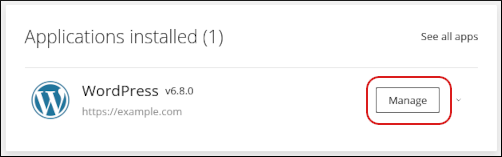
Manage WordPress settings
General
The General section opens first.-
To log in to your WordPress dashboard, click Login to admin.
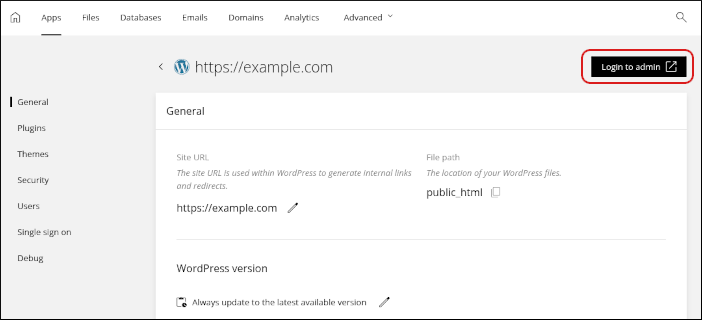 The dashboard opens in a new tab.
-
In the General section, you can also:
- Change the WordPress site URL.
- Change the location of your WordPress site files.
- Manage versions for your WordPress site.
- Enable or disable maintenance mode.
Plugins
To manage your WordPress plugins, click Plugins in the left sidebar.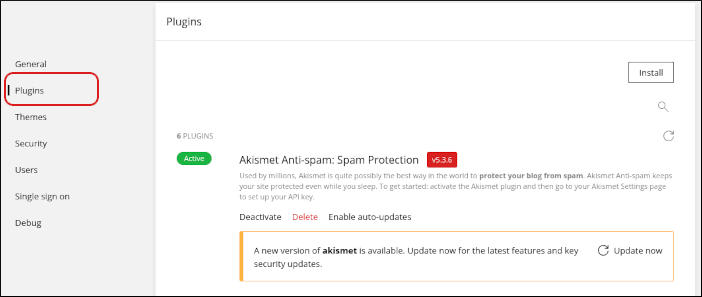 In the Plugins section, you can:
- View installed plugins, including version and status information.
- Install, activate, deactivate, update, and delete plugins.
Themes
To manage your WordPress themes, click Themes in the left sidebar.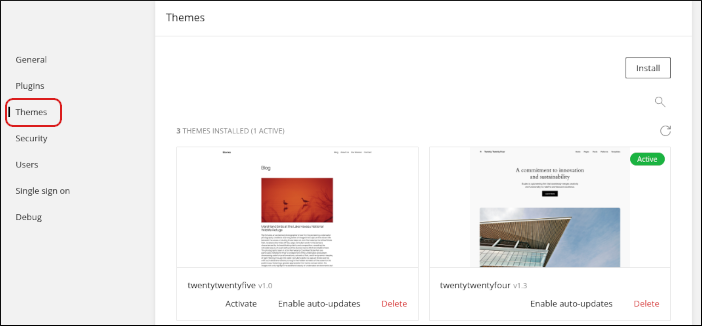 In the Themes section, you can:
- View installed themes, including version and status information.
- Install, activate, deactivate, update, and delete themes.
Security
To manage WordPress security settings, click Security in the left sidebar.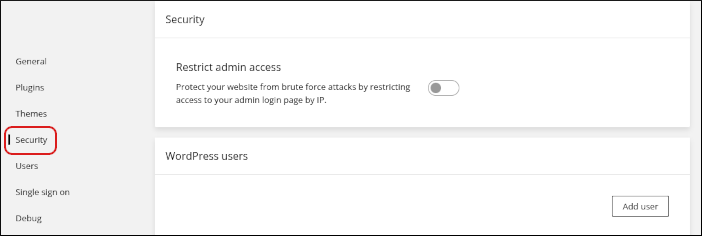 In the Security section, you can restrict administrative access to your WordPress site by IP address.
Users
To manage your WordPress user accounts, click Users in the left sidebar.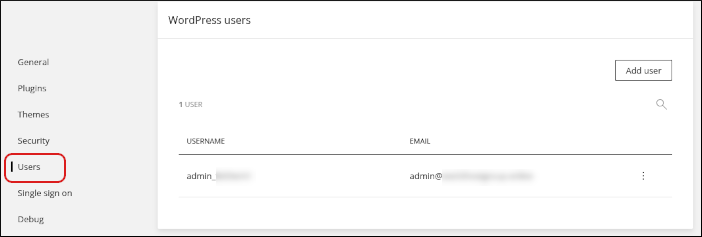 In the Users section, you can:
- Add a user account by clicking Add user.
- Modify an existing user account. You can change the username, email address, and password for an account.
- Delete a user account.
Single sign on
To manage single sign on settings for WordPress, click Single sign on in the left sidebar.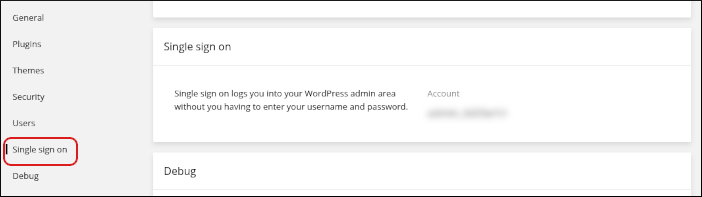 With single sign on, you can log in to your WordPress site without typing a separate username and password.
Debug
To configure WordPress debugging settings, click Debug in the left sidebar.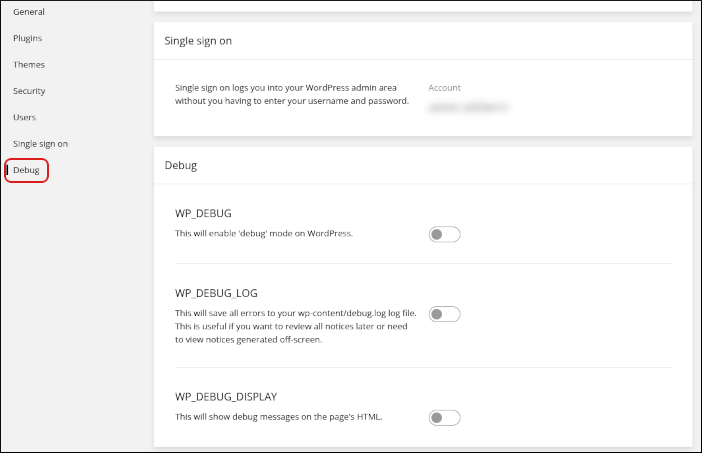 In the Debug section, you can enable these WordPress debugging settings:
- WP_DEBUG
- WP_DEBUG_LOG
- WP_DEBUG_DISPLAY