.jpg?fit=max&auto=format&n=E2LlsT5gBITvo732&q=85&s=ec11e1673894bdf46663a5d73602eb87)

Upload an image for gravatar in WordPress
To upload image to Media library, follow these steps:- Log in to your WordPress site with an administrator account.
-
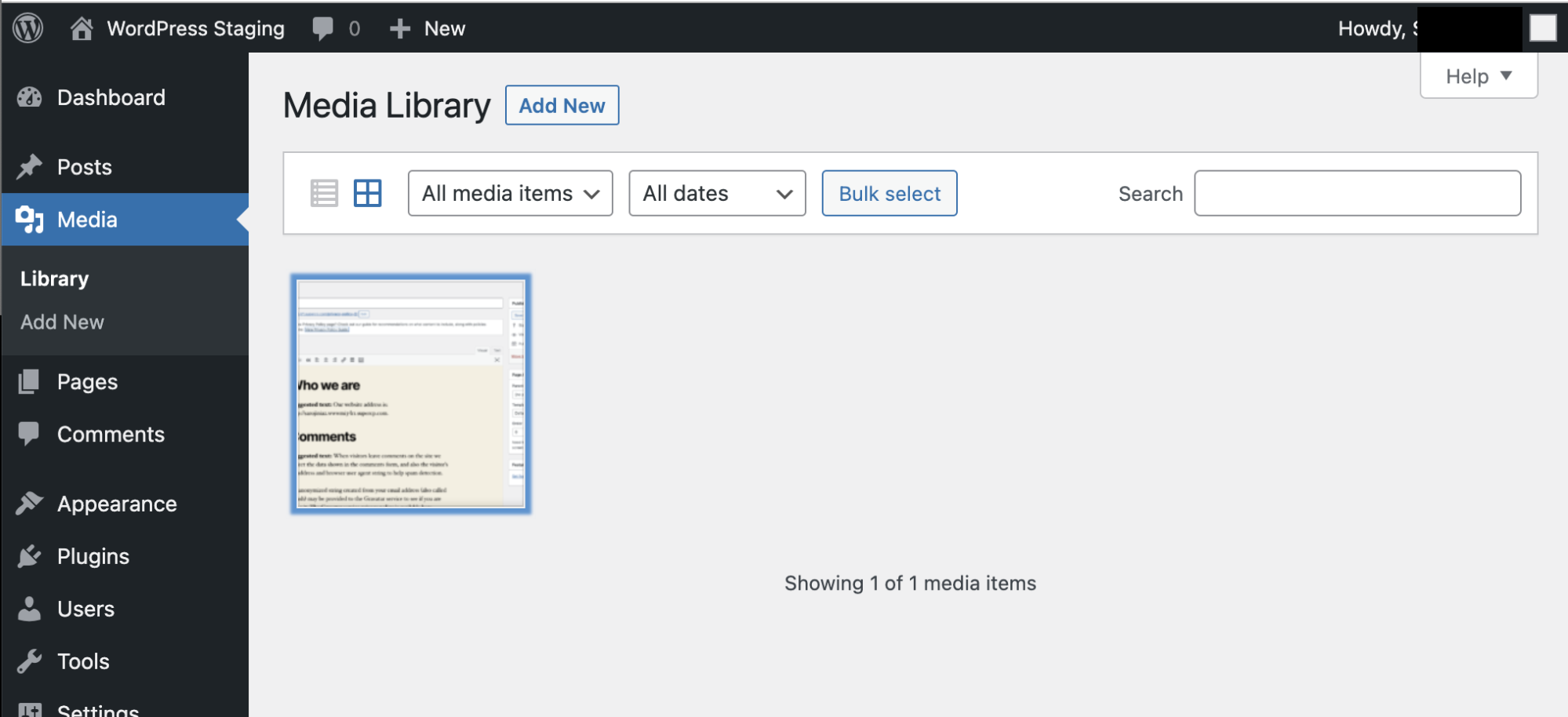
On the Dashboard in the left sidebar, click Media:
-
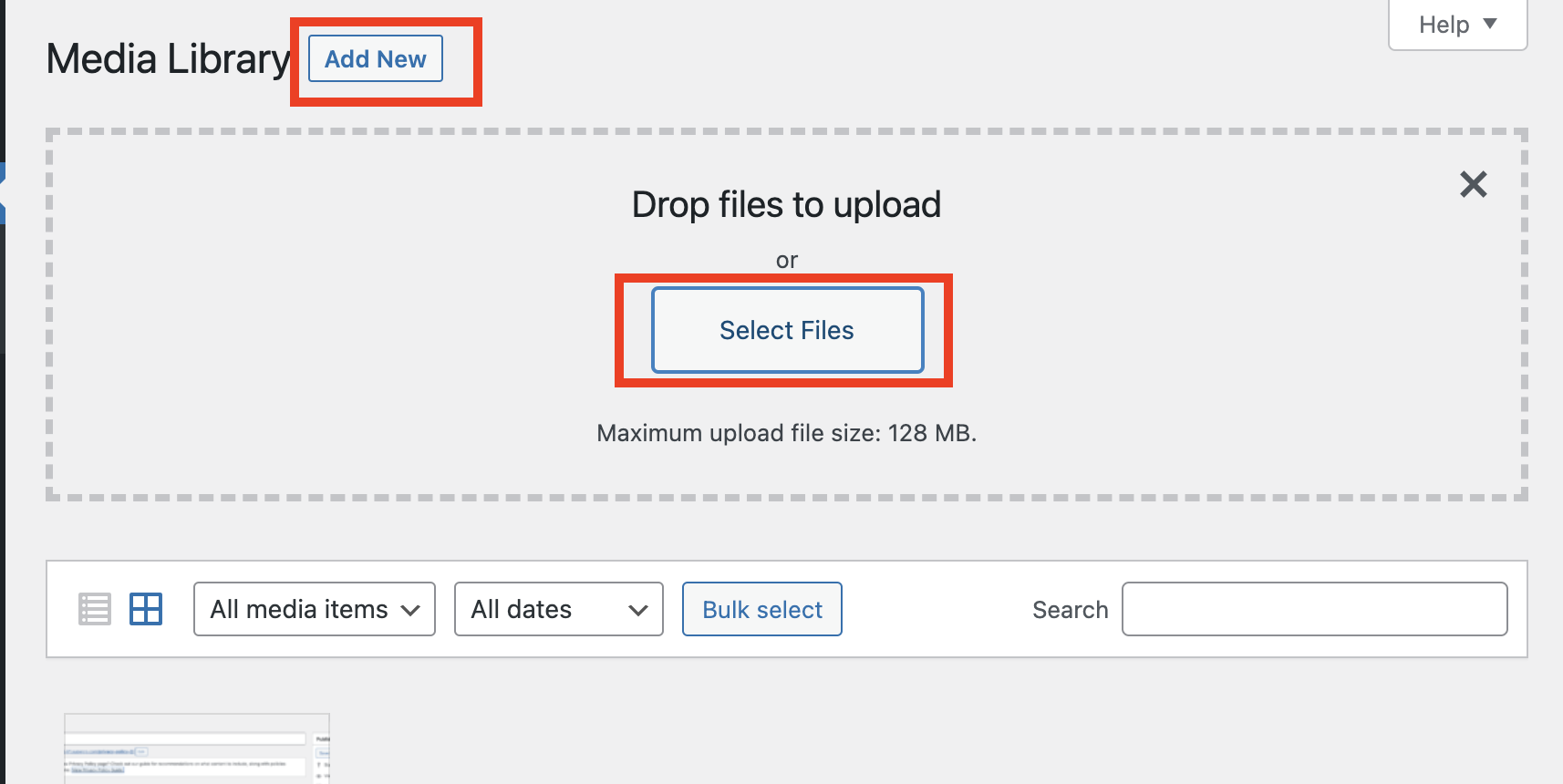
Click on Add New, and then click on Select Files to select and upload an gravatar image:
-
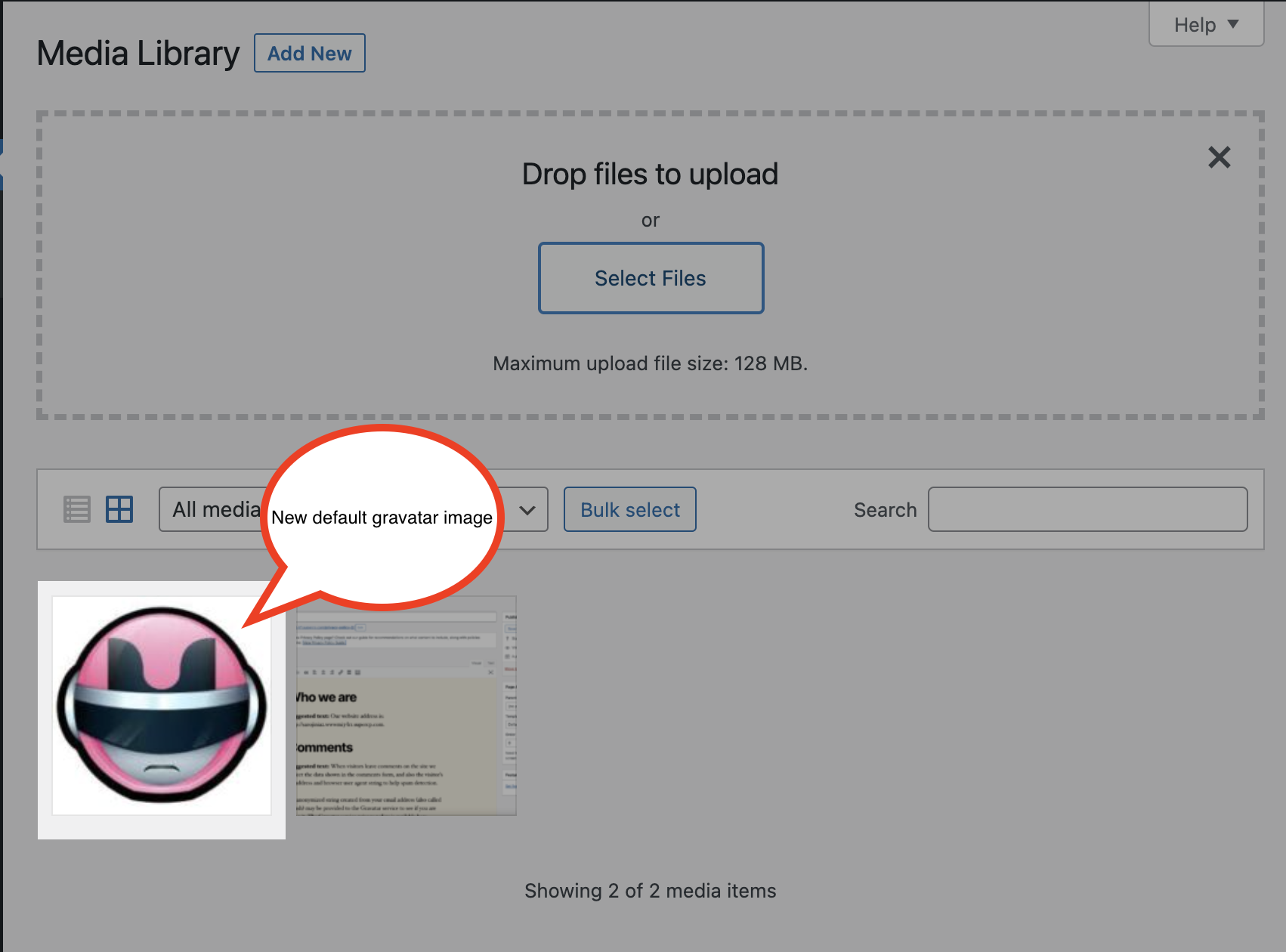
The new gravatar image is listed on the Media Library:
-
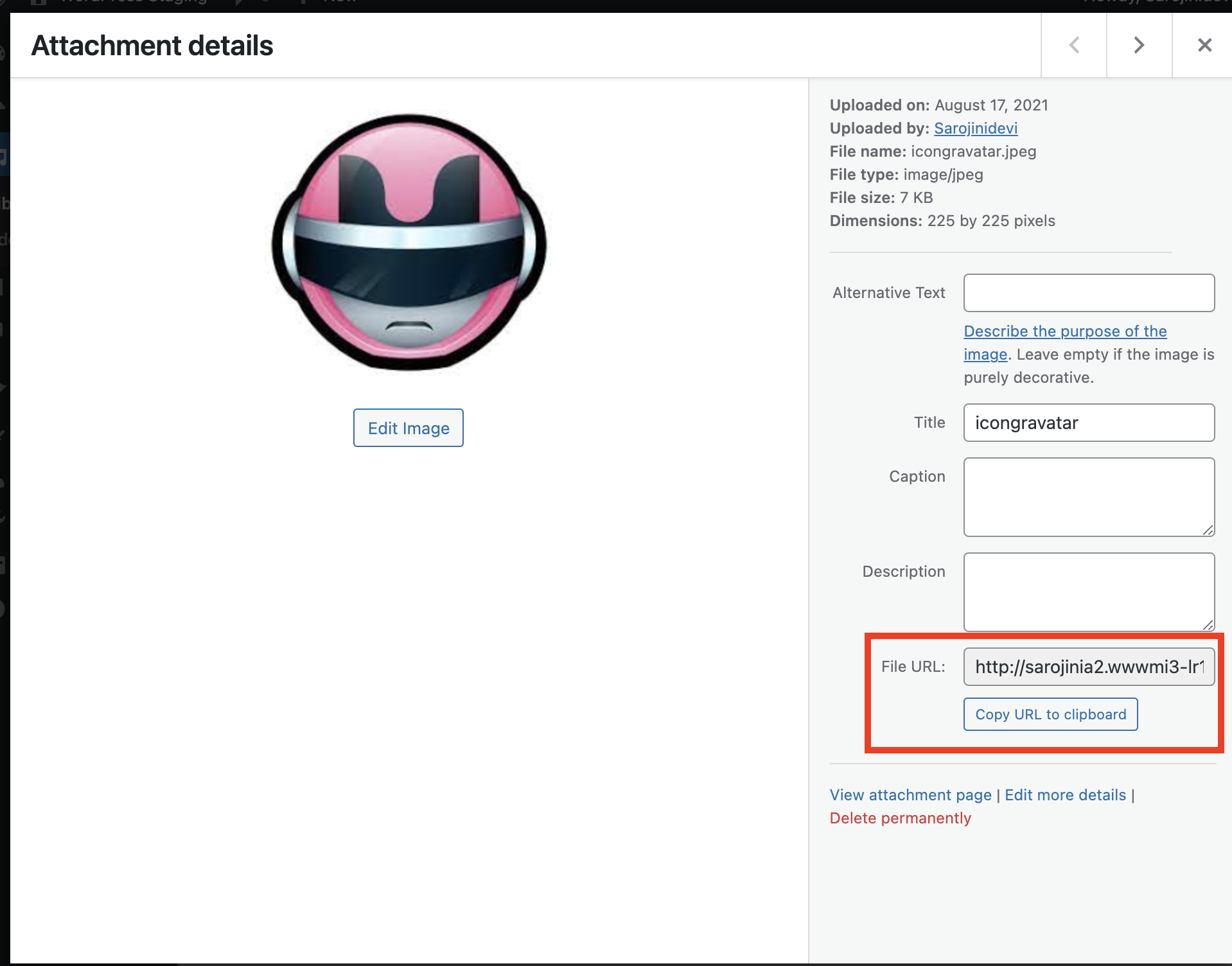
Click on the image, copy the File URL. This URL will be used in the code snippet in the upcoming sections:
Add a default gravatar in WordPress
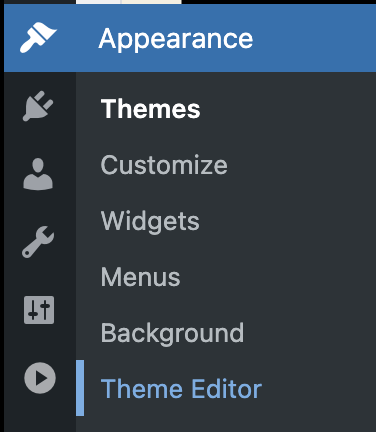
To add a default gravatar, follow these steps:- On the Dashboard in the left sidebar, click Appearance, and then click Theme Editor:
-
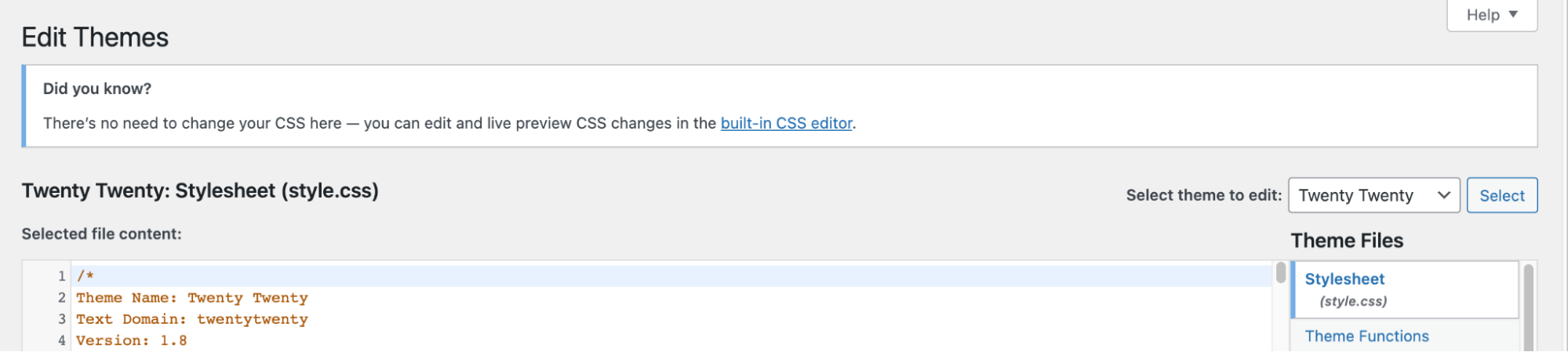
On the Theme Editor, select the Theme you want to edit from the dropdown:
-
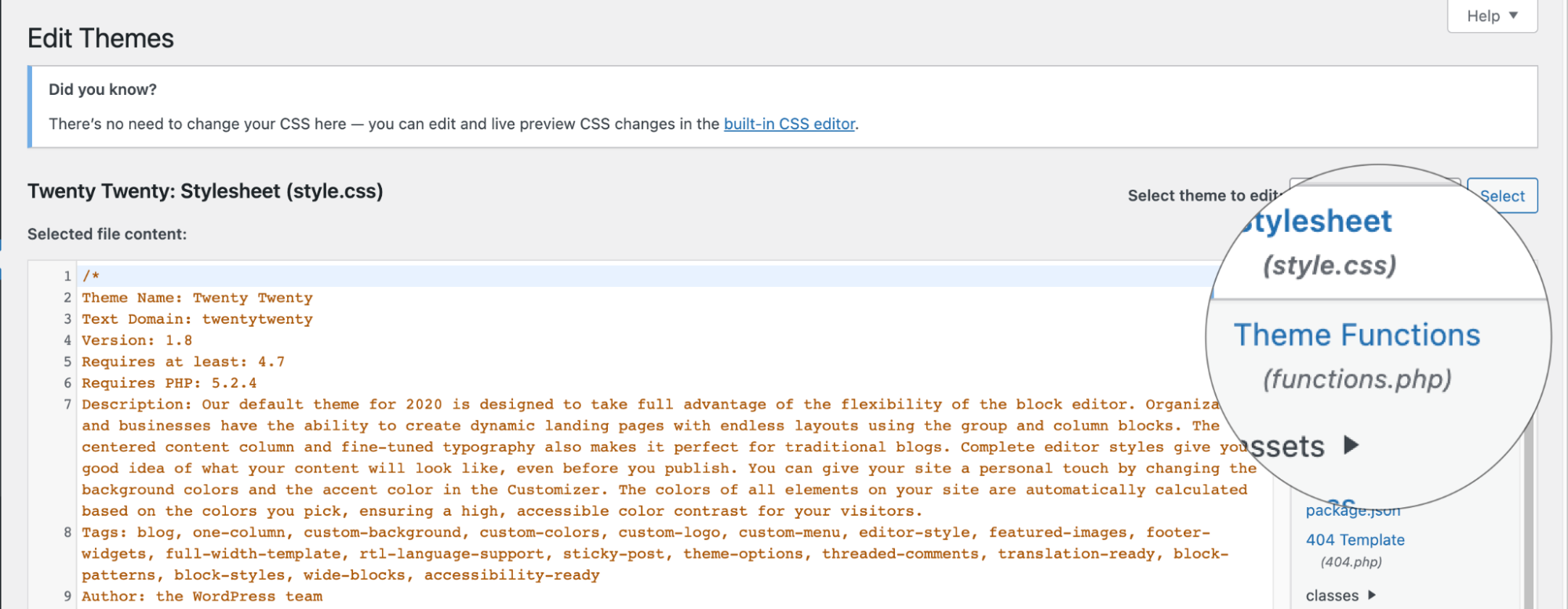
The files for this selected theme are listed on the right column under Theme Files. Click on the file named “functions.php”:
- Insert the following code to the end of functions.php file:
- Copy the URL from Step 5 inUpload an image for gravatar and replace URL for $myavatar in the function.Click Update File button to update the file.