.jpg?fit=max&auto=format&n=E2LlsT5gBITvo732&q=85&s=ec11e1673894bdf46663a5d73602eb87)
Managing database users
To access MySQL databases, you must first create at least one user. The following procedures describe how to manage MySQL database users using cPanel.Creating a database user
To create a MySQL database user, follow these steps:-
Log in to cPanel.
📘 Note If you do not know how to log in to your cPanel account, please see this article.
-
On the Tools page, in the Databases section, click Manage My Databases:

📘 Note If you are using cPanel version 118 or earlier, click MySQL Databases instead:
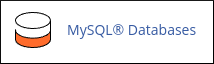
- Under Add New User, in the Username text box, type the MySQL username.
- In the Password text box, type the user password.
-
In the Password (Again) text box, retype the user password.
👍 Tip You can click Password Generator and cPanel generates a random, strong password for you.
- Click Create User. cPanel creates the database user.
Changing a user’s password
You can change a database user’s password. You may want to do this for security reasons (changing passwords periodically is a good security practice), or you may need to do this if you forget the password. To change a MySQL user’s password, follow these steps:-
Log in to cPanel.
📘 Note If you do not know how to log in to your cPanel account, please see this article.
-
On the Tools page, in the Databases section, click Manage My Databases:
📘 Note If you are using cPanel version 118 or earlier, click MySQL Databases instead:
- Under Current Users, locate the user for which you want to change the password, and then click Change Password.
-
In the Password and Password (Again) text boxes, type the new password.
👍 Tip You can click Password Generator and cPanel generates a random, strong password for you.
- Click Change Password. The new password takes effect immediately.
Renaming a user
To rename a MySQL user, follow these steps:-
Log in to cPanel.
📘 Note If you do not know how to log in to your cPanel account, please see this article.
-
On the Tools page, in the Databases section, click Manage My Databases:
📘 Note If you are using cPanel version 118 or earlier, click MySQL Databases instead:
- Under Current Users, locate the user that you want to rename, and then click Rename.
- In the New name text box, type the new name, and then click Proceed. cPanel renames the user.
Deleting a user
When you delete a user, the user and its database permissions are deleted. To delete a MySQL user, follow these steps:-
Log in to cPanel.
📘 Note If you do not know how to log in to your cPanel account, please see this article.
-
On the Tools page, in the Databases section, click Manage My Databases:
📘 Note If you are using cPanel version 118 or earlier, click MySQL Databases instead:
- Under Current Users, locate the user that you want to delete, and then click Delete.
- Click Delete User to confirm the deletion.
Managing databases
After you create a database user, you are ready to create a database and associate the user with the new database.Creating a database
To create a MySQL database, follow these steps:-
Log in to cPanel.
📘 Note If you do not know how to log in to your cPanel account, please see this article.
-
On the Tools page, in the Databases section, click Manage My Databases:
📘 Note If you are using cPanel version 118 or earlier, click MySQL Databases instead:
- Under Create New Database, in the New Database text box, type the name of the database.
-
Click Create Database. cPanel creates the database.
📘 Note When you create a database, your username is prefixed to the database name. For example, if your username is username, and you create a database named database, the actual MySQL database name is username_database.
Adding a user to a database
To add a MySQL user to a database, follow these steps:-
Log in to cPanel.
📘 Note If you do not know how to log in to your cPanel account, please see this article.
-
On the Tools page, in the Databases section, click Manage My Databases:
📘 Note If you are using cPanel version 118 or earlier, click MySQL Databases instead:
- Under Add User to Database, in the User list box, select the user that you want to add.
- In the Database list box, select the database.
- Click Add.
- Select the check boxes to grant the user specific privileges, or select the ALL PRIVILEGES check box to grant the user all permissions to the database.
- Click Make Changes. cPanel adds the user to the database.
Checking and repairing a database
You can check MySQL databases for errors or possible corruption. If a database check reveals problems, you can repair the database as well. To check and repair a database, follow these steps:-
Log in to cPanel.
📘 Note If you do not know how to log in to your cPanel account, please see this article.
-
On the Tools page, in the Databases section, click Manage My Databases:
📘 Note If you are using cPanel version 118 or earlier, click MySQL Databases instead:
-
To check a database:
- Under Modify Databases, in the Check Database list box, select the database.
- Click Check Database.
-
If a database check indicates problems with a database, you can repair it:
- Under Modify Databases, in the Repair Database list box, select the database.
- Click Repair Database.
Revoking privileges from a database user
When you revoke a database user’s privileges, the user can no longer access the database. To do this, follow these steps:-
Log in to cPanel.
📘 Note If you do not know how to log in to your cPanel account, please see this article.
-
On the Tools page, in the Databases section, click Manage My Databases:
📘 Note If you are using cPanel version 118 or earlier, click MySQL Databases instead:
-
Under Current Databases, locate the user for which you want to revoke privileges, and then click the trash can (
 ) icon.
- Click Revoke User Privileges from Database.
Deleting a database
Before you delete a database, make sure that you have a backup copy if you want to save any information that it contains.When you delete a database, any associated users are not deleted. However, all privileges users have for that database are revoked.
-
Log in to cPanel.
📘 Note If you do not know how to log in to your cPanel account, please see this article.
-
On the Tools page, in the Databases section, click Manage My Databases:
📘 Note If you are using cPanel version 118 or earlier, click MySQL Databases instead:
- Under Current Databases, locate the database that you want to delete, and then click Delete.
- Click Delete Database. cPanel deletes the database.