.jpg?fit=max&auto=format&n=E2LlsT5gBITvo732&q=85&s=ec11e1673894bdf46663a5d73602eb87)
Adding host access
To add remote host access for MySQL, follow these steps:- Open a support ticket on the hosting.com Hosting Panel at https://my.hosting.com. In the ticket, specify that you want to enable inbound access to MySQL port 3306 for your account.
-
You will receive confirmation from hosting.com Support that MySQL access is configured for your account. Log in to cPanel.
📘 Note If you do not know how to log in to your cPanel account, please see this article.
-
On the Tools page, in the Databases section, click Remote Database Access:
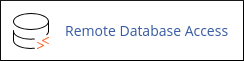
📘 Note If you are using cPanel version 118 or earlier, click Remote MySQL instead:
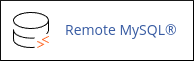
-
Under Add Access Host, in the Host text box, type the domain name or IP address of the host that you want to add.
👍 Tip
- To obtain your own IP address, use your web browser to visit http://ipfinder.us.
-
If you are adding access for the local loopback address, make sure you type
127.0.0.1. Do not typelocalhost.
- In the Comment text box, you can add an optional comment to describe the remote host.
- Click Add Host.
Accessing your database remotely
After you enable host access, you can connect to your MySQL databases remotely by using a MySQL client application. For more information about how to use MySQL client applications, please see this article.Removing host access
You can remove host access when you no longer want a host to be able to access your MySQL databases remotely. To remove host access, follow these steps:-
Log in to cPanel.
📘 Note If you do not know how to log in to your cPanel account, please see this article.
-
On the Tools page, in the Databases section, click Remote Database Access:
📘 Note If you are using cPanel version 118 or earlier, click Remote MySQL instead:
- Under Manage Access Hosts, locate the host for which you want to remove access, and then click Delete.
- Click Remove Access Host. cPanel removes the host.