.jpg?fit=max&auto=format&n=E2LlsT5gBITvo732&q=85&s=ec11e1673894bdf46663a5d73602eb87)

Installing the site
In this example, a developer has created a web page and placed it in a repository on Github. To install the site from the Git repository, follow these steps:-
Log in to cPanel.
📘 Note If you do not know how to log in to your cPanel account, please see this article.
-
On the Tools page, in the Files section, click Git Version Control:

-
On the Git Version Control page, click Create:

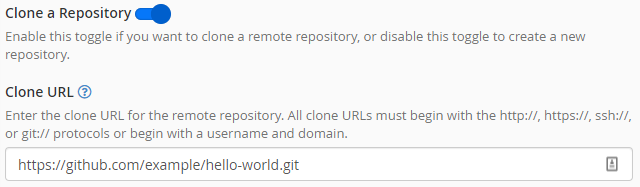
- On the Create Repository page, confirm that the Clone a Repository slider is enabled.
-
In the Clone URL text box, type the URL of the repository to clone. In this example, the site is being cloned from GitHub:
-
In the Repository Path text box, type the path to the document root of the site:
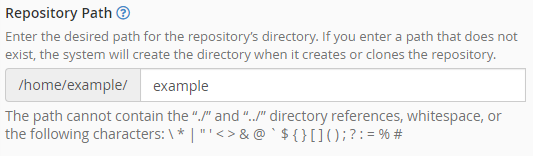
👍 Tip Typically, the document root directory is public_html. However, you can install the site in a subdirectory beneath public_html if you want. If you do this, make sure you set the correct permissions for the directory so the site is visible. For information about how to set file permissions, please see this article.
-
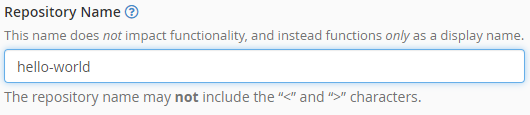
In the Repository Name text box, type a descriptive name for your repository:
-
Click Create:
In the document root directory there is now the index.html file containing the ‘Hello World!’ message and a .git directory that contains files used by Git:
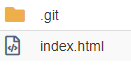
📘 Note The .git directory is not visible to site visitors by default.
Updating the site
The site developer has created an ‘About’ page to supplement the ‘Hello World!’ message, and has added it to the Github repository. To update the site, follow these steps:-
Log in to cPanel.
📘 Note If you do not know how to log in to your cPanel account, please see this article.
-
On the Tools page, in the Files section, click Git Version Control:
-
Locate the hello-world repository, and then click Manage:

-
Click the Pull or Deploy tab:

-
Click Update from Remote:
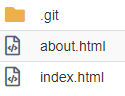
 The new about.html page is now in the document root directory:
Cloning a private repository
For public repositories, the previous procedures work as expected. However, if you try to clone a private repository using the procedure above, you receive an error message that resembles the following:-
At the command line on your hosting.com account, if you have not already done so, create an SSH key pair:
-
View the text of the public key:
- Copy the text of the public key you obtained in step 2.
-
Add the SSH public key text to the Git provider you are using:
- For information about how to add an SSH key in GitHub, please visit https://docs.github.com/en/github/authenticating-to-github/connecting-to-github-with-ssh/adding-a-new-ssh-key-to-your-github-account.
- For information about how to add an SSH key in GitLab, please visit https://docs.gitlab.com/ee/ssh.
- For information about how to add an SSH key in Bitbucket, please visit https://confluence.atlassian.com/bitbucketserver/enable-ssh-access-to-git-repositories-776640358.html.
-
At the command line on your account, type one of the following commands to test the connection to the Git provider:
-
For GitHub, type the following command:
-
For GitLab, type the following command:
-
For Bitbucket, type the following command:
-
For GitHub, type the following command:
-
After you verify that the SSH connection is working, you are ready to clone the private repository using the ssh:// protocol. In cPanel, follow these steps:
-
On the Tools page, in the Files section, click Git Version Control:
-
On the Git Version Control page, click Create:
- On the Create Repository page, confirm that the Clone a Repository slider is enabled.
-
In the Clone URL text box, type the URL of the repository to clone, using the ssh:// protocol. For example, to clone a private GitHub repository you would type
ssh://[email protected]/username/repository.git, where username represents your GitHub username, and repository represents the name of the repository you want to clone. -
In the Repository Path text box, type the path to the document root of the site:
👍 Tip Typically, the document root directory is public_html. However, you can install the site in a subdirectory beneath public_html if you want. If you do this, make sure you set the correct permissions for the directory so the site is visible. For information about how to set file permissions, please see this article.
-
In the Repository Name text box, type a descriptive name for your repository:
-
Click Create:
-
On the Tools page, in the Files section, click Git Version Control: