.jpg?fit=max&auto=format&n=E2LlsT5gBITvo732&q=85&s=ec11e1673894bdf46663a5d73602eb87)
Managing your email messages
To manage email messages using webmail, follow these steps:- Log in to your webmail account at https://webmail.hosting.com
- Your inbox appears. Click on a message:
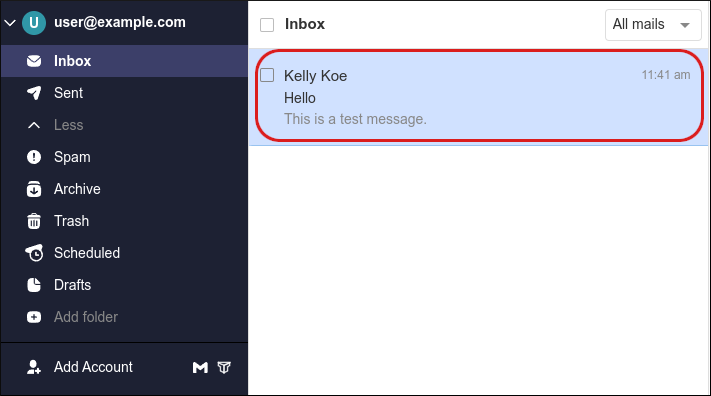 The message appears in the viewing pane:
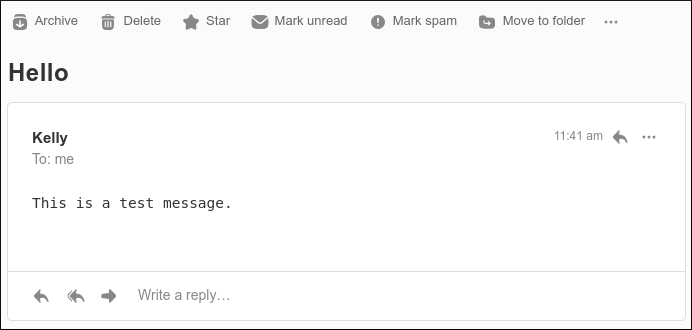
- There are several options available in the viewing pane:
- Archive: Click this option to move the message to the Archive folder.
- Delete: Click this option to move the message to the Trash folder.
- Star: Click this option to mark an important message.
- Mark unread / Mark read: Click this option to mark the message as unread (or if it is currently marked unread, to mark it as read).
- Mark spam: Click this option to mark the message as spam and move it to the Spam folder.
- Move to folder: Click this option to move the message to a specific folder.
- Print conversation: Click this option to generate a printed hard copy of the message.
Configuring the conversation view
You can configure how replies to messages appear in your inbox:- By default, message replies are grouped together as a continuous single conversation. The oldest email message in the thread is at the top, and the most recent message is at the bottom.
- However, you can switch to a non-threaded view, where each new reply appears as a separate message.
- Log in to your webmail account at https://webmail.hosting.com
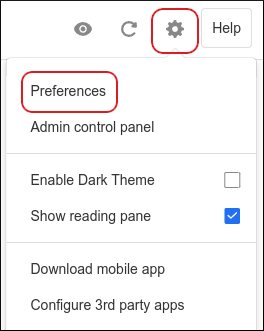
- Click the Settings (gear) icon, and then click Preferences:
- In the left sidebar, click General:
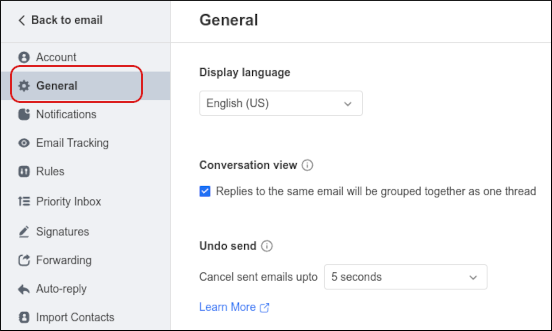
- Under Conversation View, select the view you want:
-
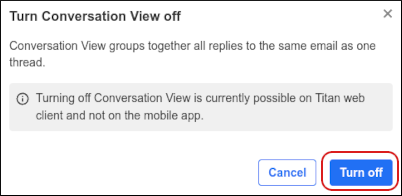
To view message replies as separate messages, clear the Replies to the same email will be grouped together as one thread check box, and then click Turn off:
-
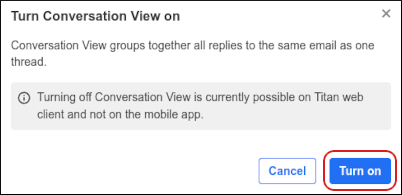
To view message replies grouped together as one thread, select the Replies to the same email will be grouped together as one thread check box, and then click Turn on:
Note
For more information about this feature, please see this article.
-
To view message replies as separate messages, clear the Replies to the same email will be grouped together as one thread check box, and then click Turn off:
More information
For more information about how to manage your email messages in webmail, please visit https://support.titan.email/hc/en-us/articles/360038799693-Email-actions-manage-your-email.Related articles
- Importing contacts into Professional Email accounts
- Changing your password for Professional Email accounts
- Setting up your domain’s DNS records for Professional Email
- Setting up Professional Email on Android devices
- Setting up Professional Email on Apple iOS devices