.jpg?fit=max&auto=format&n=E2LlsT5gBITvo732&q=85&s=ec11e1673894bdf46663a5d73602eb87)

There are other ways to update WordPress:
- You can update WordPress using Softaculous. For information about how to do this, please see this article.
- You can update WordPress using the command line. For information about how do this, please see this article.
Updating WordPress manually
You should update a WordPress installation frequently to ensure it is running the latest version. There are several reasons for this:- Security: WordPress updates contain fixes that patch security vulnerabilities. One of the most important things you can do to maintain a more secure WordPress site is apply updates regularly.
- Stability: WordPress updates contain fixes that patch bugs and other issues. Your site is more stable when you apply the latest updates.
- New features: WordPress is continually improving, and by running the latest version, you have access to the latest features and functionality.
- Log in to WordPress as the administrator.
-
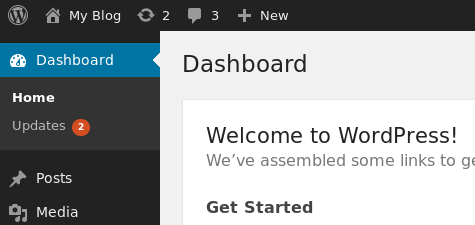
In the left sidebar, click Dashboard, and when updates are available, the number of updates are indicated in a red circle:
- Click Updates. WordPress displays any updates available for the WordPress core installation, plugins, and themes:
- To update WordPress, click Upgrade Automatically.
- To update plugins, select the plugin or plugins that you want to update, and then click Update Plugins.
- To update themes, select the theme or themes that you want to update, and then click Update Themes.
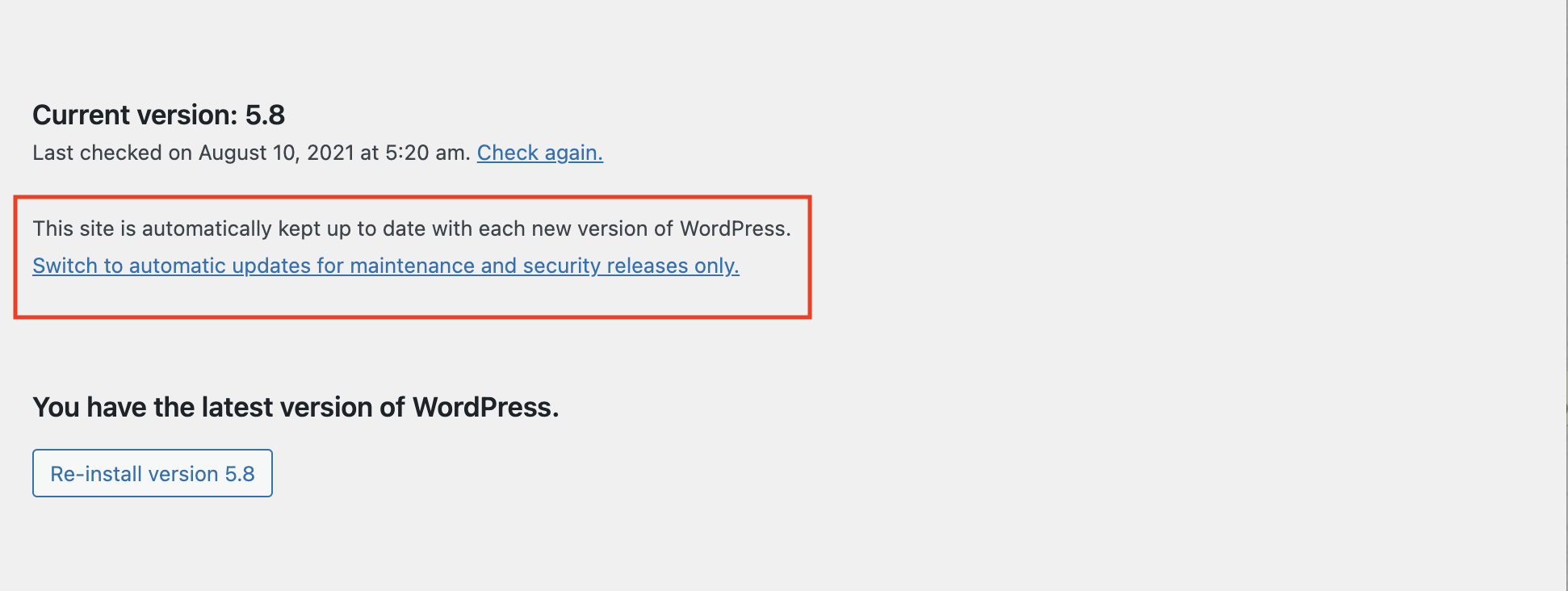
- To keep the WordPress site updated automatically, click the Switch to automatic updates… link: