.jpg?fit=max&auto=format&n=E2LlsT5gBITvo732&q=85&s=ec11e1673894bdf46663a5d73602eb87)
Installing and configuring Duplicate Post plugin on WordPress
To add install and configure Duplicate Post plugin on WordPress, follow these steps:- Log in to your WordPress site with an administrator account.
-
On the Dashboard in the left sidebar, click Plugins, and then click Add New:
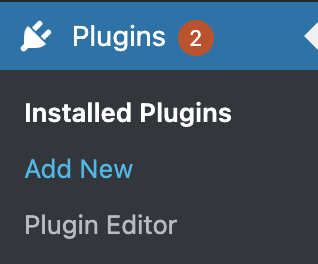
-
Search for “Duplicate post” and, you should see a display of available plugins on your screen:
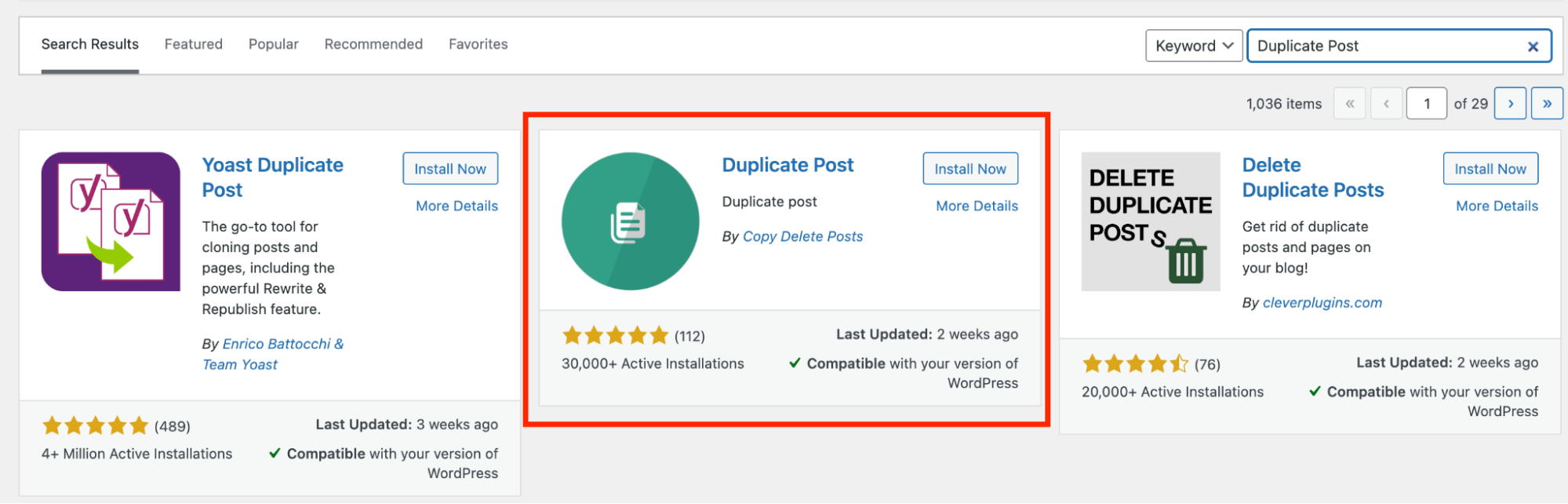
-
Click Install and then Activate the plugin:
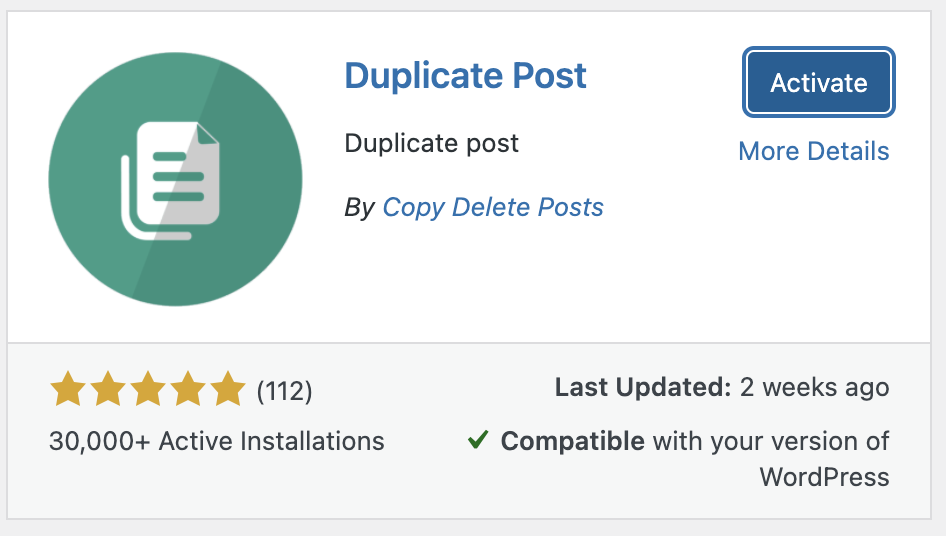
-
On the Dashboard in the left sidebar, click Copy, Paste and Delete:
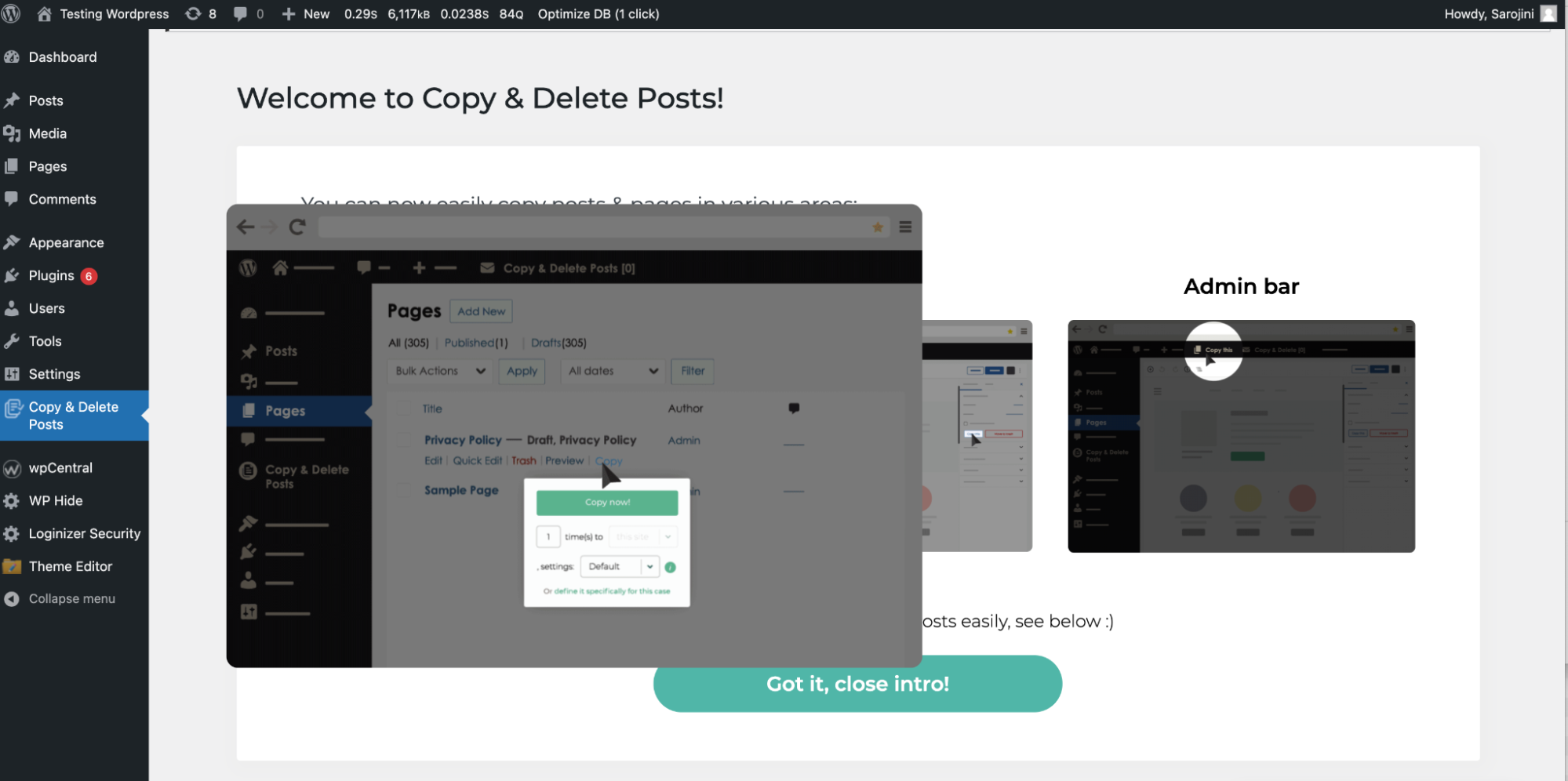
-
Configure the default settings and set the elements of the page or post to be copied and then click Save:
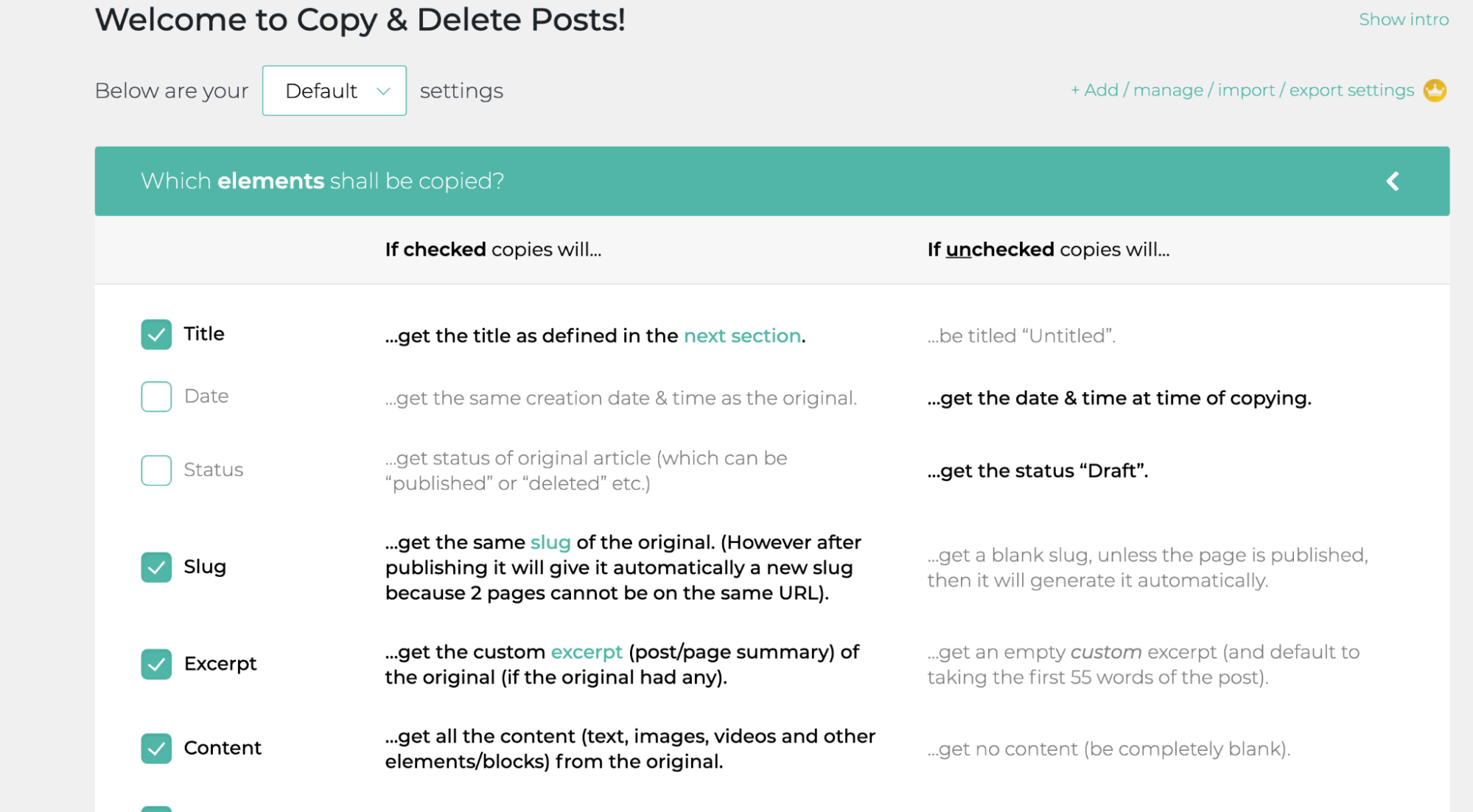
How to copy or duplicate content using Duplicate Post plugin
To copy or duplicate content in WordPress with the plugin, follow these steps:-
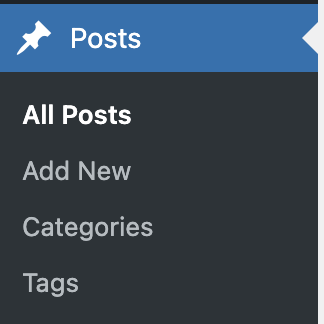
On the Dashboard in the left sidebar, click Post, and then click All Post:
-
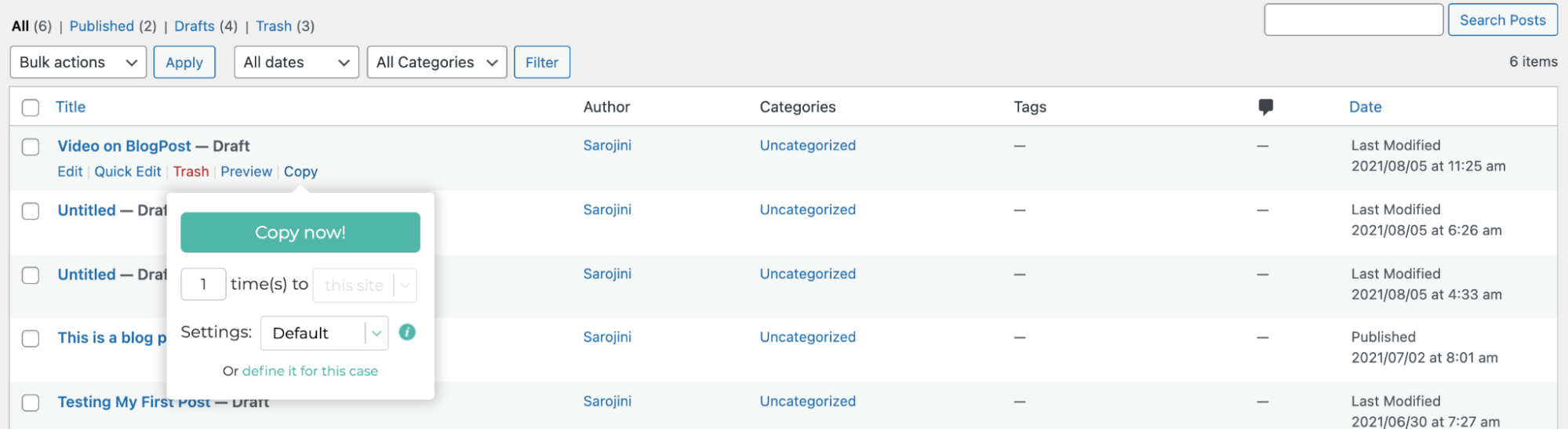
Select the blog, click Copy, and then click Copy Now:
-
The duplicated content is on the post list and named with #[number] represents a duplicate copy. The number after # shows the number of times the content has been copied:

-
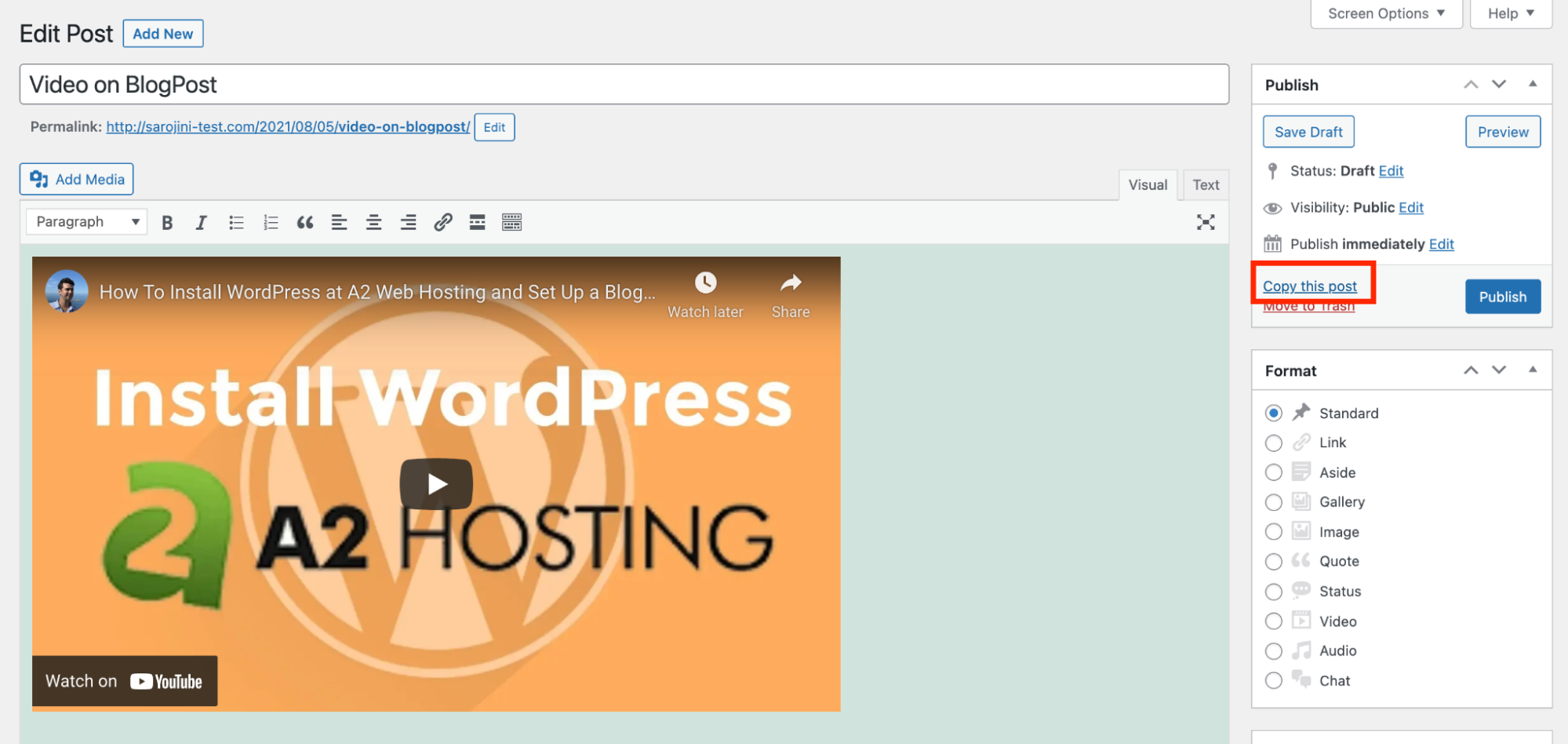
To make a copy of the content from the visual editor, open the content on the right hand panel click on Copy this post:
-
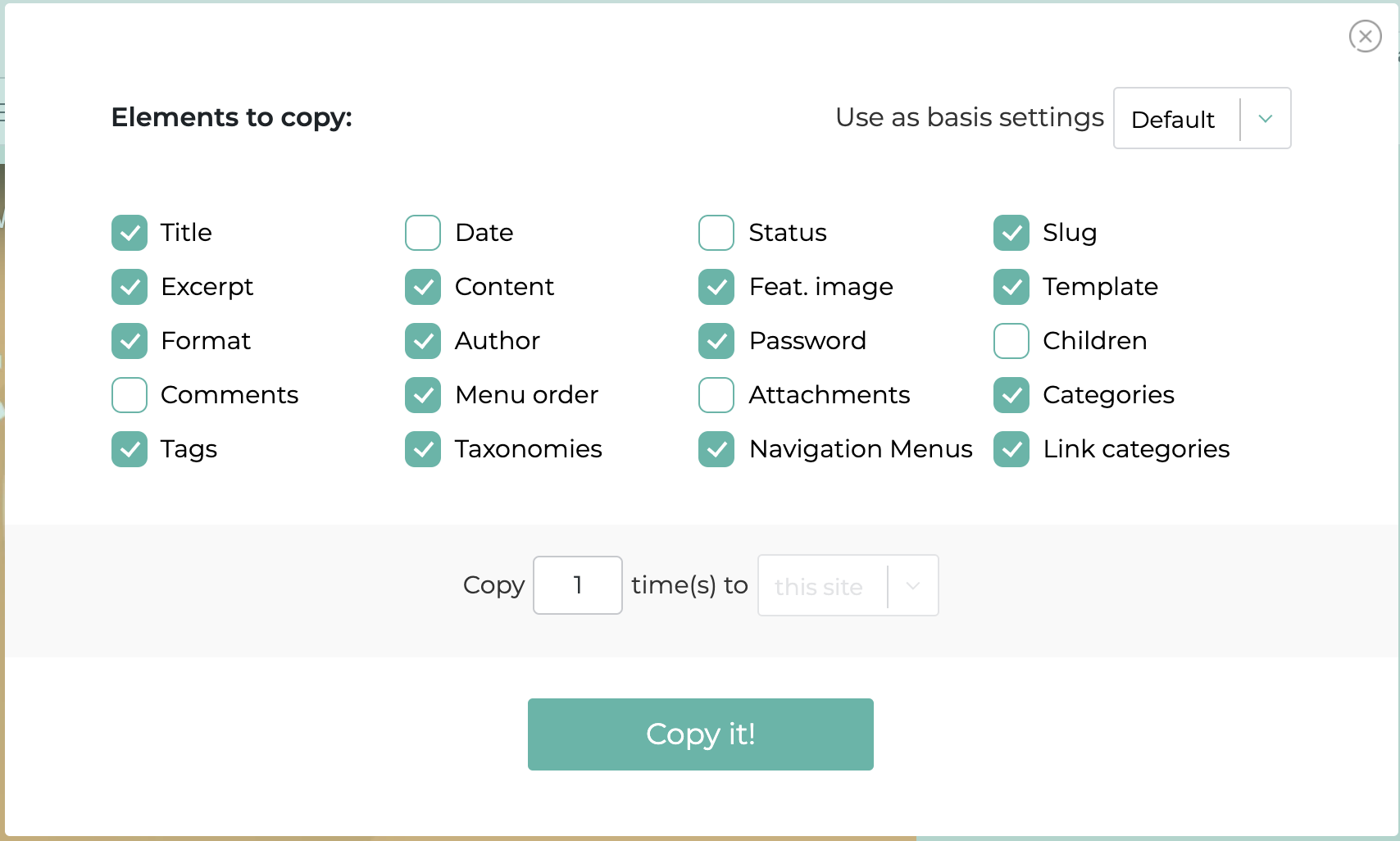
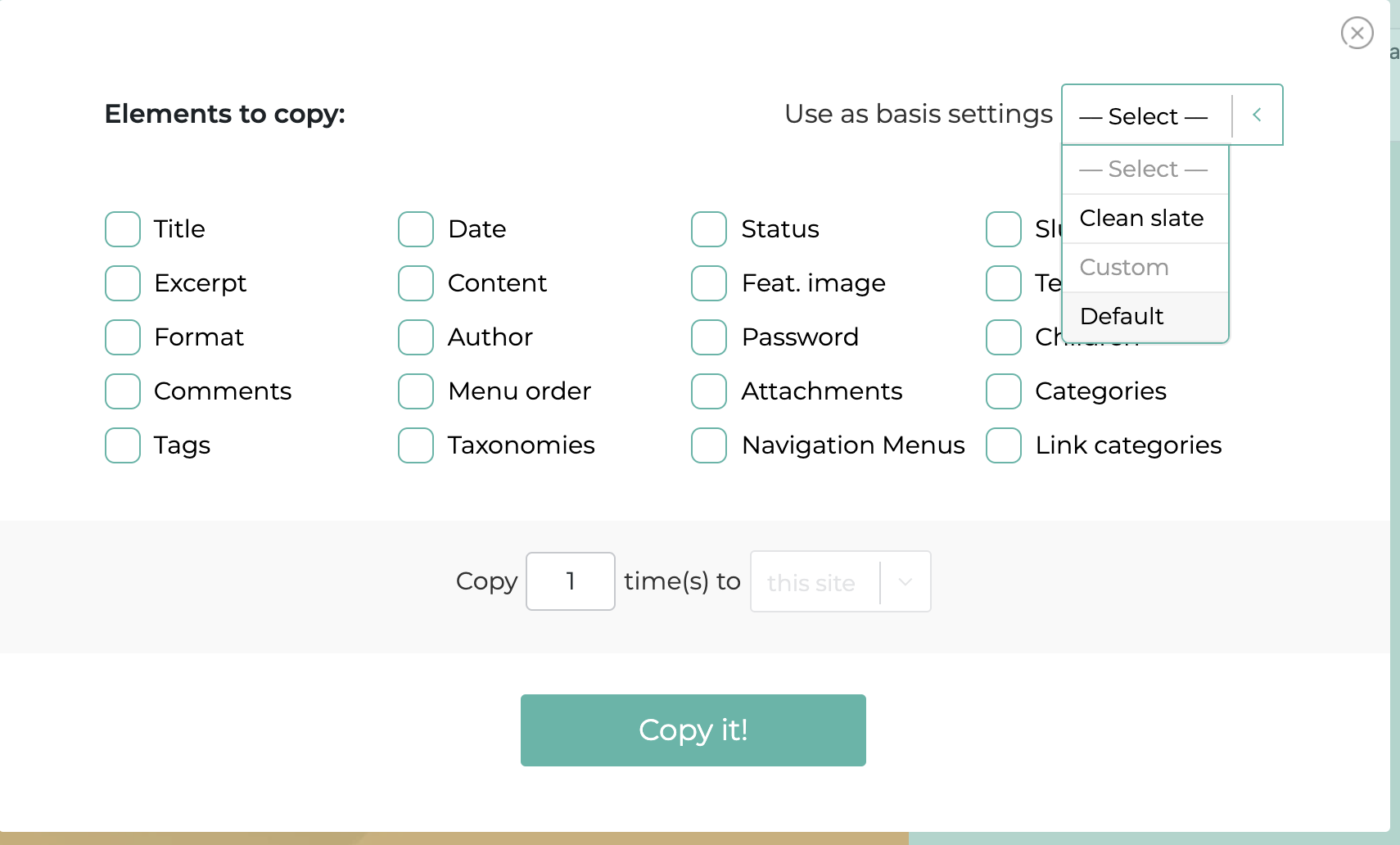
Select the elements you want to copy from the content, or select the Default option from the Use as basis settings to populate the element for the duplicate copy:
-
Click on Copy it!, after selecting the elements to copy. Click on All Post, and the newly duplicated content is displayed: