Displaying content statistics on your WordPress site
Learn how to showcase WordPress site content statistics to your users. This article shows you how to add a Simple Blog Stats plugin to your WordPress site.
You have created multiple content on your WordPress site and would like to show your users the collection of interesting articles you have. Showcasing your content statistics creates an interesting perspective of the wealth of resources and user interaction on your site. This article will show you the steps to add the Simple Blog Stats plugin to your site and have your content statistics show up in no time.
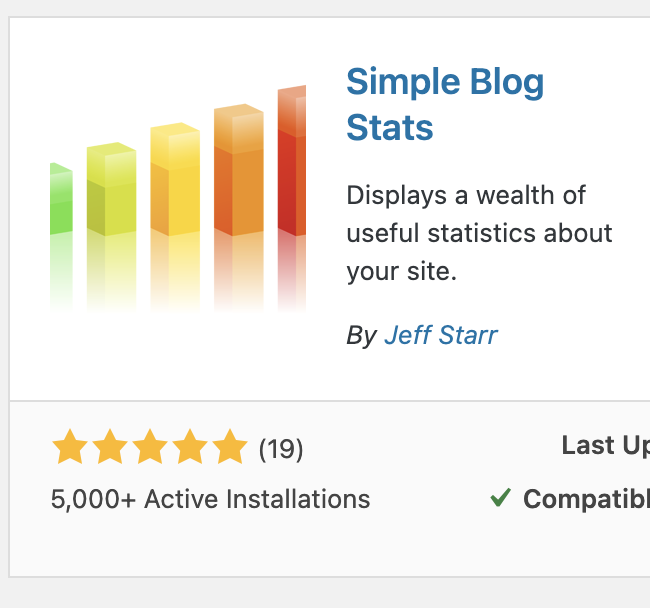
Simple Blog Stats is a plugin available for free in WordPress, which gives you shortcodes and tags to display your site’s statistics on posts, pages or anywhere on your WordPress site. You can pull up and show the following statistics anywhere on your site:
Total number of posts
Total number of pages
Total number of drafts
Total number of comments
Total number of media files (any types)
Number of comments in moderation
Number of approved comments
Number of registered users
Number of categories
Number of tags
Number of words for any post
Number of words for all posts
Display all blog statistics in a list
Display number of posts for any Custom Post Type
Display list of counts for all Custom Post Types
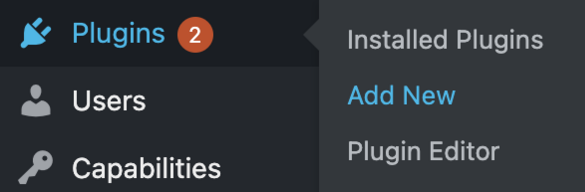
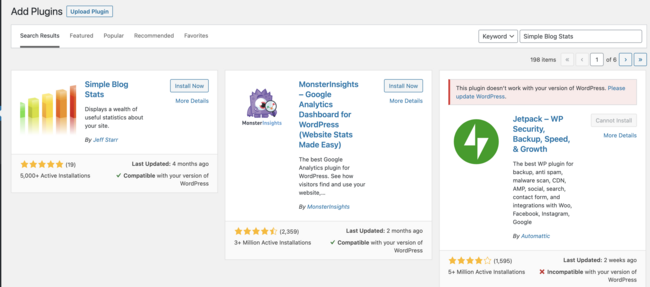
Now that you know what statistics you can display, let’s learn how to install this plugin on your WordPress site.
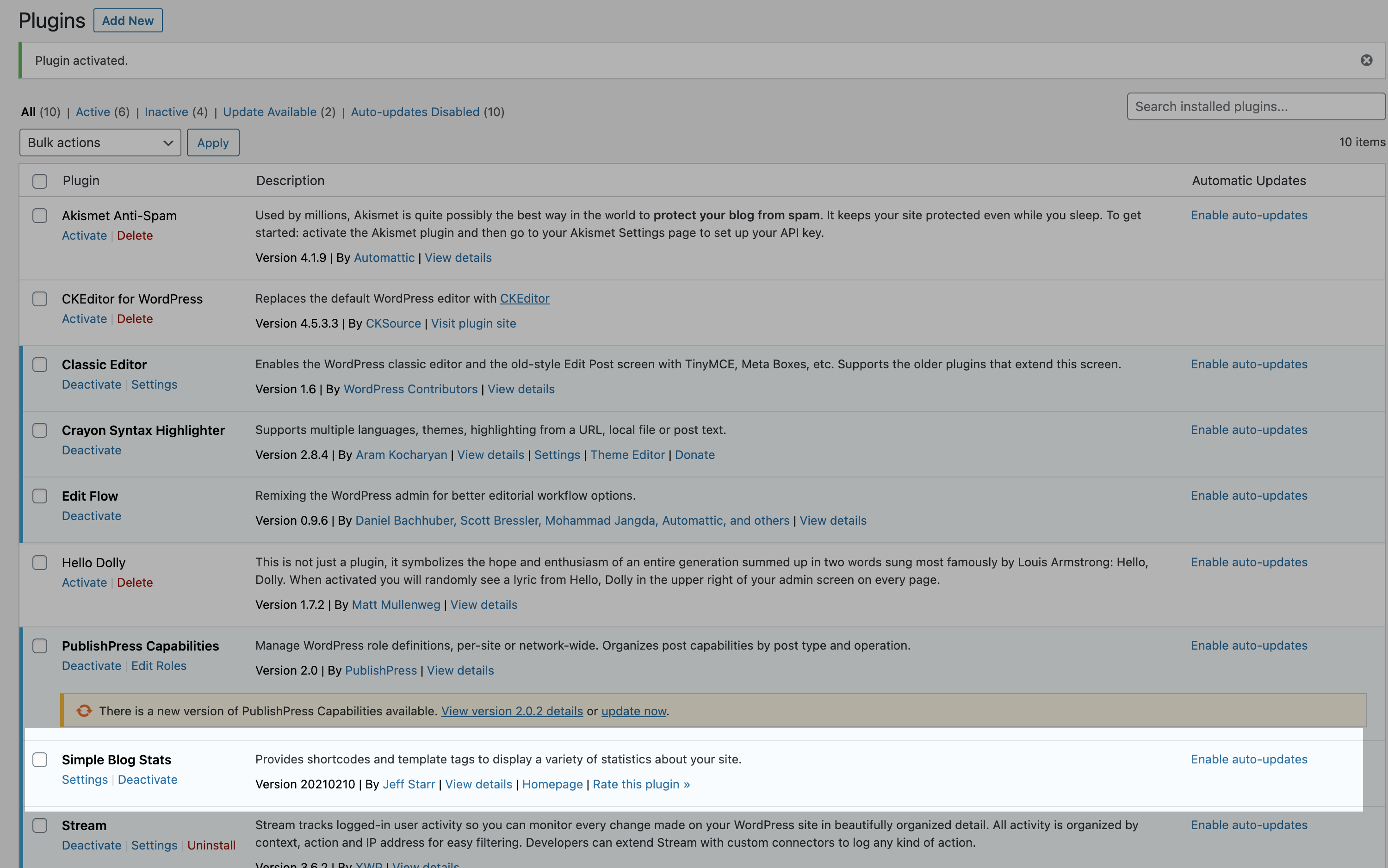
Now that you have successfully installed and activated the plugin, let’s build a simple page to show your site’s blog statistics. To do this, follow these steps:
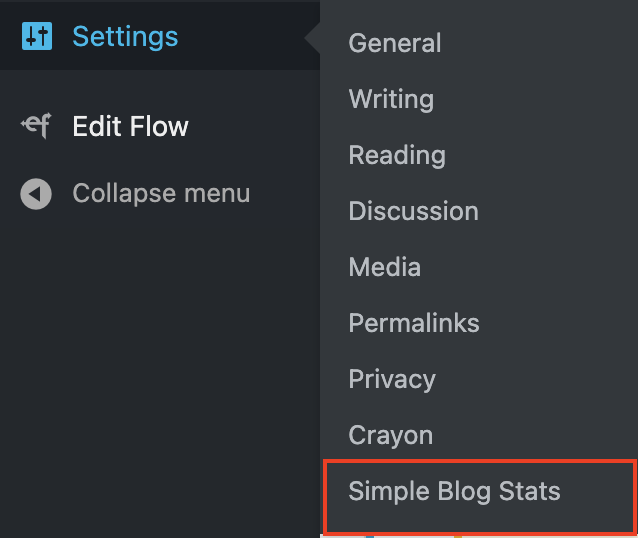
On the Dashboard in the left sidebar, click Settings, and then click Simple Blog Stats:
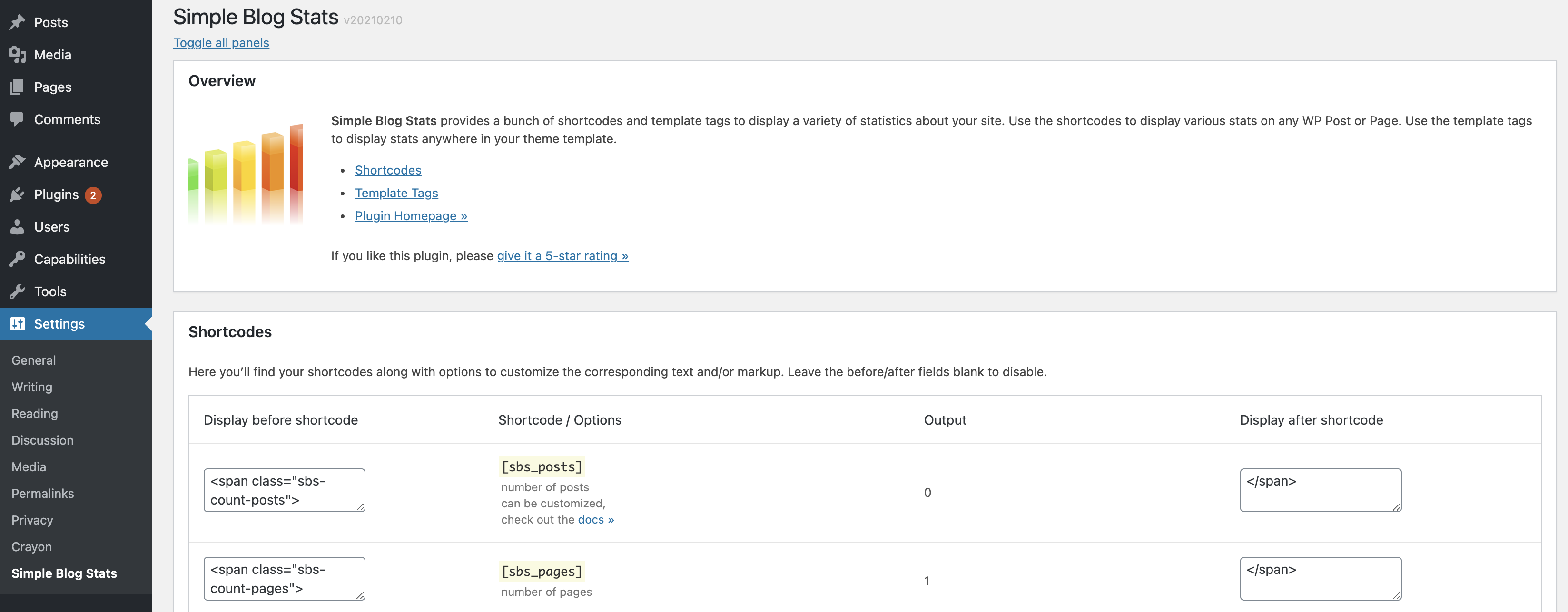
The Simple Blog Stats page appears with a bunch of shortcodes for you to copy and use on posts, pages, or anywhere you need to have the statistics displayed:
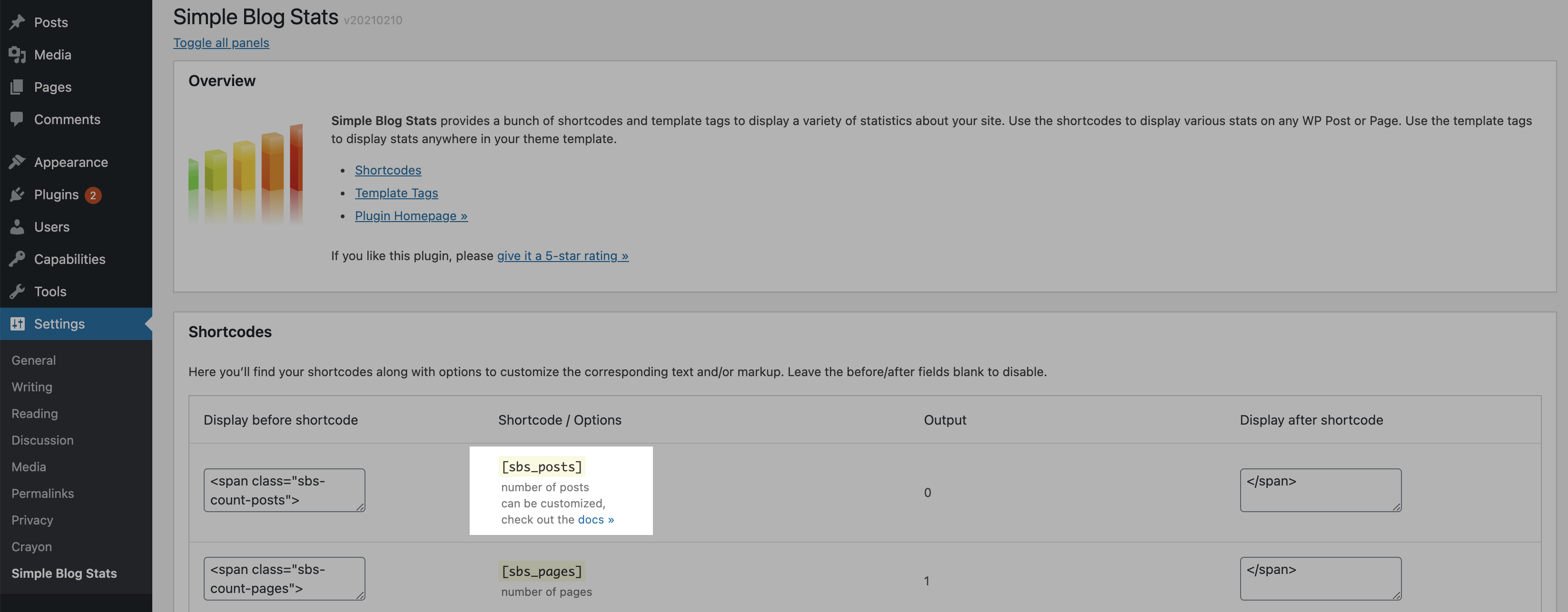
Click on the shortcodes, run through the list and copy the shortcode you need. For this exercise, copy the post shortcode [sbs_posts]. This shortcode displays the number of published posts on the site:
To copy a shortcode use the copy command (for Windows, Ctrl+C; for Mac, Command-C), or right-click and copy the shortcode.
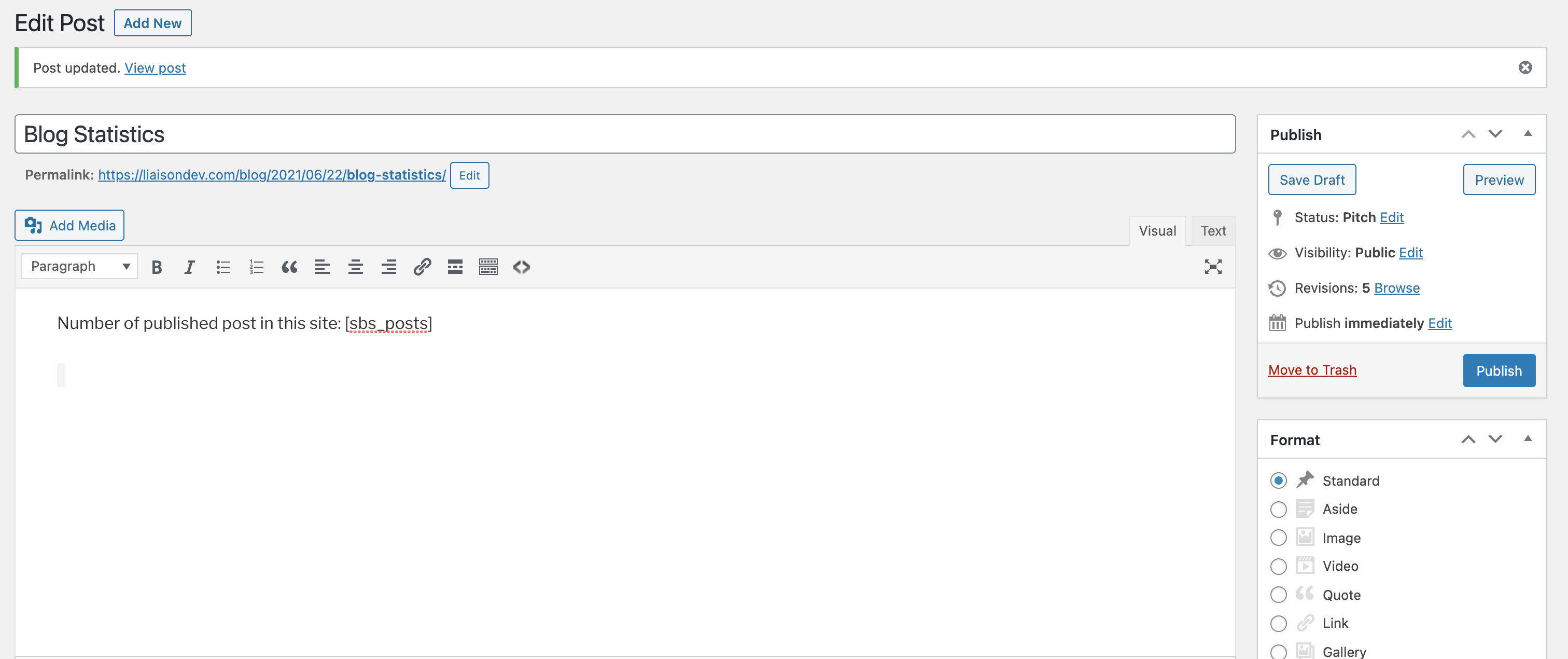
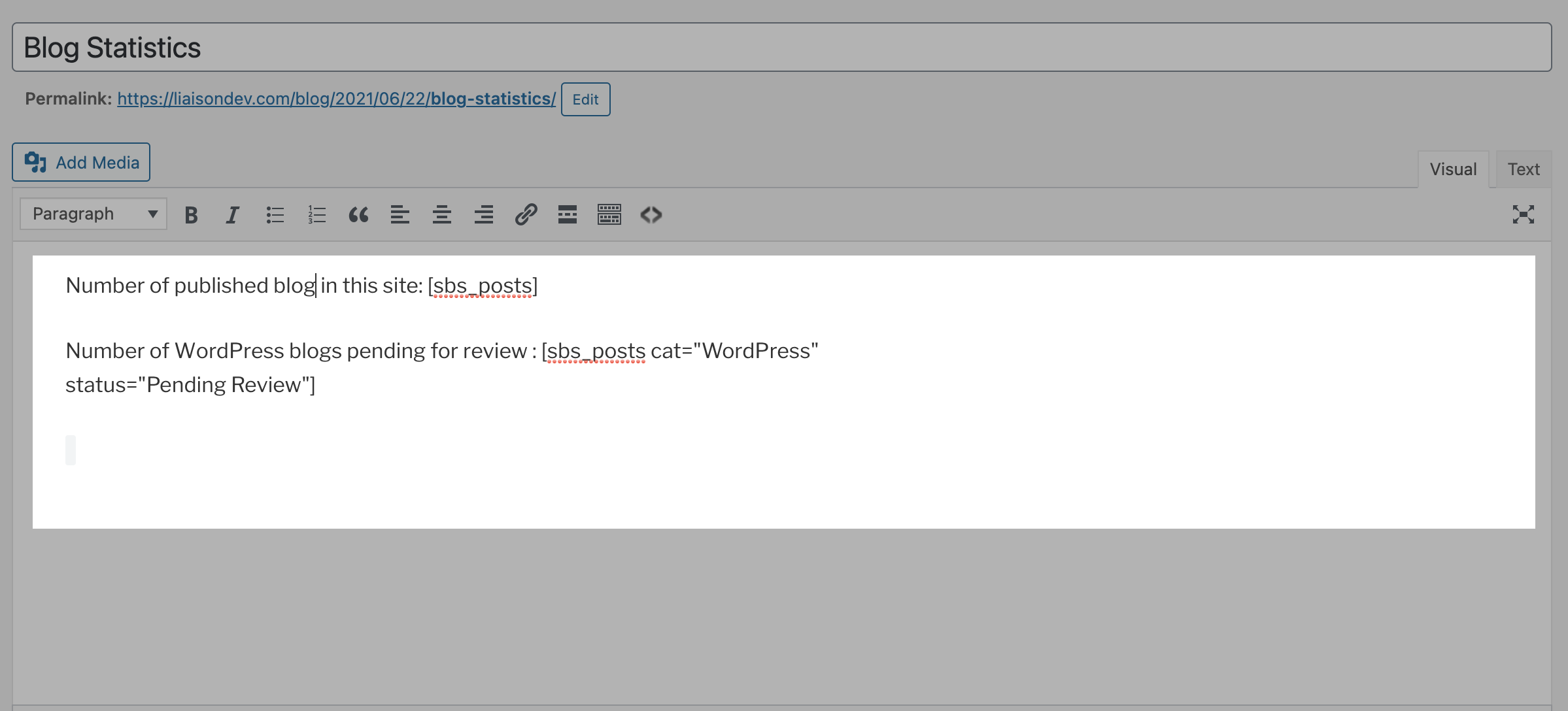
Create a new post and paste the shortcode:
Click Preview or Publish to view the result. In this example, there are no published blogs on this site; so it shows zero results:
ImportantBy default, [sbs_posts] with no attributes displays the total number of published posts in any category or tag.
To display the number of blogs or posts from a specific category and status, you can add the attributes to define the filter criteria as shown below.
To display the number of blogs in the category “WordPress” and status “Pending review the shortcode will have the following attributes:
.jpg?fit=max&auto=format&n=E2LlsT5gBITvo732&q=85&s=ec11e1673894bdf46663a5d73602eb87)