

What is Imapsync?
Imapsync is a tool for migrating or backing up email mailboxes between IMAP servers. It copies messages from a source mailbox to a destination mailbox, preserving folder structure, read/unread and flagged status, and original timestamps, without creating duplicates on repeat runs. This guide uses the free hosted web version, so no terminal or software installation is required — just a browser. It works between any two IMAP-capable providers (e.g., SmarterMail, Gmail, Microsoft 365/Outlook, Zimbra, cPanel, Dovecot, and most others).Before You Start
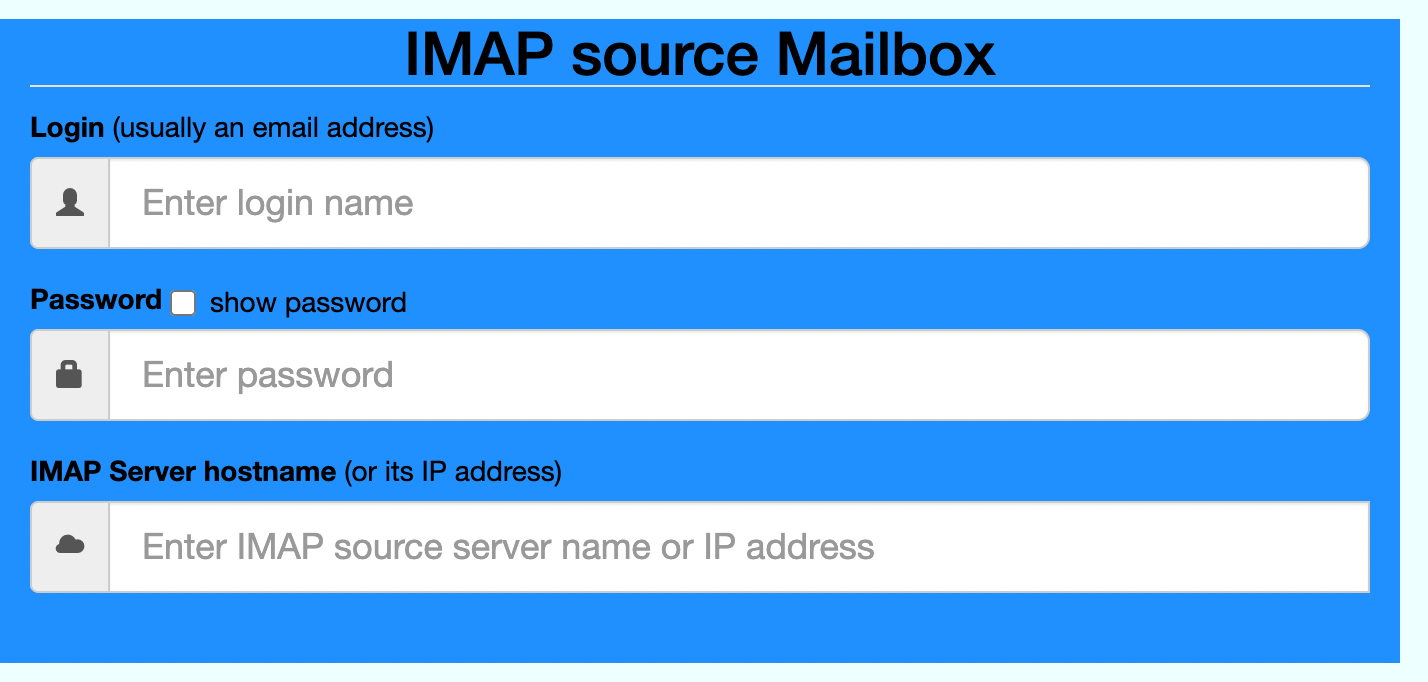
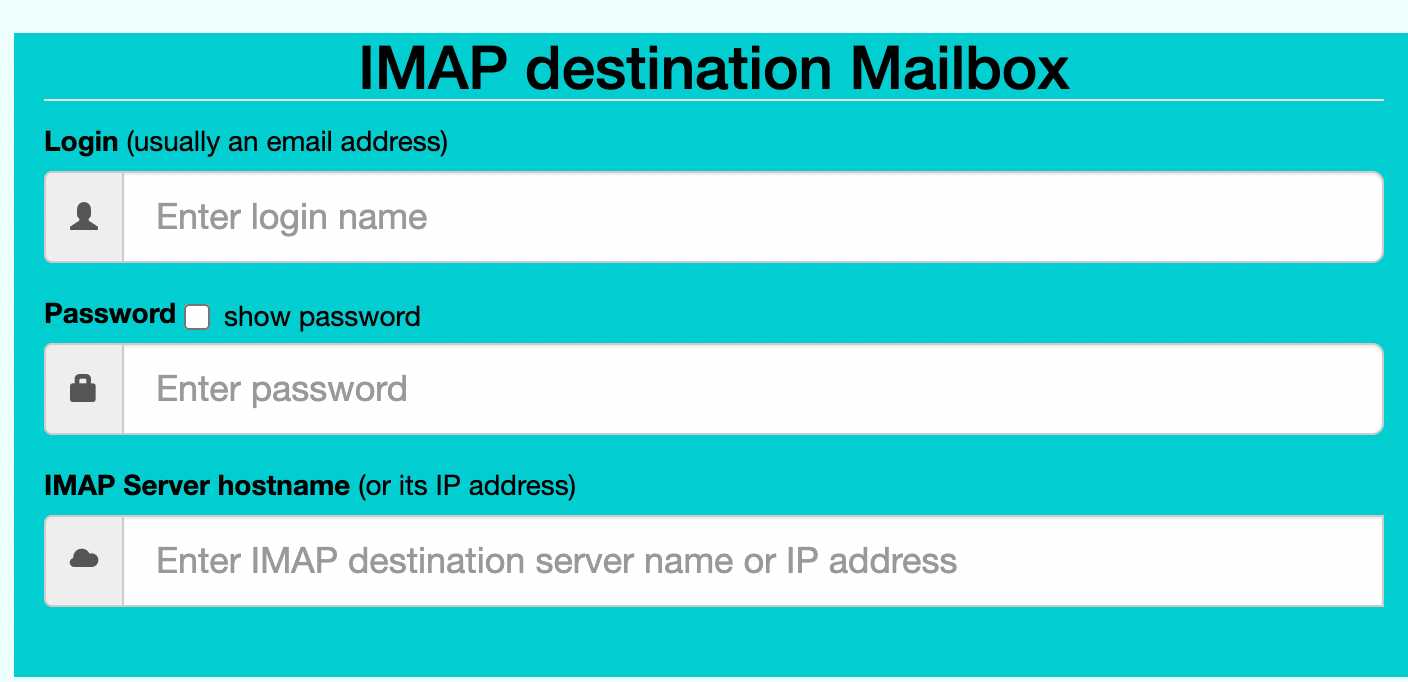
You’ll need, for both the source and destination mailbox:- The IMAP server hostname and port (check the mailbox provider’s documentation if unsure)
- The full email address (username)
- The account password, or an app password if 2-factor authentication is enabled
Tip: If either mailbox has 2FA enabled, generate an app password first — the regular account password usually won’t work for IMAP logins in that case.
Step-by-Step Migration Process
Step 1: Access the Tool
Go to: https://imapsync.lamiral.info/X/Step 2: Fill in Source Mailbox Details
Step 3: Fill in Destination Mailbox Details
Step 4: Start the Migration
Click the button to launch the sync. The page will display a live log as imapsync connects to both mailboxes and transfers folders and messages. Leave the browser tab open until it completes — larger mailboxes take longer.Step 5: Review the Results
Once finished, check the summary log for the number of folders and messages transferred, and any errors or skipped items. If anything failed, you can safely re-run the migration — imapsync only transfers what’s missing on the destination, so it won’t create duplicates.Step 6: Clean Up
If you created a temporary app password for this migration, revoke it once you’ve confirmed everything transferred correctly.Alternative Tools
Troubleshooting
- Login fails: double-check the server hostname/port for both mailboxes, and confirm whether either provider requires an app password.
- Migration seems stuck: large mailboxes take time — check the live log rather than assuming it’s frozen.
- Some folders missing after sync: enable any “auto-map folders” option if the tool offers one, to translate provider-specific folder names into standard ones.
- Duplicate messages after re-running: this shouldn’t normally happen, but if it does, look for a “delete duplicates on destination” option.